
Fix Your Zoom Mic and Speaker Audio Issues in Minutes
 sds sdsd
The Types of Zoom Audio Issues
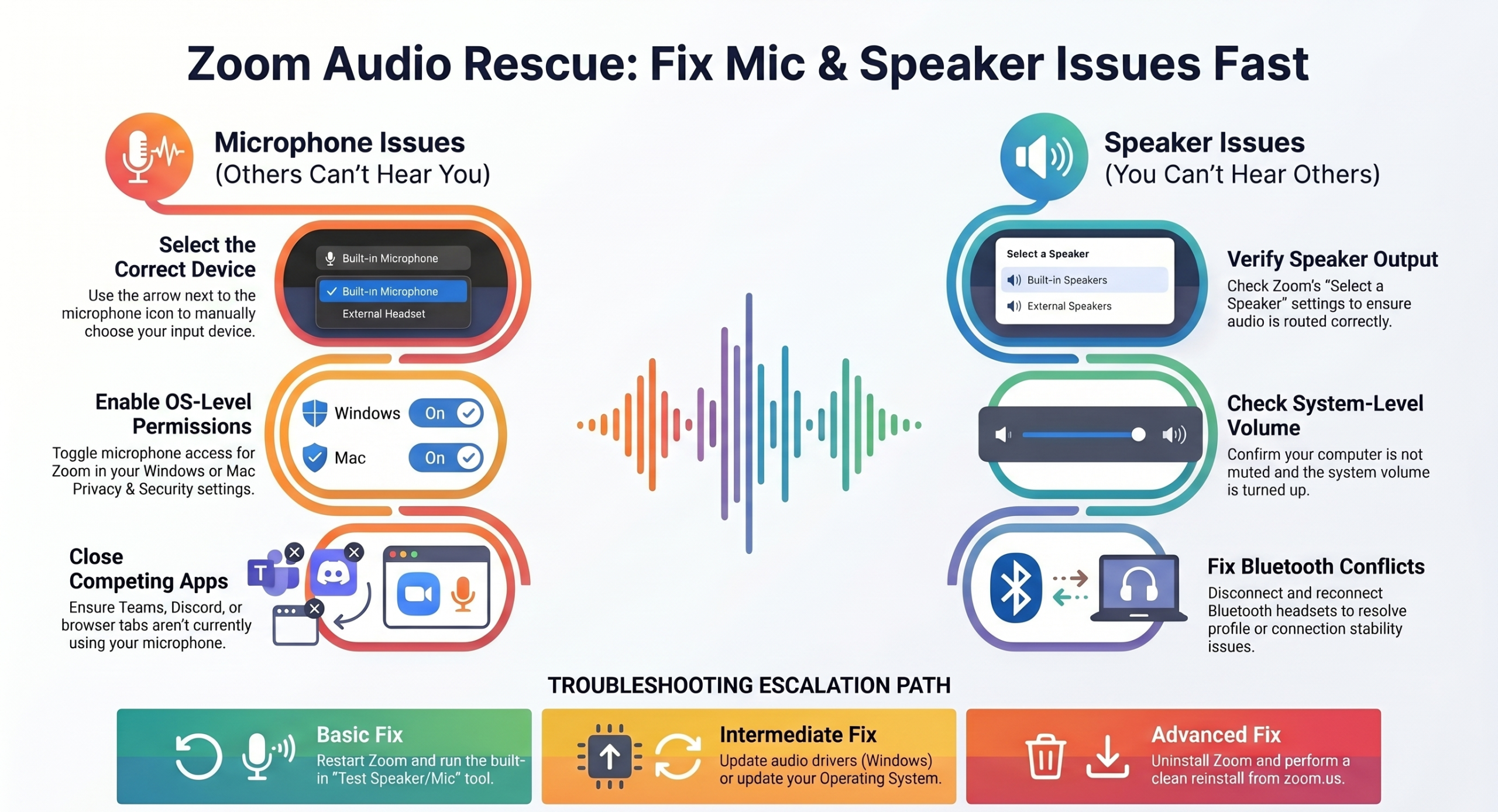
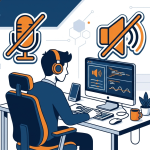
Zoom audio problems fall into two distinct categories (listed below). Most guides mix them up, which is why users are still searching. This guide separates them clearly so you can fix the right problem fast:
Input problem → Microphone not working, i.e., others can’t hear you.
Output problem → Speakers not working, i.e., you can’t hear others.
1. Is Your Zoom Audio Not Working? Try These Quick Fixes.
Most Zoom audio issues are resolved by one of these steps.
- Restart Zoom completely. Quit the app and reopen it. Check for Zoom outages as well.
- Check that your microphone and speakers are selected correctly in Zoom’s audio settings
- Make sure Zoom has permission to use your mic and audio (OS-level, not just in Zoom)
- Close other apps that may be using your microphone (Teams, Discord, browser tabs)
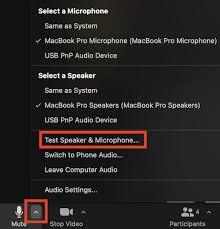
- Run the built-in audio test: Settings → Audio → Test Speaker / Test Mic
- Update Zoom to the latest version
- Restart your device
If none of these fix it, your problem is one of the specific issues below.
2. Why Your Zoom Audio Is Not Working
Before trying random fixes, identify which category your problem falls into. Each has a different cause and a different solution path.
Microphone (input): Wrong device selected, permissions blocked, another app has control of your mic.
Speaker (output): Wrong output selected, system volume muted, Bluetooth conflicts.
Permissions & settings: Your OS or browser is blocking microphone or audio access at the system level.
App conflicts: Another app (Teams, Discord, a browser tab) has claimed your microphone, and Zoom can’t access it.
Outdated software: A Zoom update broke audio settings, or your audio drivers are out of date.
3. Fix Your Zoom Microphone: When Others Can’t Hear You
If people in your meeting can’t hear you, the problem is your audio input. Work through these steps in order.
A. Select the Correct Microphone in Zoom
Zoom sometimes selects the wrong microphone, especially after plugging in a headset or USB device.
How to fix it:
- In a meeting, click the arrow next to the mic icon in the toolbar.
- Under “Select a Microphone,” choose the device you’re actually speaking into.
- If you’re not in a meeting, go to Settings → Audio → Microphone and select the correct device.
B. Enable Microphone Permissions
Your OS may be blocking Zoom’s access to your microphone, even if Zoom is installed and running.
- Windows: Settings → Privacy & Security → Microphone → allow Zoom
- Mac: System Settings → Privacy & Security → Microphone → toggle on for Zoom
C. Check If Another App Is Using Your Mic
Only one app can control your microphone at a time on most systems. If Teams, Discord, or a browser tab is using it, Zoom can’t access it.
How to fix it:
- Close other communication apps before joining a Zoom meeting.
- On Windows, check Task Manager for audio-related processes.
- On Mac, quit other apps from the Dock or Activity Monitor.
D. Test Your Microphone in Zoom Settings
Go to Settings → Audio → Test Mic. Speak, and if the input bar doesn’t move, Zoom isn’t detecting your mic at all.
This confirms a permissions or device-selection issue rather than a meeting-specific problem.
E. Update or Reinstall Audio Drivers (Windows)
Outdated or corrupted audio drivers prevent Windows from properly routing microphone input to apps.
- Open Device Manager → Sound, video, and game controllers → right-click your audio device → Update driver.
- If that doesn’t work, uninstall the driver and restart Windows to reinstall automatically.
4. Fix Zoom Audio Not Coming Through Speakers: You Can’t Hear Others
If you can’t hear participants but your microphone is working, the problem is your audio output.
A. Select the Correct Speaker Output in Zoom
In a meeting, click the arrow next to the mic icon → “Select a Speaker” → choose your intended output device.
Outside a meeting: Settings → Audio → Speaker.
B. Check System Volume and Output Device
Zoom respects system-level volume. If your OS has the wrong output selected or the volume is muted, Zoom audio won’t come through.
- Windows: Right-click the speaker icon in the taskbar → Open Volume Mixer → check that Zoom isn’t muted and your output device is correct
- Mac: System Settings → Sound → Output → confirm the right device is selected and volume is up
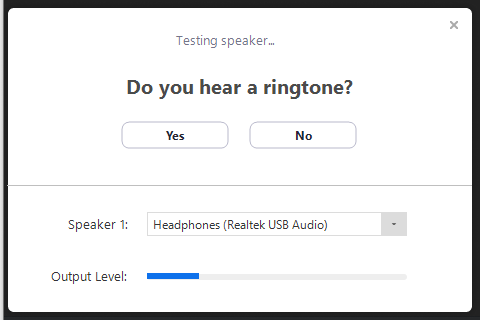
C. Test Your Speaker in Zoom Settings
- Go to Settings → Audio → Test Speaker.
- If you hear the test tone, Zoom’s output is working. The issue may be meeting-specific (host muted audio, for example).
- If you don’t hear anything, the output device or OS settings need attention.
D. Fix Bluetooth and Headphone Issues
Bluetooth audio devices frequently cause Zoom speaker problems because they connect as both input and output, and Zoom may grab the wrong profile.
How to fix it:
- Disconnect and reconnect your Bluetooth device.
- In Zoom’s audio settings, explicitly select your Bluetooth headset under Speaker.
- If audio is still choppy, try wired headphones to isolate whether the issue is Bluetooth-specific.
5. Fix Zoom Audio Not Working by Device
Windows 10 & 11
- Settings → Privacy & Security → Microphone → allow Zoom
- Check Sound settings → Input/Output device selection
- Update audio drivers via Device Manager
- Run the Windows audio troubleshooter
Mac
- System Settings → Privacy & Security → Microphone → enable Zoom
- System Settings → Sound → check both the Input and Output tabs
- Reset NVRAM if incorrect audio settings keep coming back
Android & iPhone
- Settings → Apps → Zoom → Permissions → enable Microphone
- Clear Zoom app cache (Android)
- Reinstall Zoom if permissions won’t save
- Check that Do Not Disturb isn’t blocking audio output
Browser (Zoom Web Client)
- Click the lock icon in your address bar → allow Microphone
- Note: your browser manages its own permissions. So, OS-level settings alone won’t fix this
- Disable browser extensions, especially ad blockers
- Clear the browser cache and reload the meeting
- Use Chrome or Firefox. Safari has limited Zoom Web Client support
Important note for browser users:
Zoom Web Client uses browser-level microphone permissions that are completely separate from your OS settings.
Even if you’ve allowed mic access in Windows or Mac settings, you still need to allow it inside your browser separately, as these are independent permission layers.
6. Fix Zoom Audio Issues Based on Your Situation
Already tried the basics? These scenario-specific fixes are for users who’ve worked through the obvious steps and still have a problem.
A. The microphone works, but You Still Can’t Hear Others.
Your input is fine. This means it is a speaker output problem, not a mic problem.
- Verify the correct speaker is selected in Zoom’s audio settings
- Check if you accidentally clicked “Leave Audio” instead of “Join Audio” when entering the meeting
- Confirm the host hasn’t muted all participants
- Test your speaker output at the system level (play a video or music) to confirm audio works outside Zoom.
B. You Can Hear Others, but They Can’t Hear You
Your output is working — this is a mic input problem.
- Check that you’re not muted in Zoom (the mic icon in the toolbar)
- Confirm the correct microphone is selected in audio settings
- Close all other apps that might be claiming your mic
- Check OS microphone permissions for Zoom specifically
C. Zoom Audio Not Working After an Update
Zoom updates occasionally reset audio device preferences or break driver compatibility.
- Go to Settings → Audio and reselect your microphone and speaker. Updates often reset these to “Same as System.”
- Update your audio drivers (Windows) or check for a macOS update
- If the problem started immediately after a Zoom update, check Zoom’s community forums. It may be a known regression with a patch already released
- As a last resort, uninstall and reinstall the latest version of Zoom from zoom.us/download
D. Audio Works in Other Apps but Not in Zoom
This points to a Zoom-specific permission or configuration issue, not a hardware problem.
- Revoke and re-grant microphone permission to Zoom in your OS settings
- In Zoom: Settings → Audio → check “Automatically adjust microphone volume” — try toggling it off and on
- Disable Zoom’s background noise suppression: Settings → Audio → Suppress background noise → set to Low or Disabled
- Sign out of Zoom, clear the cache, and sign back in
E. Zoom Audio Keeps Cutting Out
Intermittent audio usually points to connection, driver, or Bluetooth instability, not a settings problem.
- Switch to a wired internet connection if on Wi-Fi.
- If using Bluetooth headphones, try wired headphones. Bluetooth audio is particularly sensitive to bandwidth fluctuations.
- Lower Zoom’s video quality to reduce bandwidth demand: Settings → Video → uncheck HD
- Update audio drivers (Windows) or check Activity Monitor for high CPU usage (Mac) that may be throttling audio processing.
Recurring audio issues often point to a setup problem, not a Zoom problem. Improperly configured systems, wrong license types, or missing admin settings cause persistent audio issues that no troubleshooting guide will fix permanently.
Check out our blog on fixing other similar Zoom Issues→
7. Advanced Fixes for Persistent Zoom Audio Problems
If you’ve tried everything above and the issue continues, these deeper fixes address root-level problems.
Reinstall Zoom Completely
Uninstall Zoom, then delete leftover files.
- On Mac: remove from Applications and delete ~/Library/Application before going to Support/zoom.us.
- On Windows: use the Zoom Cleaner Tool available from Zoom’s support site. Then download and reinstall fresh from zoom.us/download.
Reset Zoom Audio Settings to Default
- Settings → Audio → scroll to the bottom → click “Reset to default settings.”
- This clears any corrupted or misconfigured audio preferences that may have accumulated over time.
Check Antivirus or Firewall Blocking Audio
- Security software occasionally blocks Zoom’s access to audio devices.
- Temporarily disable your antivirus or firewall and test audio.
- If this works, add Zoom as an exception in your security software settings.
Update Your Operating System
- Both Windows 11 and macOS release periodic audio subsystem updates.
- An outdated OS can cause audio device conflicts that no app-level fix resolves.
- So, check for pending system updates and install them.
Why Zoom Audio Issues Keep Coming Back
If you’re troubleshooting the same audio problems repeatedly, the root cause is usually one of three things, not the fixes you’ve tried.
Misconfigured system setup: Zoom requires specific audio routing, device permissions, and driver configurations that many default installations don’t have correctly set up from the start.
Wrong Zoom plan for your use case: Some audio features, including advanced noise suppression, telephony integration, and admin-level audio controls, are plan-dependent. Free and basic plans have limitations that cause recurring issues in team environments.
No dedicated Zoom admin: In team settings, audio problems compound when there’s no one managing Zoom account settings, user permissions, and meeting configurations centrally.
Persistent audio issues in a professional or team environment are almost always a configuration problem, not a hardware problem. Getting the setup right once eliminates the troubleshooting loop permanently.
Get a Stable, Fully Optimized Zoom Setup
Proper license configuration, professional setup, and ongoing support, so your team stops troubleshooting and starts meeting.




How We Do it ?
Powering Growth
with Cloud & Automation

Get started in
minutes
Get the latest tech trends, tips & tools
delivered monthly.

 Microsoft Azure
 DevOps
  Software Development
  Staff Augmentation
  React JS
  HTML / CSS / JS
  Website Redesign
  Zoom
Zoom  Bulk Sms
  AIMS
AIMS  Fix Your Zoom Mic and Speaker Audio Issues in Minutes
Send a message
We're here to help and answer any questions regarding Zoom you might have. Reach out to us — we'd love to hear from you!