Can Discord Replace Zoom for Meetings, Classes & Communities?

Introduction

After the pandemic era and recent events like the Gen Z protests, there has been a huge surge in the demand for Discord. Speaking from experience, almost all the offices we know were on Discord, assigning tasks to their employees, and even communicating from Discord during the Gen Z protests. 

So, you may have also probably asked this at some point: “Do I really need Zoom, or can Discord just handle this?”

It’s a fair question. Discord is free, has voice and video, and half the people you know are already on it. Zoom, on the other hand, costs money after 40 minutes and feels like overkill for a quick call.

zoom-vs-discord

But here’s the truth: These two tools are built for fundamentally different jobs. Using the wrong one doesn’t just create friction. It also signals the wrong thing to your audience, your students, or your team.

This guide cuts through the noise. We’ll answer the Discord-vs-Zoom question directly, break it down by use case, and help you land on the right tool for your specific situation.

Zoom vs Discord: Which Should You Choose?

Before we go deep, here’s the short answer:

  • Use Zoom if you’re running business meetings, online classes, webinars, or any structured professional call
  • Use Discord if you’re managing a community, gaming with friends, or hanging out in informal group calls
  • Use Zoom if you need scheduling, recording, waiting rooms, or attendee controls
  • Use Discord if you want a persistent, always-on space where people can drop in and out freely

Get your customized Zoom solutions from ThinkMove Solutions today!

So, Can Discord Replace Zoom?

This is the real question. And the honest answer is: it depends on what you’re replacing it for.

Short answer for professional use: No.

Discord was not designed to replace Zoom for structured, professional communication. It lacks meeting scheduling, waiting rooms, proper admin controls, and the kind of security infrastructure that businesses and institutions require.

Longer answer: It depends on your context.

Discord can replace Zoom for:

  • Casual calls with friends or small groups
  • Community voice hangouts where there’s no fixed agenda
  • Informal team check-ins in a non-corporate environment
  • Gaming sessions and hobby group coordination

Discord cannot replace Zoom for:

  • Business meetings with clients or external stakeholders
  • Online classes that need attendance tracking and breakout rooms
  • Webinars with large, structured audiences
  • Any environment where security, recording, and host controls matter

The distinction is simple: Discord is a community platform with voice and video built in. Zoom is a meeting platform, and that’s it. That difference runs through every feature, every design decision, and every limitation of both tools.

What Is Zoom?

zoom

Zoom is a professional video conferencing platform built for structured communication. It was designed around the meeting, which is a scheduled event with a host, attendees, an agenda, and controls.

It’s the default choice for:

  • Corporate teams and remote work
  • Academic institutions and online classrooms
  • Virtual events, webinars, and conferences
  • Client-facing calls and sales demos

Everything in Zoom’s design, whether it’s the waiting rooms, breakout rooms, or cloud recording, exists to give the host control over the meeting experience.

Learn more about Zoom.

What Is Discord?

alternatives-to-zoom

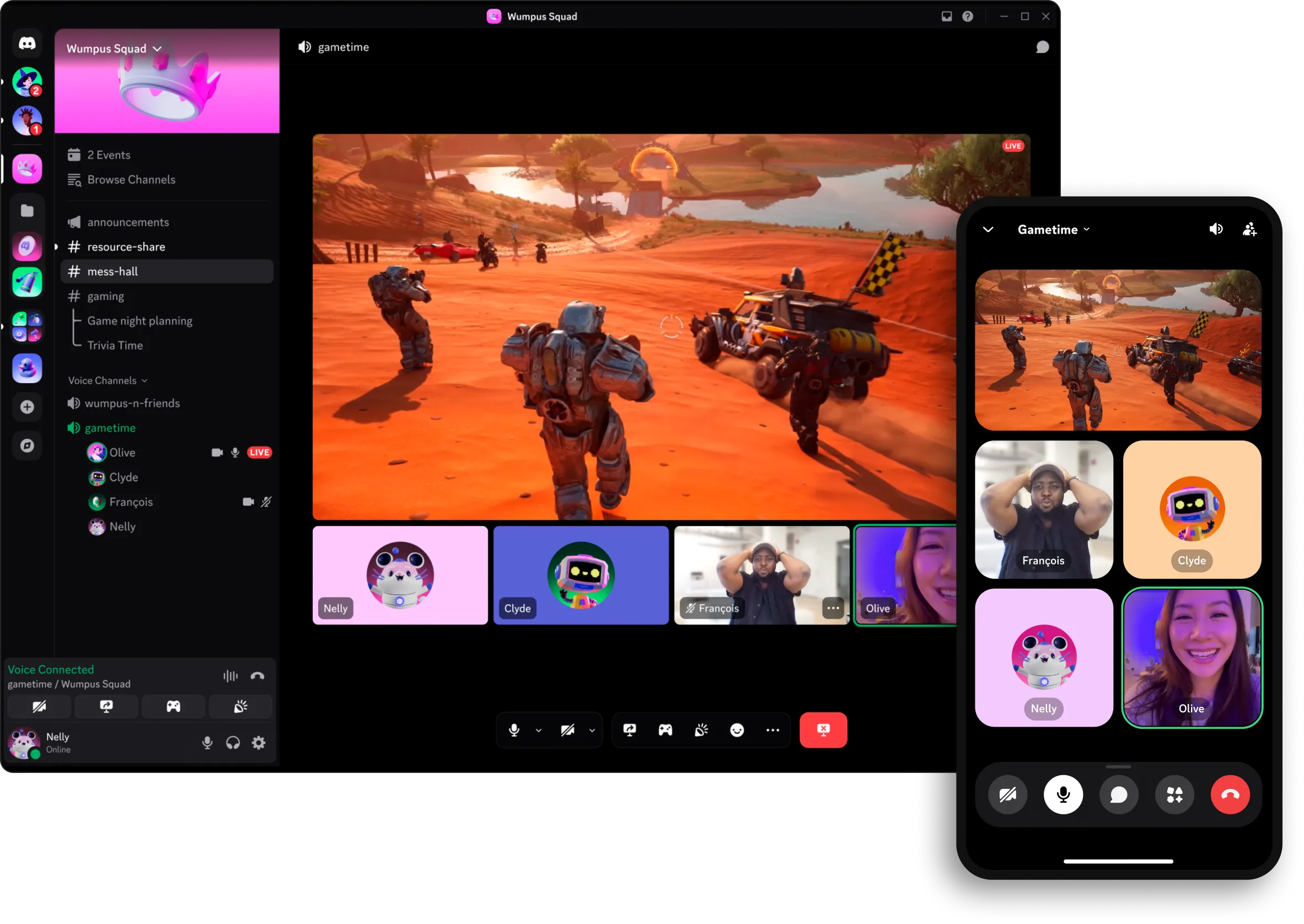
Discord started as a voice chat app for gamers and evolved into one of the largest community platforms on the internet. It’s built around persistent servers, which are ongoing spaces where communities live, share content, and communicate across text, voice, and video channels.

It’s the default choice for:

  • Gaming communities and esports teams
  • Online creator and fan communities
  • Developer groups and open-source projects
  • Casual friend groups who want a shared digital space

The key difference from Zoom: Discord doesn’t have meetings. It has channels. You don’t schedule a call. You just show up.

Learn more about Discord.

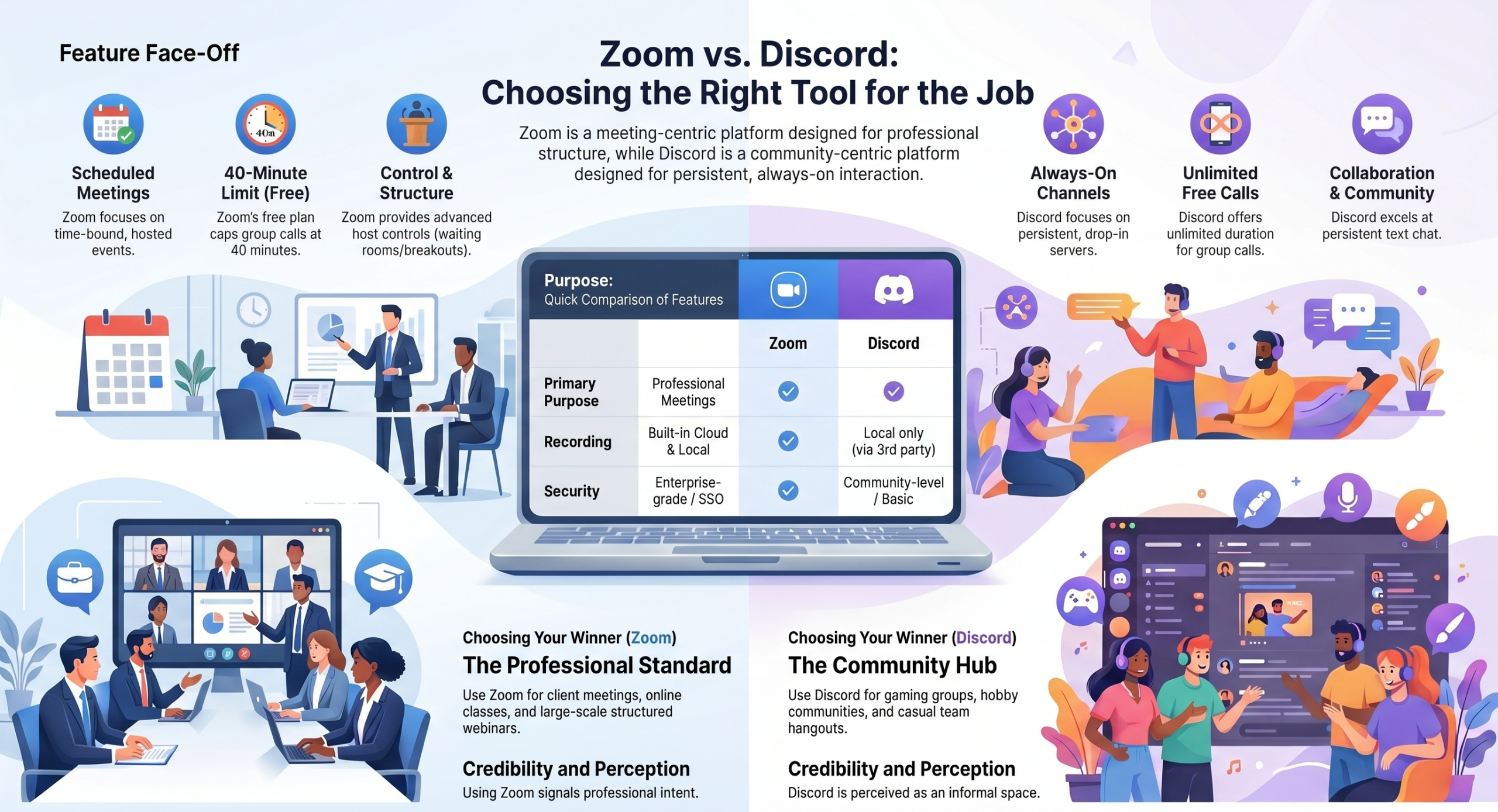
Zoom vs Discord: Key Differences at a Glance

Feature Zoom Discord
Primary purpose Professional meetings Community platform
Video structure Formal / scheduled Casual / drop-in
Free call duration 40 min (3+ people) Unlimited
Recording Built-in (cloud + local) Local only
Waiting room Yes No
Breakout rooms Yes No
Participant controls Advanced Basic
Persistent text channels No Yes
Meeting scheduling Yes No
Enterprise security Yes Limited
Webinar hosting Yes (paid) No
Community servers No Yes

Zoom vs Discord for Different Use Cases

This is where the real comparison happens. Features matter less than fit, which is entirely determined by what you’re actually trying to do.

For Business Meetings

Winner: Zoom

Discord has no business meeting infrastructure. There’s no calendar integration, no scheduling tool, no waiting room to hold participants before a call starts, and no way to properly manage a structured agenda.

Zoom, on the other hand, was built entirely around this use case. You get host controls, muting, participant management, cloud recording, and integrations with tools like Google Calendar, Outlook, Slack, and CRMs.

If you’re running a client call, a team standup, or a boardroom presentation, Discord isn’t even in the conversation. Zoom is the default, and for good reason.

For Online Classes

Winner: Zoom

Teaching online requires more than just a video call. You need to control who’s in the room, split students into smaller groups for activities, record sessions for those who miss class, and maintain an environment where learning can actually happen.

Zoom gives you all of that: breakout rooms, attendance visibility, screen annotation, polling, and cloud recording. Discord gives you a voice channel and a chat box.

For educators who are running a university course, a tutoring session, or a corporate training program, Zoom is purpose-built for your needs in a way Discord simply isn’t.

For Communities and Casual Calls

Winner: Discord

This is Discord’s home turf, and Zoom doesn’t belong here.

Discord servers are persistent. Your community lives there 24/7. Members can hop in and out of voice channels without anyone needing to schedule a meeting, send a link, or wait in a lobby. Text channels keep conversations going between calls. Roles and permissions let you organize large groups without it becoming chaos.

Zoom has none of this. Every Zoom call is an event, which starts and ends. There’s nothing left when it’s over. For communities, that’s exactly the wrong model.

For Webinars and Large Events

Winner: Zoom

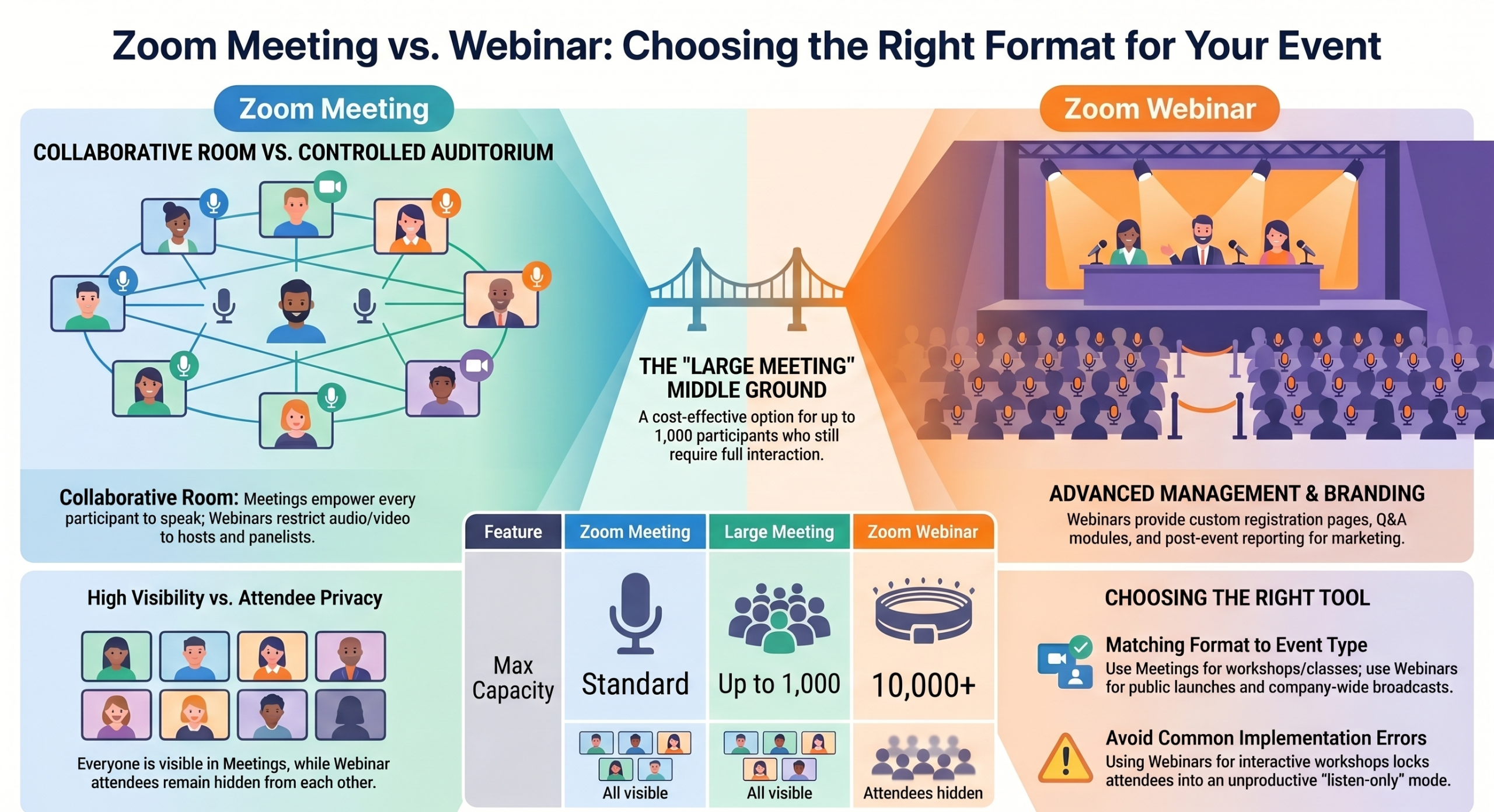
Zoom Webinars is a dedicated product for large-scale online events. You get audience Q&A management, panelist controls, attendee registration, live streaming, and detailed analytics after the event.

Discord cannot host a webinar. You can stream on a server, but there’s no audience management, no registration, no structured Q&A, and no way to control the experience at scale.

If you’re running an event for 100+ people with a formal structure, Zoom is the only real option between these two.

Zoom vs Discord: Features Compared

Video and Audio Quality

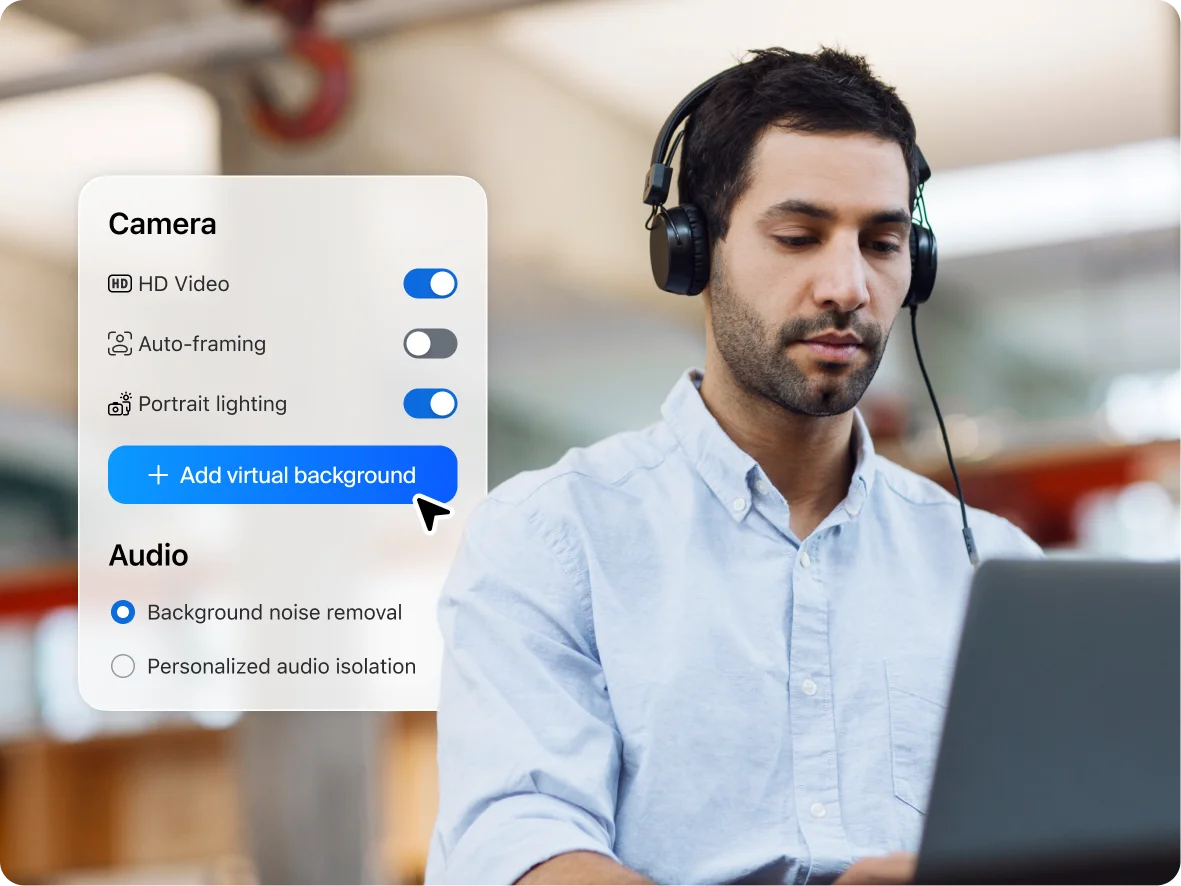
Both tools deliver solid video and audio under normal conditions. Zoom has a slight edge in professional environments. Its background noise suppression, virtual background quality, and stability on weaker connections are more refined. Discord has improved significantly for casual use, but it can feel inconsistent in larger calls.

For a business meeting or online class, Zoom’s quality consistency matters. For a gaming session or community hangout, Discord is more than good enough.

Screen Sharing

Zoom offers more granular screen sharing controls. You can share a specific window, a portion of your screen, or your full desktop, with annotation tools layered on top. Discord screen sharing works well but is more basic, with fewer controls and no annotation.

For presentations and teaching, Zoom wins. For casual sharing like showing a game, a video, or a document, Discord handles it fine.

Recording

Zoom has built-in cloud recording on paid plans and local recording on all plans. Recordings are automatically transcribed (on paid plans), easily shareable, and organized within your Zoom account.

Discord has no native cloud recording. You’d need a third-party bot or external tool to record a Discord call, which adds friction and creates reliability issues.

If recording matters to you, Zoom is the clear choice.

Chat and Collaboration

Discord wins on persistent chat. Its text channels, threads, file sharing, and reaction tools create a genuine collaboration layer that outlives any single call. Zoom’s in-meeting chat disappears when the call ends unless you’ve enabled saving.

For ongoing team or community communication, Discord’s chat is a real advantage. For meeting-specific communication, Zoom’s in-call tools are sufficient.

Security and Privacy

Zoom offers end-to-end encryption (optional), SSO, admin dashboards, role-based access controls, and compliance certifications that enterprise and education customers require.

Discord’s security is adequate for community use but not built for enterprise requirements. It lacks the admin infrastructure, compliance tooling, and audit capabilities that regulated industries need.

For anything involving sensitive data, client information, or institutional compliance, Zoom’s security posture is significantly stronger.

Zoom vs Discord: Limitations of Both

Zoom Limitations

  • Free plan restrictions: The 40-minute cap on group calls is the biggest friction point. It’s enough for a quick call, but disruptive for anything longer
  • Cost at scale: Paid plans add up, especially for larger teams or institutions
  • Setup and friction: Joining a Zoom call still requires more steps than dropping into a Discord channel. You need to download prompts, waiting rooms, and meeting links, and that’s just the start.
  • No community layer: Once a meeting ends, Zoom offers no persistent space for ongoing communication

Discord Limitations

  • Not built for structured meetings: No scheduling, no waiting rooms, no agenda management
  • Weak admin controls for professional use: Discord’s permission system works for communities, not for enterprise security requirements
  • No professional webinar tools: You cannot host a structured, large-scale event on Discord
  • Recording requires workarounds: No native cloud recording means extra tools and extra friction
  • Professional perception: Showing up to a client meeting on Discord sends the wrong signal. It’s a credibility issue as much as a features issue

Zoom vs Discord: Which One Is Right for You?

Stop overthinking it. Use this:

  • You need structured meetings with clients or colleagues → Zoom
  • You need to run online classes with real controls → Zoom
  • You need to host a webinar or large virtual event → Zoom
  • You need enterprise-grade security and compliance → Zoom
  • You’re building or managing an online community → Discord
  • You want casual, always-on voice channels with your team or friends → Discord
  • You need persistent text channels alongside voice → Discord
  • You want unlimited free calls in an informal setting → Discord

The cleaner way to think about it: If someone is attending something you’re hosting, use Zoom. If people are just hanging out in a shared space, use Discord.

Best Alternatives to Zoom (Including Discord)

If you’re questioning Zoom, you’re probably weighing a few options. Here’s how the main alternatives stack up:

Discord: Best for community-first communication. Free, unlimited calls, persistent servers. Not a Zoom replacement for professional use, but excellent for what it’s actually built for.

Microsoft Teams: The strongest Zoom competitor for enterprise environments. Deep integration with Microsoft 365, strong security, and solid meeting tools. If your organization runs on Microsoft, Teams deserves a serious look. 

See our full Zoom vs Microsoft Teams comparison

Google Meet: Simple, browser-based, and free for most users through Google accounts. Strong for education and Google Workspace users. Lacks some of Zoom’s advanced meeting controls. 

See our full Zoom vs Google Meet comparison

Webex: Cisco’s enterprise conferencing tool. Solid security and compliance features are popular in large enterprises and regulated industries.

Whereby: Lightweight browser-based video calls with no downloads required. Good for quick external calls where you don’t want to ask clients to install anything.

For most businesses and educators, the real decision comes down to Zoom, Teams, or Meet. This mostly depends on your existing software ecosystem.

When Zoom Is the Better Choice for Your Organization

If your work involves clients, students, large audiences, or sensitive data, Zoom is the more reliable long-term investment.

Discord is a great tool. But it was built for a different job. Asking it to run your business meetings or host your online classes is like using a group chat to manage a project. It kind of works until it really doesn’t.

Zoom gives you the controls, the consistency, and the professional infrastructure that serious communication requires. And for organizations in Nepal looking for a reliable, scalable video conferencing solution, that matters.

→ Explore Zoom solutions for your organization.

Is your Zoom Camera Working: Detect & Fix Them Easily


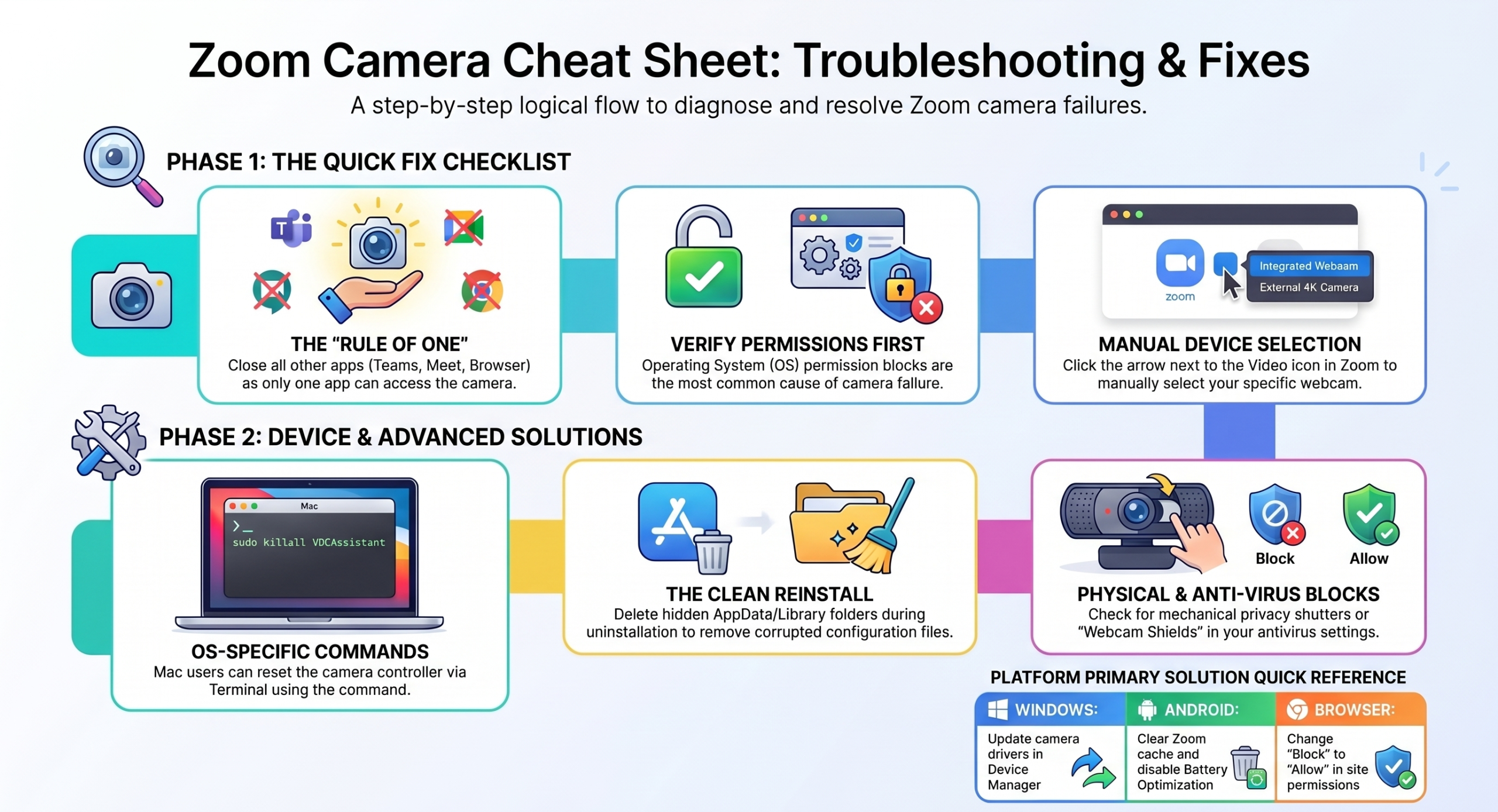
Quick Fixes: Always Try These First

Run through this before anything else, as most camera issues are solved here:

  1. Restart Zoom completely. Exit the app, then reopen.
  2. Close every other app using your camera. This includes Teams, Meet, and browser tabs, as only one app can use the camera at a time.
  3. Check camera permissions. Your OS may be blocking Zoom’s access entirely.
  4. Select the correct camera in Zoom. Click the arrow next to the video icon and confirm the right device is selected.
  5. Always check for Zoom updates or outages.
  6. Test your camera in another app. If it fails there too, the issue is hardware or OS-level, not Zoom.

zoom-camera

Why Your Zoom Camera Is Not Working

Before jumping to fixes, identify which cause matches your situation:

  • Camera permissions could be disabled. Your OS controls which apps can access your camera. A recent update may have reset Zoom’s access without warning. This is the most common cause across all platforms.
  • Another app is using your camera. Cameras can only serve one app at a time. If Teams, Meet, OBS, or a browser tab has claimed it, Zoom gets locked out entirely.
  • The wrong camera is selected in Zoom. If you’ve recently connected or disconnected an external webcam, Zoom may be pointing at a device that no longer exists, causing a black screen or no video.
  • Outdated or corrupted camera drivers cause Zoom to fail to detect your camera even when it works in other apps.
  • Zoom app glitch or recent updates occasionally break camera compatibility. A clean reinstall resolves this in most cases.

Worried if something might be wrong or seeking a Zoom Expert for the fixture? Contact ThinkMove Solutions today and get the best Zoom support now!

Fix by Device 

How to Fix Zoom Camera Not Working on Windows

  • Check privacy settings

Settings → Privacy → Camera → confirm “Allow apps to access your camera” is on and Zoom is listed and enabled. 

On Windows 11: Settings → Privacy & Security → Camera.

  • Check which app has the camera

Open Task Manager (Ctrl + Shift + Esc) → end any Teams, Meet, or browser process → relaunch Zoom.

  • Update your camera driver

Device Manager → Cameras → right-click your camera → Update driver. If no update is found, download the driver manually from your laptop manufacturer’s website (Dell, HP, Lenovo, Asus).

  • Disable startup video apps

Task Manager → Startup tab → disable Teams or Meet. These apps can claim the camera before Zoom even opens.

  • Windows 11 only

Settings → Bluetooth & devices → Camera → confirm your camera is not disabled here.

If your camera works in Teams but not Zoom: Uninstall your camera driver from Device Manager → restart your PC → Windows reinstalls a clean driver → test Zoom.

How to Fix Zoom Camera Not Working on Mac

  • Grant camera permission

System Settings → Privacy & Security → Camera → enable Zoom.

  • Restart the camera service

Open Terminal → type sudo killall VDCAssistant → press Enter → relaunch Zoom. This resets macOS’s camera controller without a full reboot.

  • Close conflicting apps

FaceTime, Photo Booth, or any browser tab with camera access will lock the Mac camera. Quit all before launching Zoom.

After a macOS update, permissions are reset silently after major updates. Uncheck Zoom, wait 5 seconds, recheck even if it appeared already enabled.

How to Fix Zoom Camera Not Working on Android

Android camera issues in Zoom are almost always permissions, battery optimization, or cache-related, and the fix varies by manufacturer.

  • Enable camera permission

Settings → Apps → Zoom → Permissions → Camera → Allow. 

On some Android skins (MIUI, OneUI), this is under App permissions, not the standard path.

  • Clear Zoom’s cache

Settings → Apps → Zoom → Storage → Clear Cache. 

Do not tap Clear Data, as that resets your login and all settings.

  • Disable battery optimization

Samsung, Xiaomi, Oppo, and Realme aggressively kill background apps, which can interrupt camera access mid-call. 

Go to Settings → Battery → Battery Optimization → find Zoom → set to Don’t optimize.

  • Force close all recent apps

On Android, camera locks don’t always release automatically. Swipe away all recent apps before opening Zoom.

  • Low-spec device tip

If your phone has under 3GB RAM, go to Zoom Settings → Video and disable HD video. This reduces processing load and prevents the camera from dropping mid-meeting.

How to Fix Zoom Camera Not Working in Browser (Chrome / Edge / Safari)

Browser-based Zoom has its own permission system separate from the desktop app. The most commonly overlooked cause of camera failure is when users join via a link.

  • Allow camera in your browser

If you previously clicked Block when the permission prompt appeared, the browser won’t ask again. Fix it manually:

    • Chrome: chrome://settings/content/camera → find zoom.us → change from Block to Allow
    • Edge: Settings → Cookies and site permissions → Camera → allow zoom.us
    • Safari: Safari → Settings for This Website → Camera → Allow
    • Firefox: click the lock icon in the address bar → More information → Permissions → Use the camera → Allow
  • Disable browser extensions

Ad blockers and privacy extensions (uBlock, Privacy Badger) frequently block camera access for web apps. Disable all extensions temporarily and rejoin the meeting to test.

  • Clear browser cache

Chrome/Edge: Ctrl + Shift + Delete → clear cached images and files → restart browser → rejoin.

  • Switch browsers

Zoom’s browser client works most reliably on Chrome and Edge. 

If you’re on Firefox or Safari and the camera isn’t working, switching browsers alone often resolves it.

  • Use the desktop app instead

If browser camera issues persist, the most reliable fix is downloading the Zoom desktop app from zoom.us/download. 

The app has full camera support that the browser client can’t always replicate.

→ Get the best of Zoom, including license, setup, services, and support with ThinkMove Solutions. 

Fix by Scenario 

Sometimes it’s not always the device. Find your exact situation:

The camera works in other apps, but not in Zoom

Your hardware is fine. The issue is Zoom-specific. This almost always means Zoom is pointed at the wrong camera device or has a corrupted configuration. 

In Zoom, click the arrow next to the video icon and manually select your camera from the list; do not leave it on “Same as system.” If that doesn’t resolve it, do a clean reinstall of Zoom (see Advanced Fixes below) to clear any corrupted settings.

Zoom camera shows a black screen.

Zoom has detected your camera, but can’t display its output. The two most common causes are another app holding the camera lock or a driver that needs resetting. Close all other video apps completely. 

On Windows, go to Device Manager → Cameras → right-click your camera → Disable device → wait 10 seconds → Enable again. This forces a driver reset without a full reinstall. 

Also, check for a physical privacy shutter on your laptop body. Lenovo ThinkPads and several HP models have a mechanical lens cover that’s easy to miss.

Zoom cannot detect your camera at all.

The camera dropdown in Zoom is empty or greyed out. This means Zoom (and likely Windows itself) cannot see the camera hardware. 

Open Device Manager → Cameras. If your camera doesn’t appear there either, the driver is missing or corrupt. Download and reinstall the webcam driver directly from your laptop manufacturer’s support page (Dell, HP, Lenovo, Asus all have dedicated driver download sections). 

Restart after installation, then test in Zoom.

Camera not working after a Zoom update.

If your camera worked before a Zoom update and broke immediately after, the update changed how Zoom interfaces with your camera driver. Don’t just update again, but a clean reinstall. 

Uninstall Zoom, then manually delete leftover folders from AppData (Windows) or Application Support (Mac) before reinstalling. This clears configuration files that the standard uninstaller leaves behind, which is usually what’s causing the post-update conflict.

The camera is on, but not showing video in the meeting

Your camera light is on, Zoom shows it as active, but participants see nothing or a frozen frame. 

First, click the arrow next to the video icon in the meeting and reselect your camera. This forces Zoom to refresh the video feed without leaving the meeting. 

If that doesn’t work, leave and rejoin. On slow or congested connections, Zoom drops video while keeping audio to preserve bandwidth. You can go to Zoom Settings → Video and disable HD video to stabilize the feed.

Advanced Fixes 

If nothing above has worked, these are the deeper fixes:

  • Clean reinstall: A standard uninstall leaves configuration files behind. 

For a true clean reinstall on Windows: uninstall Zoom → press Win+R → type %AppData%\Zoom → delete the entire folder → repeat for %LocalAppData%\Zoom → reinstall from zoom.us/download. 

For Mac: uninstall Zoom → go to ~/Library/Application Support/ → delete the zoom.us folder → go to ~/Library/Preferences/ → delete com.zoom.us.plist → reinstall.

  • Check antivirus camera protection: Security tools like Kaspersky, Bitdefender, Avast, and Norton include webcam protection that blocks unrecognized apps from accessing the camera. 

Open your antivirus settings, find “Webcam protection” or “Camera shield,” and add Zoom as a trusted application.

  • Corporate or managed devices: On work laptops, IT administrators can restrict camera access through group policy settings. 

If you’ve tried everything and nothing works, this may be outside your control entirely. Contact your IT department and ask specifically whether Zoom camera access is restricted by policy.

  • Reset the camera at the OS level

Windows: Settings → System → Troubleshoot → Other troubleshooters → Camera → Run. 

Mac: reset NVRAM by holding Option + Command + P + R immediately after pressing power, hold for 20 seconds, then release.

  • Try a different device: If the camera works fine on another device with the same Zoom account, the issue is definitely hardware or driver on your original machine.

Why Zoom Camera Issues Keep Coming Back

zoom-camera-fix

If you are fixing the same camera problem repeatedly, it is usually a setup issue rather than a one-off glitch. This can include improper permissions configuration, no admin oversight, or the wrong Zoom plan for your team’s needs. A properly licensed and configured Zoom environment eliminates most recurring issues before they happen.

Learn about Zoom solutions in Nepal →

Learn about the AWS Database & Its Services

Introduction

Best AWS Database By Use Case:

  • Best for web apps & SaaS: Amazon Aurora
  • Best for scale & speed: Amazon DynamoDB
  • Best for familiar SQL (easy start): Amazon RDS
  • Best for analytics & data warehousing: Amazon Redshift
  • Best for AI & vector search: Amazon S3 Vectors + Aurora (pgvector)
  • Best for globally distributed SQL: Amazon Aurora DSQL
  • Best for caching & performance: Amazon ElastiCache

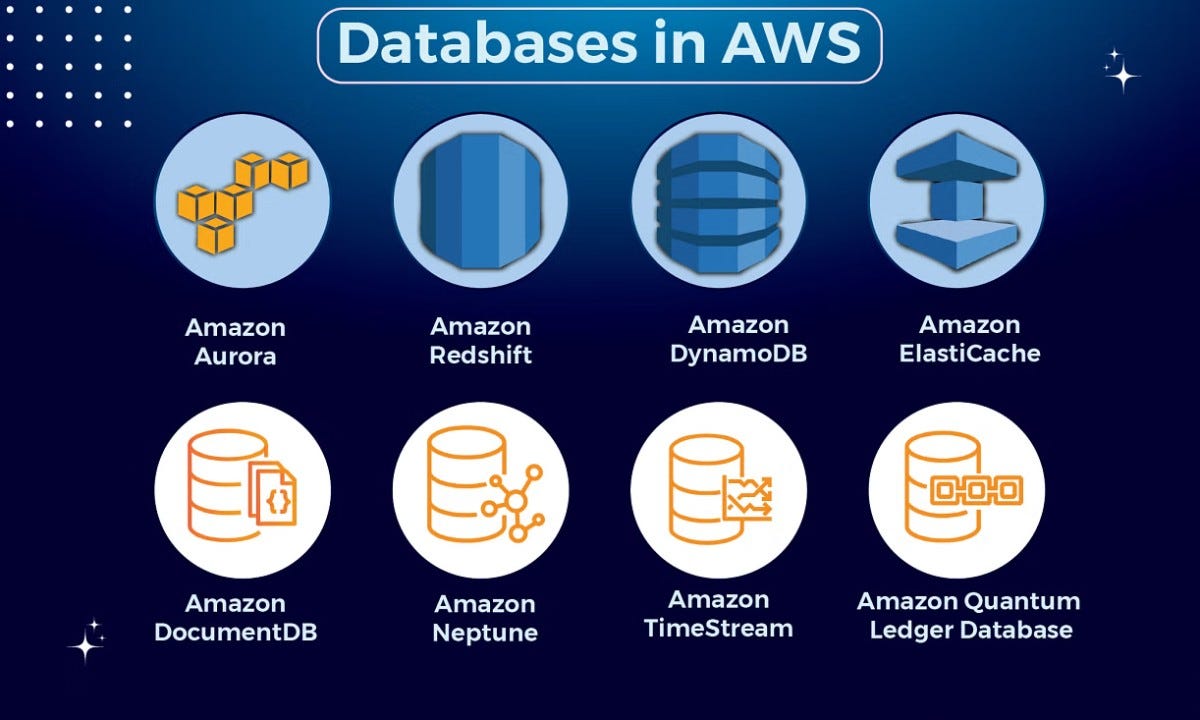
AWS offers 15+ purpose-built database services. If you’ve ever opened the AWS console trying to pick one, you know exactly how overwhelming that feels. RDS, Aurora, DynamoDB, Redshift, DocumentDB, or QLDB. The list goes on.

Here’s the thing: there’s no single “best” AWS database. Each one was built to solve a specific problem. Pick the right one and your app flies. Pick the wrong one, and you’re either overpaying, under-scaling, or rebuilding six months later.

This guide cuts through all of it. You’ll get a complete categorized list of every AWS database service and a decision table so you know exactly which one fits your use case, including the newer AI-ready services most guides completely ignore.

What Are Amazon Database Services?

Amazon database services are fully managed database solutions hosted on AWS infrastructure. “Fully managed” means AWS handles the heavy lifting from provisioning, patching, and backups to replication and scaling. This means your team focuses on building, not babysitting servers.

The key philosophy behind AWS databases is purpose-built design. Instead of offering one universal database and calling it done, AWS built separate services optimized for specific workload types: transactional, analytical, key-value, graph, time-series, and now vector/AI workloads.

aws-database

This approach gives you the best-in-class performance for each use case. It also means you need to know which tool fits which job.

Why Does AWS Have So Many Databases?

One database engine cannot be optimized for everything, and not every database just “stores data.” A relational database built for structured transactions (like RDS) performs very differently from a key-value store built for millisecond reads at massive scale (like DynamoDB).

Both are required, and insisting on using only one doesn’t make you efficient; it makes your projects harder.

AWS recognized early that different workloads have fundamentally different requirements:

  • E-commerce checkout needs ACID transactions and structured queries
  • Real-time gaming leaderboards need sub-millisecond reads at millions of requests/second
  • IoT sensor data needs time-ordered writes at massive volume
  • AI-powered search needs vector similarity queries, not SQL joins

The result is a portfolio of purpose-built databases. Each one wins in its lane. Your job is to match the lane to your workload.

Complete List of AWS Database Services (2026)

Category Service Best For Serverless?
Relational Amazon RDS Traditional SQL apps, migrations ✅ (some engines)
Relational Amazon Aurora High-performance SaaS, web apps ✅ Aurora Serverless v2
Relational Amazon Aurora DSQL Global, distributed SQL apps ✅ Fully serverless
NoSQL / Key-Value Amazon DynamoDB Massive scale, low-latency apps ✅ On-demand mode
NoSQL / Document Amazon DocumentDB MongoDB-compatible workloads ✅ Elastic Clusters
NoSQL / Wide Column Amazon Keyspaces Cassandra workloads, no server ops ✅ Fully serverless
In-Memory / Cache Amazon ElastiCache Caching layer, session storage
In-Memory / Primary Amazon MemoryDB Durable Redis-compatible primary DB
Analytics Amazon Redshift Data warehousing, BI, and large queries ✅ Serverless option
Graph Amazon Neptune Relationship data, knowledge graphs ✅ Serverless option
Time-Series Amazon Timestream IoT, metrics, operational data ✅ Fully serverless
Ledger Amazon QLDB Immutable audit trails, compliance ✅ Fully serverless
Vector / AI Amazon S3 Vectors AI embeddings, RAG, vector search Yes

New in 2025–2026: Aurora DSQL (GA December 2025), S3 Vectors (GA December 2025), Aurora PostgreSQL Serverless express configuration (March 2026)

Types of AWS Databases Explained

Relational Databases

Relational databases store data in structured tables with rows and columns. They use SQL and support complex queries, joins, and ACID transactions. Best for workloads where data relationships matter and consistency is non-negotiable.

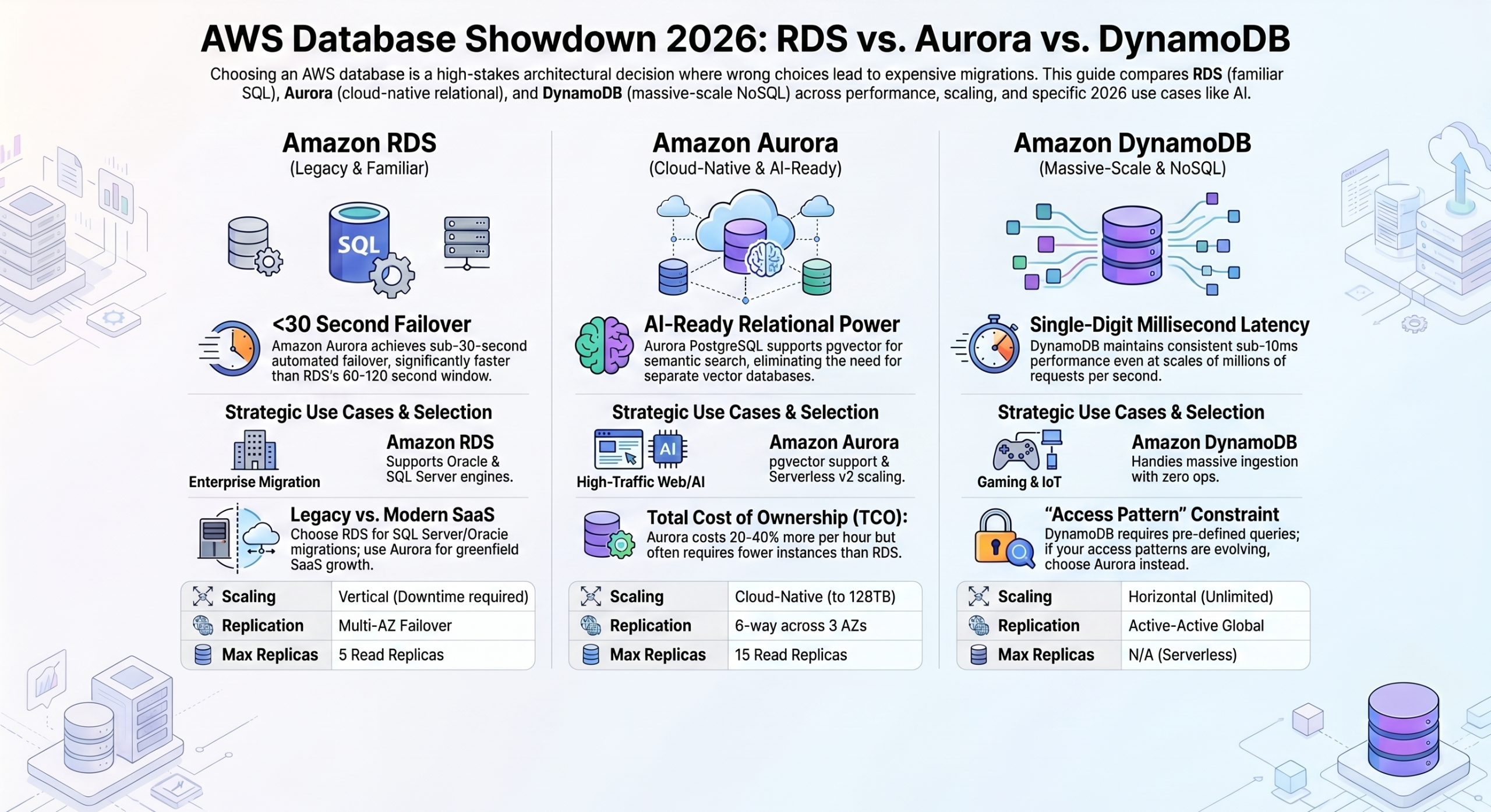
Amazon RDS is AWS’s managed relational database service supporting six engines: PostgreSQL, MySQL, MariaDB, SQL Server, Oracle, and Db2. It removes infrastructure management (i.e., no manual patching or hardware provisioning), while letting you run the familiar database engine your team already knows.

Best for: Lift-and-shift migrations, enterprise apps, teams moving from on-premises SQL. 

Not ideal for: Workloads that need massive horizontal scale or sub-millisecond latency.

Amazon Aurora is AWS’s proprietary relational engine. It is also MySQL and PostgreSQL-compatible, but built from the ground up for cloud performance. It delivers significantly higher throughput than standard RDS. It also provides automatic replication across multiple Availability Zones and storage that can scale automatically up to 128TB.

Aurora Serverless v2 scales compute up and down with your traffic, making it cost-effective for variable workloads.

Best for: SaaS platforms, high-traffic web apps, production PostgreSQL/MySQL workloads that need reliability and performance. 

Not ideal for: Simple or low-traffic apps where RDS cost is already fine.

Amazon Aurora DSQL is the newest addition to the Aurora family. It is a fully serverless, distributed SQL database designed for active-active multi-region deployments. It reached general availability in December 2025 and is expanding rapidly into regions in 2026.

Unlike Aurora Serverless v2, DSQL is built for truly distributed, always-available architectures with strong consistency. You don’t manage capacity, replicas, or failover, but handle all of it.

Best for: Globally distributed applications, multi-region SaaS, and apps that cannot tolerate downtime. 

Not ideal for: Standard single-region apps where Aurora Serverless v2 is simpler and sufficient.

NoSQL Databases

NoSQL databases trade the rigid structure of relational tables for flexibility, scale, and speed. AWS offers three distinct NoSQL types, with each optimized for a different data model.

Amazon DynamoDB (Key-Value + Document) is AWS’s flagship NoSQL database. It is fully managed, multi-region capable, and built for workloads where scale and speed are non-negotiable. It handles millions of requests per second with single-digit millisecond latency and scales storage automatically without downtime.

Best for: High-scale consumer apps, gaming, IoT, shopping carts, session management, and real-time leaderboards. 

Not ideal for: Complex relational queries, ad-hoc reporting, or workloads where you don’t know your access patterns upfront.

Amazon DocumentDB (Document) is AWS’s managed document database with MongoDB API compatibility. It’s designed for teams running MongoDB workloads who want the operational simplicity of a managed AWS service without rewriting application code.

Best for: Content management, catalogs, user profiles, and any workload currently on MongoDB. Not ideal for: Teams not already using MongoDB (DynamoDB is often a better native choice).

Amazon Keyspaces (Wide Column) is a fully serverless, managed Apache Cassandra-compatible database. You run Cassandra workloads using existing Cassandra application code and tooling, without provisioning or managing servers.

Best for: High-write workloads, time-series-adjacent data, teams migrating from self-managed Cassandra clusters. 

Not ideal for: Teams not already on Cassandra (Timestream or DynamoDB is usually simpler).

In-Memory Databases

In-memory databases store data in RAM rather than disk, delivering microsecond-level response times. AWS has two services here, and they serve different purposes that are commonly confused.

Amazon ElastiCache is a managed in-memory caching layer supporting Redis and Valkey (an open-source Redis fork). It sits in front of your primary database to reduce load and accelerate response times. It is a cache, not a primary data store.

Best for: Database query caching, session storage, rate limiting, and leaderboards as a secondary layer. 

Not ideal for: Storing data that must survive a restart. ElastiCache is not durable by design.

Amazon MemoryDB is frequently confused with ElastiCache, but they are fundamentally different. MemoryDB is a durable, Redis-compatible primary database, not a cache. Data is persisted across restarts using a distributed transaction log. This makes it safe to use as your main data store.

Best for: Applications that need Redis-compatible APIs with the durability of a primary database. Microservices, real-time apps, and financial data with low-latency requirements. 

Not ideal for: Pure caching use cases. ElastiCache is simpler and cheaper for that.

Analytics Databases

Amazon Redshift is AWS’s managed data warehouse. It is built for running complex analytical queries across massive datasets, not for transactional workloads. It uses columnar storage and massively parallel processing (MPP) to handle petabyte-scale analytics efficiently.

Best for: Business intelligence, reporting, data warehousing, running queries across billions of rows. 

Not ideal for: Transactional apps, real-time writes, or row-level operational data.

Graph Databases

Amazon Neptune is a fully managed graph database supporting two popular graph models: Property Graph (Gremlin) and RDF (SPARQL). It’s designed for data where relationships between entities are as important as the entities themselves.

Neptune Analytics now supports vector similarity search alongside graph traversal, making it increasingly relevant for AI-powered applications.

Best for: Social networks, fraud detection, recommendation engines, knowledge graphs, identity resolution. 

Not ideal for: Standard relational or document workloads where graph relationships don’t exist.

Time-Series Databases

Amazon Timestream is a purpose-built time-series database optimized for storing and querying data that is inherently ordered by time: sensor readings, application metrics, financial ticks, and server telemetry. It automatically tiers data between in-memory and magnetic storage based on query patterns, keeping costs predictable at scale.

Best for: IoT sensor data, DevOps monitoring, application performance metrics, and industrial telemetry. 

Not ideal for: General-purpose data storage or relational workloads.

Ledger Databases

Amazon QLDB (Quantum Ledger Database) maintains a cryptographically verifiable transaction log. Every data change is permanently recorded and cannot be altered or deleted. This makes it ideal for compliance and audit use cases where data integrity must be provable.

Best for: Financial transaction records, supply chain tracking, regulatory audit trails, systems of record. 

Not ideal for: General-purpose storage or any workload that needs to update or delete historical records.

Vector Databases & AI-Ready Storage

Amazon S3 Vectors is a genuinely new product category launched in late 2025. It adds native vector indexing directly into Amazon S3. This means you can store and query AI embeddings without running a separate vector database service. It supports up to 2 billion vectors per index with query latency under 100ms for frequent queries (90% lower cost than dedicated vector database services).

Best for: RAG pipelines, semantic search, and AI-powered recommendation engines where cost and simplicity matter.

Vector capabilities also exist natively in:

  • Aurora PostgreSQL: via the pgvector extension, enabling SQL + semantic search in one database
  • Neptune Analytics: vector similarity search alongside graph traversal for AI reasoning apps
  • OpenSearch Service: hybrid keyword + vector search for search-heavy applications

Which AWS Database Should You Use?

If You Need To… Use This Why
Run a standard SQL web app Amazon Aurora Better performance than RDS, fully managed
Migrate an existing SQL database Amazon RDS Familiar engines, minimal code changes
Scale to millions of requests/sec Amazon DynamoDB Designed for exactly this
Build a globally distributed SQL app Amazon Aurora DSQL Multi-region strong consistency, zero ops
Run analytics on large datasets Amazon Redshift MPP columnar engine built for it
Cache your database queries Amazon ElastiCache In-memory speed reduces DB load
Use Redis as a primary database Amazon MemoryDB Durable Redis-compatible primary store
Work with MongoDB workloads Amazon DocumentDB Drop-in MongoDB compatibility
Migrate from self-managed Cassandra Amazon Keyspaces Serverless Cassandra, no ops overhead
Store IoT or metric time-series data Amazon Timestream Built for time-ordered data at scale
Build relationship/graph data Amazon Neptune Graph traversal + vector search
Maintain immutable audit records Amazon QLDB Cryptographically verifiable history
Build AI apps with vector search Amazon S3 Vectors Native vector indexing, lowest cost

AWS Databases for AI & Modern Applications (2026)

The biggest shift in the AWS database landscape in 2025–2026 isn’t a new service, but a new role. Databases are no longer just storage. They are now active components in AI pipelines.

Here’s what that looks like in practice:

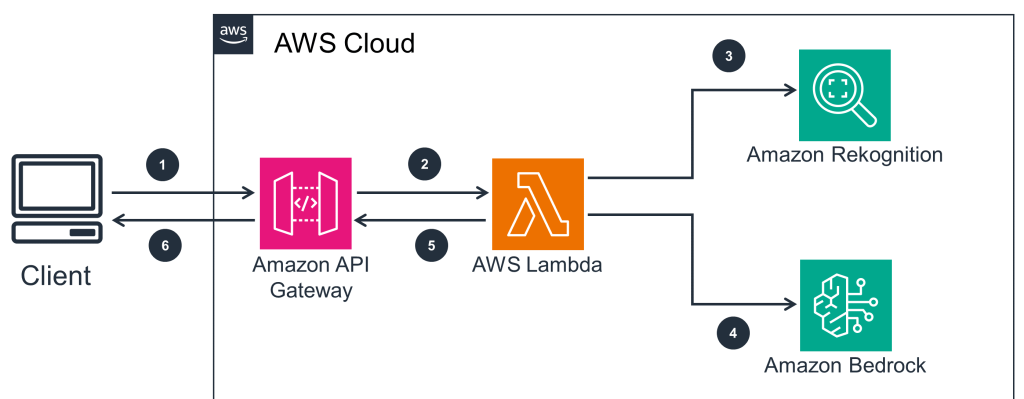
Vector search is now native, not an add-on: S3 Vectors eliminates the need for a separate vector database for most AI use cases. Combined with Amazon Bedrock, you can build a complete RAG (Retrieval-Augmented Generation) pipeline entirely within AWS without stitching together third-party services.

Your existing relational database can now do semantic search: Aurora PostgreSQL with the pgvector extension lets you run vector similarity queries alongside standard SQL. This means a SaaS app using Aurora can add AI-powered search to an existing database without migrating to a new service or managing separate infrastructure.

Graph databases are becoming AI reasoning engines: Neptune Analytics now supports vector similarity search alongside graph traversal. This enables AI applications to not just retrieve nearest-neighbor vectors. Fraud detection, knowledge graphs, and recommendation engines are the immediate beneficiaries.

The serverless trend is accelerating: Aurora DSQL, DynamoDB on-demand, Keyspaces, Timestream, and QLDB are all fully serverless. Aurora Serverless v2 now spins up in seconds. The direction is clear: AWS is moving toward a world where database capacity management is largely automated. For most teams, that’s a meaningful reduction in operational overhead.

AWS Database Pricing: What to Expect

AWS database pricing follows the same pay-as-you-go model as the rest of the platform. The key variables across services are:

Instance-based pricing (RDS, Aurora, ElastiCache, MemoryDB): You pay for the instance size you provision, storage used, and data transfer. Reserved Instances offer 40–60% discounts for predictable workloads.

Serverless / on-demand pricing (DynamoDB, Aurora Serverless, Keyspaces, Timestream, QLDB): You pay per request, read/write unit, or compute-second consumed. Ideal for variable or unpredictable traffic. No minimum commitment.

Storage-based pricing (S3 Vectors, Redshift Serverless): Primarily driven by data volume stored and queries run, not provisioned capacity.

Free Tier availability: Aurora PostgreSQL Serverless, Aurora DSQL, DynamoDB, RDS (select engines), and ElastiCache all have Free Tier options. These are useful for development and testing before committing to production spend.

For current pricing per service, always check the AWS Pricing page directly, as rates change and vary by region.

Common Mistakes When Choosing AWS Databases

aurora

  1. Using RDS when Aurora is the better choice. Many teams default to RDS because it’s familiar. For net-new production workloads on PostgreSQL or MySQL, Aurora almost always delivers better performance, reliability, and long-term cost-efficiency. The migration from RDS to Aurora is straightforward, but you’re better off starting there.
  2. Using DynamoDB without knowing your access patterns. DynamoDB is exceptional when you design your data model around it. It’s painful when you don’t. If you need flexible ad-hoc queries across multiple attributes, DynamoDB’s single-table design requires upfront planning. Going in without that plan leads to expensive scans and complex workarounds.
  3. Treating ElastiCache as a database. ElastiCache is a cache. It is not designed to be your primary data store. Data can be lost on restart. If you need Redis APIs with durability, use MemoryDB instead.
  4. Ignoring serverless options for variable workloads. Provisioning a fixed RDS instance for a workload with unpredictable traffic is one of the most common ways to overpay on AWS. Aurora Serverless v2, DynamoDB on-demand, and Keyspaces scale with your traffic automatically. For startups and early-stage products, especially, start serverless and provision fixed capacity only when your traffic patterns are stable and predictable.
  5. Going deep on one service when your app needs two. Many production architectures use multiple AWS databases together: Aurora for relational transactional data, ElastiCache in front for caching, and S3 Vectors for AI search. AWS databases are designed to work together. Forcing one service to do everything is often the root cause of performance and cost problems.

Conclusion

AWS’s database portfolio is broad by design because no single engine is optimal for every workload.

Here’s the short version of everything above:

  • Start with Aurora if you’re building a relational SQL app on AWS
  • Choose DynamoDB when you need scale, speed, and know your access patterns
  • Use Redshift when analytics and reporting are the primary job
  • Add S3 Vectors or pgvector when your app needs AI-powered search
  • Consider Aurora DSQL if you’re building for global distribution from day one

The right database choice isn’t permanent. AWS provides migration tooling across services, but getting it right early saves significant rework. So, you should always ask for a consultation from cloud experts.

Contact Today & Design your AWS Cloud Architecture Today!!! 
Amazon Bedrock Explained: AWS’s AI Platform in 2026

Introduction

Two years ago, adding AI to a business application meant hiring ML engineers, provisioning GPU servers, and negotiating directly with each AI vendor separately. Today, you just make one API call. That’s Amazon Bedrock, and in 2026, it has quietly become the most important piece of infrastructure on AWS.

What is Amazon Bedrock?

Amazon Bedrock is AWS’s fully managed AI platform that gives businesses access to nearly 100 foundation models from providers including Anthropic, OpenAI, Meta, etc., through a single unified API, with no infrastructure to manage and no upfront commitment. You pick a model, send a prompt, and pay per token used.

It’s part of AWS’s broader strategy of embedding AI across every layer of the cloud, but Bedrock is where that strategy becomes tangible for businesses building real products.

agent-core

How does Amazon Bedrock work?

You can work easily with AI, thanks to Bedrock. Instead of training models, managing servers, or juggling multiple vendor contracts, you connect to Bedrock and access the world’s best AI models on demand.

Here’s the part that makes it genuinely useful: you can switch between models without rewriting your application. One API endpoint. One security model. One AWS bill. Whether you’re using Anthropic’s Claude for complex reasoning, Meta’s Llama for cost-efficient tasks, or Amazon’s own Nova models for multimodal work, the code stays the same. Only the model parameter changes.

Bedrock powers generative AI for more than 100,000 organizations worldwide, including startups to global enterprises across every industry. That’s not a beta product. It’s production infrastructure.

Nearly 100 AI Models. In One Place.

Most competitor articles are still citing “60+ models.” That’s out of date. Amazon Bedrock now provides nearly 100 serverless models, offering a broad and deep range from leading AI companies so customers can choose the precise capabilities that best serve their unique needs.

Here’s how the catalog breaks down:

Provider Key Models Best For
Anthropic Claude Opus 4.6, Sonnet 4.6, Claude 4.5 Complex reasoning, coding, and analysis
OpenAI GPT-OSS 20B, GPT-OSS 120B General-purpose, OpenAI compatibility
Meta Llama 4, Llama 3.3 70B Cost-efficient, open-weight tasks
Amazon Nova 2.0, Nova Pro, Nova Lite, Nova Micro AWS-native, multimodal, low latency
Mistral Mistral Large 3, Ministral 3B/8B/14B European compliance, multilingual, edge
NVIDIA Nemotron 3 Super, Nemotron Nano 2 High-performance reasoning, coding
DeepSeek R1, V3.2 Cost-efficient deep reasoning
Google Gemma 3 Lightweight multimodal, local deployment
Others Qwen3 Coder, Kimi K2.5, MiniMax M2, Stability AI Specialist and multimodal tasks

This implies that you’re not locked into a single AI vendor’s pricing or capabilities. 

If Anthropic releases a better model next month, you can switch on Bedrock without touching your infrastructure. If OpenAI’s pricing spikes, you route to an alternative. 

With access to hundreds of top foundation models and the ability to swap them without rewriting code, Amazon Bedrock gives you the flexibility to build and innovate as your needs evolve.

Key Features That Make Bedrock Different

Intelligent Prompt Routing: Up to 30% Cost Reduction

Not every prompt needs a frontier model. A customer asking “What are your opening hours?” doesn’t require Claude Opus. Bedrock’s Intelligent Prompt Routing automatically sends simple queries to lightweight, cheaper models and routes complex reasoning to powerful ones, without manual configuration. The result is up to 30% lower inference costs without any quality trade-off.

Model Distillation: 500% Faster, 75% Cheaper

Bedrock can distill a large frontier model into a smaller, faster version tuned specifically to your use case. The distilled model runs 500% faster and costs 75% less than the original. For businesses processing thousands of similar requests daily, like invoice extraction, support ticket classification, or product description generation, this is the most underrated cost lever on the platform.

Bedrock Guardrails: Enterprise Safety Built In

Bedrock Guardrails can help block up to 88% of harmful content and identify correct model responses with up to 99% accuracy to minimize hallucinations and data ambiguity. For businesses in regulated industries (like healthcare, finance, and legal), this means configurable content filters, PII detection, topic restrictions, and grounding checks, all without building a custom safety layer yourself.

Knowledge Bases: Your Data, AI-Accessible

Connect your own documents, databases, or internal data sources to Bedrock. The AI can then answer questions about your specific business. A Nepali bank, for example, could connect its internal policy documents so staff can ask questions in plain language and get accurate, sourced answers instantly. No custom retrieval pipeline required.

Amazon Bedrock AgentCore: The Biggest 2026 Story

If Bedrock is the engine, AgentCore is what happens when you put that engine into a vehicle that can actually drive itself.

amazon-bedrock

Most AI tools today answer questions. AgentCore builds AI systems that don’t just respond but act. They can be used for browsing the web, querying databases, calling APIs, running code, remembering context across sessions, and working autonomously toward a goal over multiple steps. With AgentCore, you can enable agents to take actions across tools and data with the right permissions and governance, run agents securely at scale, and monitor agent performance in production. All these without any infrastructure management.

The adoption numbers tell the real story: in just 5 months since preview, the AgentCore SDK has been downloaded over 2 million times. That’s not curiosity, but developers actively building production systems.

Amazon Bedrock Updates in 2026

Model expansion from ~60 to nearly 100 models. AWS cast the 2026 model refresh as a broad upgrade aimed at giving customers more choice without touching their existing infrastructure, adding models from Mistral, Google, NVIDIA, OpenAI, MiniMax, Moonshot, and Qwen. The mix now spans language, vision, audio, safety, and code workloads. Bedrock has moved from a text-first platform to a genuinely multimodal one.

AgentCore milestones. Policy controls reached GA in March 2026, giving enterprises precise control over what actions agents can take. They’re verified outside the agent’s reasoning loop before reaching tools or data. Stateful MCP server support and Memory streaming notifications expanded what agents can do across sessions.

OpenAI-compatible API endpoints. Amazon Bedrock now supports the latest open-weight models using both the bedrock-runtime and the bedrock-mantle endpoint. This is powered by Project Mantle, a new distributed inference engine for large-scale model serving. Teams already building on OpenAI-compatible APIs can now use Bedrock without changing their code structure.

Nova Forge SDK. Launched in 2026, this lets businesses fine-tune and customize Amazon Nova models for their specific domain, without ML engineering expertise. Enterprise-grade model customization, self-service.

Bedrock vs Azure AI Foundry vs Google Vertex AI

Choosing an AI platform in 2026 comes down to one question: what’s your existing cloud infrastructure, and where is AI’s role in your business headed?

Factor Amazon Bedrock Azure AI Foundry Google Vertex AI
Model variety Nearly 100 models, multi-vendor Strong OpenAI integration Gemini family + open models
Best for Multi-model flexibility, AWS-native teams Microsoft/OpenAI ecosystem Data-heavy, BigQuery users
Agentic AI AgentCore: most mature, GA Azure AI Agent Service Vertex AI Agent Builder
South Asia availability Mumbai + Singapore (full support) Multiple India regions Mumbai region
Vendor lock-in risk Low, swap models without code changes Medium: OpenAI-centric Medium: Gemini-centric
Pricing model Per-token + Intelligent Routing + distillation Per-token + commitment tiers Per-token + sustained discounts

For teams already on AWS and for businesses in Nepal and South Asia without existing platform commitments, Bedrock is the clearest choice. The model flexibility, the maturity of AgentCore, and the full availability in the Mumbai region make it the most complete AI platform available in the region.

Business Use Cases

Customer service automation. Connect Bedrock to your product documentation via Knowledge Bases. Customer questions get answered by Claude or Nova accurately, sourced, and available 24/7. Practical for any Nepal-based e-commerce, telecom, or financial services business handling high query volumes.

Document intelligence. Upload contracts, invoices, or reports and ask questions in plain language. Extract structured data automatically. Directly relevant for Nepali fintech, legal, and HR teams managing high document volumes across multiple languages.

AI-powered developer tools. Amazon Q Developer integrates into IDEs for code suggestions, security scanning, and code explanation. For development teams, this translates to measurable productivity gains without changing the development environment.

Semantic search. Combine Bedrock with S3 Vectors and OpenSearch to let users search in natural language across your entire data store. Finding relevant results is easier regardless of exact keyword matching. AI-powered search, without a specialized search engineering team.

Amazon Bedrock for Businesses in Nepal & South Asia

Full Bedrock availability (all major models, all core features) is supported in the Asia Pacific (Mumbai) region. For businesses in Nepal, this means data stays in the region, latency stays low, and the same AI capabilities available to Fortune 500 companies in New York are available to a startup in Kathmandu.

The economics also work at smaller scale. Pay-per-token pricing with no upfront commitment means you can prototype an AI feature for a few dollars, validate it with real users, and scale it only after it proves value. 

ThinkMove Solutions helps businesses in Nepal and South Asia implement AWS and the latest updates, from initial architecture decisions to production deployment and cost optimization.

The Bottom Line

Eighteen months ago, Amazon Bedrock was a promising but niche AWS service. In 2026, it’s the enterprise AI platform. Nearly 100 models, production-grade agentic infrastructure through AgentCore, and cost optimization features that make serious AI workloads economically viable for businesses of every size. For businesses in Nepal and South Asia, the opportunity is real, immediate, and can be easily accessed from your AWS account. 

Ready to build with Bedrock? Talk to ThinkMove Solutions (Nepal’s AWS consulting partner) about implementing Bedrock for your business.

See how Bedrock fits into AWS’s full 2026 strategy →

Learn Why Zoom Issues Occur and How to Solve Them Easily

Introduction

Before you start troubleshooting, check if Zoom is having a global outage at status.zoom.us. If there’s an active outage, no fix will work until Zoom resolves it on its end.

Quick Fixes for Zoom Meetings: Try These First 

Most Zoom Meeting issues can be solved in under a minute. Before anything else, run through this list:

  1. Restart the Zoom app completely
  2. Check your internet connection. You should open a browser and load any page
  3. Leave the Zoom meeting and rejoin using the original link
  4. Restart your device
  5. Update Zoom to the latest version

Why is Zoom not working? 

Zoom typically stops working due to poor or unstable internet, blocked microphone/camera permissions, an outdated app version, or a temporary server outage. Most issues are resolved by restarting the app, checking your connection, or updating Zoom to the latest version.

Running into Zoom issues during work? Get a stable Zoom setup with priority support → Talk to a Zoom expert

What Causes Zoom to Stop Working?

zoom-trouble-shooting

Understanding the root cause saves time. The most common reasons Zoom fails:

  • Poor or unstable internet connection
  • Microphone or camera permissions are blocked by your device
  • Outdated Zoom app or operating system
  • Device compatibility issues
  • Zoom server outages

Now let’s fix each one specifically.

Fix 1: Zoom is Not Connecting or Keeps Disconnecting

Symptoms: Call drops mid-Zoom meeting, lagging or frozen video, stuck on “Connecting…”, reconnecting loop

Fix steps:

  1. Test your internet first. Open a browser and load any page. If it’s slow, the problem is your connection, not Zoom.
  2. Switch networks: if on WiFi, try mobile data (or vice versa). This tells you immediately whether one network is the issue.
  3. Move closer to your router. Walls and distance reduce signal strength significantly.
  4. Close background apps and browser tabs. Video streaming and large downloads compete for bandwidth.
  5. Restart your router: unplug, wait 30 seconds, and plug it back in.
  6. Check Zoom’s server status at status.zoom.us before spending more time troubleshooting.

Common causes in Nepal:

  • Mobile data switching mid-call (NTC to Ncell or vice versa) drops the Zoom Meeting session entirely. You should stay on one network during meetings
  • Bandwidth sharing with multiple devices on the same connection throttles Zoom. Disconnect other devices if possible
  • ISP suffers from instability during peak hours. Schedule important calls for early morning when networks are less congested
  • Load-shedding may be affecting your home router. Use a UPS or switch to mobile data as backup

Why does Zoom keep disconnecting? 

Zoom keeps disconnecting most often due to an unstable internet connection, network switching, or bandwidth congestion. In Nepal, switching between mobile data providers mid-call is a frequent cause. Staying on a single stable network and restarting your router typically resolves this.

Fix 2: Zoom Audio is Not Working

zoom-not-working

Symptoms: Can’t hear others, microphone not detected, others can’t hear you, echo or feedback

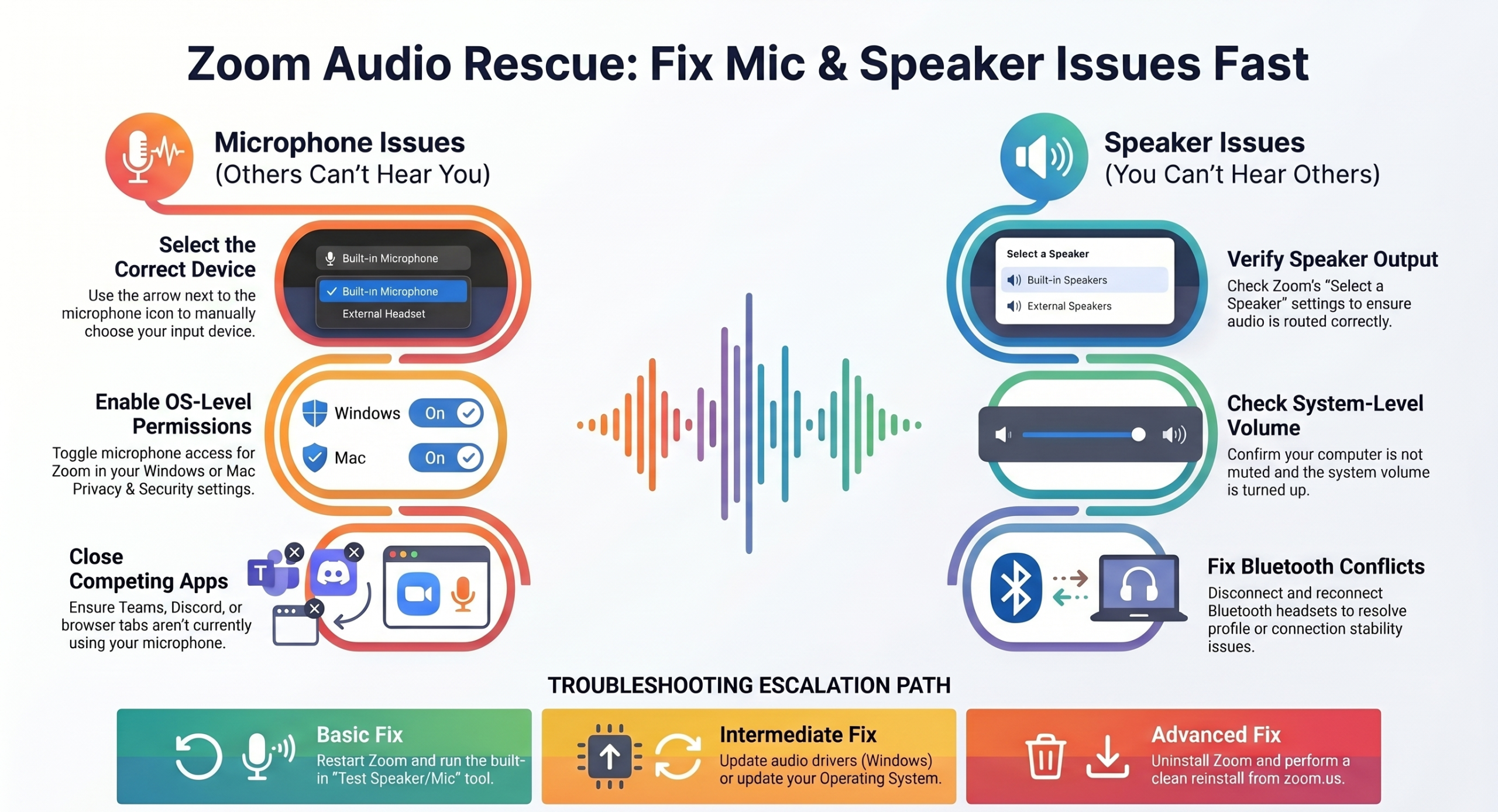
Fix steps:

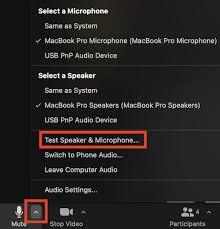
  1. In Zoom, click the arrow next to the microphone icon. Confirm that the correct speaker and microphone are selected. Zoom doesn’t always pick the right device automatically.
  2. Check microphone permissions on your device:
    • Windows: Settings → Privacy → Microphone → allow Zoom
    • Mac: System Settings → Privacy & Security → Microphone → enable Zoom
    • iPhone/Android: Settings → Apps → Zoom → Permissions → Microphone
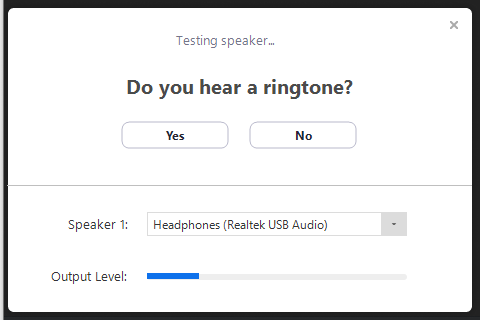
  3. Run Zoom’s built-in audio test: Settings → Audio → Test Speaker / Test Microphone.
  4. Unplug and replug your headset or external mic, then reselect it in Zoom’s audio settings.
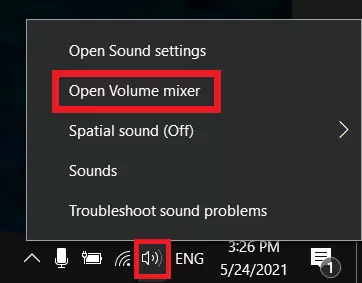
  5. Make sure Zoom isn’t muted at the system level. Check Windows Volume Mixer or Mac Sound settings.
  6. Restart Zoom Meetings completely. Audio driver connections sometimes drop, and only a full restart resets them.

Pro tip: If you use a Bluetooth headset, reconnect it before launching Zoom. Zoom locks onto whichever audio device gets connected at launch.

Why is my Zoom audio not working? 

Zoom audio stops working when the wrong audio device is selected, microphone permissions are blocked by your OS, or the app needs a restart to re-detect your hardware. 

Open Zoom Settings → Audio, select the correct device, and verify system permissions to fix most audio issues.

Fix 3: Your Zoom Camera is not working

Symptoms: Black screen on video, camera not detected, video window blank, video freezes

Fix steps:

  1. Check camera permissions:
    • Windows: Settings → Privacy → Camera → allow Zoom
    • Mac: System Settings → Privacy & Security → Camera → enable Zoom
    • iPhone/Android: Settings → Apps → Zoom → Permissions → Camera
  2. Close every other app that might be using your camera, like Teams, Google Meet, and browser tabs with camera access. Only one app can use the camera at a time.
  3. In Zoom, click the arrow next to the video icon and manually select your camera. Sometimes, it defaults to the wrong device.
  4. Restart Zoom. If you’re on a laptop, check if there’s a physical camera shutter or privacy switch on the device.
  5. On Windows, update your webcam driver: Device Manager → Cameras → right-click → Update driver.

For detailed guidelines on fixing the camera, you can check our blog: Fix your Zoom Camera easily.

Why is my Zoom camera showing a black screen? 

zoom-meetings

A black screen in Zoom Meetings usually means another app has already claimed your camera, permissions are blocked, or Zoom selected the wrong video device. Close other camera-using apps, check OS permissions, and reselect your camera in Zoom’s video settings.

Fix 4: Zoom App is Not Opening or Keeps Crashing

Symptoms: Zoom won’t launch, crashes on startup, gets stuck on the loading screen, freezes mid-meeting

Fix steps:

  1. Update Zoom first. This usually fixes the majority of crash issues. Open Zoom → click your profile picture → Check for Updates.
  2. Restart your device. A fresh boot clears memory issues and background conflicts.
  3. Clear Zoom’s cache:
    • Windows: Press Win+R, type %AppData%\Zoom\data, delete the contents
    • Mac: Go to ~/Library/Application Support/zoom.us → delete the cache folder
    • Android: Settings → Apps → Zoom → Clear Cache
  4. Uninstall and reinstall Zoom. Download the latest version from zoom.us/download.
  5. Check OS compatibility. Older devices running Windows 8 or earlier, or macOS before Catalina, may not support current Zoom versions.

Alternative: If the app keeps failing, join via browser at zoom.us/join. It works without installation.

Fix 5: Unable to Join a Zoom Meeting

Symptoms: Invalid meeting ID error, stuck in waiting room, meeting not found, password rejected

Fix steps:

  1. Double-check the meeting link or ID. One wrong digit or an expired link causes this error. Ask the host to resend the invite.
  2. Try joining via browser: Go to zoom.us/join and enter the meeting ID directly. This bypasses any app-level problems.
  3. Disable your VPN. VPNs can block or reroute Zoom traffic and trigger “meeting not found” errors.
  4. If you’re in the waiting room, the host must admit you manually. Message them directly if you’ve been waiting more than a minute.
  5. Confirm the meeting hasn’t ended or been rescheduled. Check your calendar invite for the correct time and timezone.

Why can’t I join a Zoom meeting? 

You may be unable to join due to an expired or incorrect link, a VPN blocking the connection, or waiting for the host to admit you. Disable your VPN, confirm the meeting ID with the host, and try joining through your browser as an alternative.

Zoom is Not Working? Fix it by Device

The fix depends heavily on which device you’re using. Same symptom, different cause. Here’s what to check per platform.

Windows

Windows is the most common source of Zoom issues because of driver conflicts, permission layers, and antivirus interference.

  • Permissions: Settings → Privacy → Camera / Microphone → make sure Zoom is allowed
  • Driver issues: Device Manager → Cameras or Sound → right-click your device → Update driver
  • Antivirus blocking Zoom: Temporarily disable your antivirus and test. If Zoom works, add Zoom as an exception in your security software
  • Cache corruption: Press Win+R → type %AppData%\Zoom\data → delete the contents, then relaunch Zoom
  • Firewall: Windows Defender Firewall → Allow an app → confirm Zoom is listed and checked for both private and public networks

Mac

Mac issues are usually permission-related or tied to OS updates breaking Zoom’s access.

  • Permissions: System Settings → Privacy & Security → Camera and Microphone → enable Zoom for both
  • After a macOS update: Zoom permissions sometimes reset after major updates — recheck every time you update macOS
  • Cache: Go to ~/Library/Application Support/zoom.us → delete the cache folder → relaunch Zoom
  • Black screen on video: Often caused by another app holding the camera. Quit all other video apps, then restart Zoom
  • Mic not working after update: Go to System Settings → Sound → Input → confirm your mic is selected at the system level, not just inside Zoom

iPhone (iOS)

Mobile Zoom issues on iPhone are almost always permission or storage-related.

  • Permissions: Settings → Zoom → enable Camera, Microphone, and (if needed) Notifications.
  • App update: Open the App Store → search Zoom → update if available. iOS Zoom updates fix most bugs.
  • Low storage: Zoom needs space to function. Go to Settings → General → iPhone Storage. If you’re below 1GB free, clear space first.
  • Background app refresh: Settings → General → Background App Refresh → enable for Zoom, especially if notifications aren’t working
  • Rejoining issues: Force-close the Zoom app (swipe up from app switcher) and reopen. iOS sometimes keeps a broken session in memory

Android

Android has the most variation because of manufacturer differences in how permissions and battery optimization work.

  • Permissions: Settings → Apps → Zoom → Permissions → enable Camera and Microphone
  • Battery optimization blocking Zoom: Many Android manufacturers (Samsung, Xiaomi, Oppo) aggressively limit background apps. Go to Settings → Battery → Battery Optimization → find Zoom → set to “Don’t optimize”
  • Camera in use by another app: On Android, close all recent apps before opening Zoom. The camera lock doesn’t always release automatically
  • App cache: Settings → Apps → Zoom → Storage → Clear Cache (not Clear Data, which resets your login)
  • Low-spec devices: If your device has under 3GB RAM, Zoom may lag or crash during video calls. Lower video quality in Zoom Settings → Video → turn off HD video

Browser (Chrome / Edge / Firefox)

Browser-based Zoom is a separate experience from the desktop app and has its own common failure points.

  • Allow camera and microphone in browser: When you join, the browser will ask for permissions — click Allow. If you previously blocked it, click the lock icon in the address bar → reset permissions → refresh
  • Chrome specifically: chrome://settings/content/camera and chrome://settings/content/microphone — confirm Zoom is not blocked
  • Use the Zoom web client directly: Go to zoom.us/join → enter your Zoom meeting ID → click “Join from your browser” (look for the small link below the download prompt)
  • Browser extensions interfering: Ad blockers and privacy extensions sometimes block Zoom’s web client. Disable extensions temporarily and test
  • Best browser for Zoom: Chrome and Edge have the most consistent Zoom web client support. Firefox works but occasionally has audio issues

Advanced Fixes (If Nothing Works)

If you’ve gone through all the sections above and Zoom is still broken:

  • Disable your VPN or firewall temporarily: Security software sometimes blocks Zoom’s ports
  • Check firewall settings: Zoom requires ports 443 and 8801-8802 to be open
  • Update your operating system: An outdated OS can cause deep compatibility issues with Zoom
  • Try a different device: This tells you immediately whether the issue is device-specific
  • Reinstall completely: Use Zoom’s official clean uninstall tool before reinstalling

This is where a properly configured Zoom environment makes the difference → Fix it properly

When Zoom Issues Aren’t Just Bugs

If you’re troubleshooting the same Zoom problems repeatedly, the root cause might not be technical at all.

Common structural causes:

  • Free plan limitations: The 40-minute cap on group calls and the lack of admin controls create friction for business use
  • No admin oversight: Teams without a managed Zoom plan can’t enforce settings, control permissions, or access meeting reports
  • Unoptimized setup: Running Zoom meeting without proper configuration (bandwidth allocation, correct plan, suitable hardware) leads to recurring issues

Frequent disruptions during client-facing or professional meetings affect credibility and productivity. A properly licensed and configured Zoom setup eliminates most recurring issues before they happen.

How to avoid Zoom issues long-term:

Still Facing Zoom Issues?

Troubleshooting gets you far, but if the same problems keep coming back, a proper Zoom Meeting setup built for your team is the real fix.

Whether you need a Zoom Meeting license, professional configuration, or ongoing support in Nepal, working with a local partner means faster resolutions and a setup that actually fits how your team works.

Stop fixing Zoom every week. Fix it once, properly: Get a Zoom license set up and support in Nepal | Talk to our team

Free Zoom vs Paid Zoom: Which Plan Is Actually Worth It in 2026?

Introduction

You’re 38 minutes into a client meeting. The presentation is going well. The client nods along, asking questions, and is genuinely interested. You’re close to wrapping up the key points and moving toward a decision.

And then, without any warning, Zoom kicks everyone out. The meeting ends. Automatically. For everyone.

Your client stares at a blank screen. You scramble to send a new link. By the time everyone rejoins, the energy has completely shifted. You try to pick up where you left off, but the moment is gone. That one interruption (caused by a free plan’s 40-minute timer) cost you far more than the NPR 2,000 a month that Zoom Pro would have.

This is the reality of free Zoom in a professional setting. And it happens to people every single day. So let’s settle this properly: Is free Zoom actually enough, or do you need to pay for it?

We present you the real answer, not a dry feature list, based on how you actually use it, what your work looks like, and what it costs you to get it wrong.

What Do You Actually Get with Free Zoom?

free-zoom

Free Zoom, or officially known as the Basic plan, is more capable than most people give it credit for. Before we talk about its limits, it’s worth understanding what it genuinely offers:

  • Unlimited 1-on-1 meetings with no time restrictions whatsoever, as two people can talk for as long as they want
  • Group meetings with up to 100 participants
  • Screen sharing with a full screen, a single window, or a specific browser tab
  • Virtual backgrounds and basic video filters
  • In-meeting chat for participants
  • 3 collaborative whiteboards for brainstorming
  • Local recording to record meetings and save the file directly to your computer
  • Basic AI Companion access. So, there are limited features from Zoom’s AI toolkit

For informal use, that’s a solid list. If you’re catching up with a friend, joining a class as a student, or having a quick team check-in that you know will stay under 40 minutes, free Zoom does the job without complaint.

But the moment your needs go beyond these criteria, the cracks start showing.

Where free Zoom quietly fails you

The 40-minute group meeting limit is the one everyone knows about. But it’s not the only limitation worth understanding before you decide:

  • No cloud recording: Recordings only save locally to your device. You can’t share a link. You have to manually transfer files.
  • No AI meeting summaries: No automated notes, no action items, and no transcripts
  • No custom branding: Zoom’s logo appears throughout, not yours
  • No polls or Q&A features during meetings
  • No live streaming to YouTube or Facebook
  • No advanced admin controls: You can’t manage users or set team-wide permissions
  • Whiteboards capped at 3: Fine for now, limiting later

Each of these individually is manageable. Together, they paint a clear picture: free Zoom is designed for casual use, not professional reliance.

What is the 40-Minute Limit, Exactly?

It’s time to be very clear about this because a lot of people misunderstand it.

The 40-minute limit applies to group meetings on a free Zoom account, i.e., any meeting with three or more participants hosted by a free account. When the timer hits 40 minutes, the meeting ends for everyone. All participants. Immediately.

A few minutes before the cutoff, Zoom shows a warning countdown. But it does not pause, it does not ask permission, and it does not care that you’re mid-sentence. The meeting simply ends.

One-on-one meetings between two people are not affected, as they run without any time limit on the free plan.

The common workaround people attempt is ending the meeting just before 40 minutes and immediately starting a new one with the same link. Technically, it works. 

But ask yourself: how professional does that look? How many times will a client, student, or colleague patiently rejoin before they start wondering if there’s a better way to meet?

What Changes When You Pay for Zoom?

Zoom Pro ($13.33/user/month billed annually) and Zoom Business ($18.33/user/month) aren’t just free Zoom with the timer switched off. The upgrade genuinely changes what Zoom is capable of. Here’s what you actually get:

No meeting time limit. Group meetings run for up to 30 hours. In practice, you run whatever meeting you need for as long as it takes, a 90-minute training session, a 3-hour workshop, a full-day virtual event, without once watching the clock.

Cloud recording with shareable links. Record any meeting, and it uploads automatically to Zoom’s cloud. You get a link you can share with anyone. No uploading, no file management, no “can you email me that recording?” Your 5GB cloud storage (on Pro) handles most use cases comfortably.

Full AI Companion access. Zoom’s AI Companion (which is included at no extra cost in all paid plans since 2024) generates automated meeting summaries, action items, and highlights after every meeting. Your team can stop taking frantic notes and start actually paying attention. This feature alone saves hours across a team each week.

Live transcription. Real-time captions appear as people speak. This helps in accessibility and is useful for participants with poor audio, and for quickly reviewing what was said without scrubbing through a recording.

Custom branding. Replace Zoom’s branding with yours: in the waiting room, on meeting invitations, and throughout the interface. It’s a small detail that professional clients notice.

Polls, Q&A, and live streaming. Run interactive polls mid-meeting. Manage structured Q&A sessions. Stream directly to YouTube or Facebook Live. None of these exist on the free plan.

Admin controls and user management. Zoom Business adds a full admin dashboard where you can manage multiple users, assign roles and permissions, enforce security policies, and review usage analytics across your organisation.

Free vs Paid Zoom: Side-by-Side Comparison

Feature Free (Basic) Pro Business
Group meeting duration 40 minutes 30 hours 30 hours
Max participants 100 100 300
1-on-1 meeting duration Unlimited Unlimited Unlimited
Cloud recording ✗ Local only 5 GB 10 GB+
AI meeting summaries Basic Full access Full access
Live transcription
Custom branding
Polling & Q&A
Live streaming
Whiteboards 3 boards Unlimited Unlimited
Admin controls Basic Full + SSO

The short version: Free = casual. Paid = professional. The 40-minute limit is the most visible difference, but the deeper gap is everything Zoom adds that makes your meetings feel like a real, reliable operation.

Who Should Stay on Free Zoom?

Not everyone needs to upgrade, and we’re not going to pretend otherwise. Free Zoom is genuinely the right choice if:

  • You primarily join meetings rather than host them. The time limit only affects the host’s account.
  • Your calls are mostly 1-on-1, which have no time limit anyway
  • You use Zoom casually for family calls, informal chats, and occasional personal use
  • You’re a student attending classes or study groups
  • Your meetings consistently stay under 35–38 minutes, and you have no plans to scale up

If that’s your situation, keep the free plan and don’t spend a rupee on it. It does exactly what you need.

Who Actually Needs Paid Zoom?

paid-zoom

Here’s where the decision gets real. If any of the following describes your work, free Zoom isn’t just inconvenient, but actively costing you.

You host client meetings. A 40-minute cutoff during a client call doesn’t just break the flow. It signals to your client that you’re running on a free account, which raises a quiet question about the level of operation they’re dealing with. Professional client relationships deserve professional tools.

You teach or train online. A standard online class or training session runs 60–90 minutes. Free Zoom ends at 40. Every session. Your students have to close the app, get a new link, and rejoin, and some won’t bother. Cloud recording is equally critical: record the session, share the link, and students who missed class can catch up without chasing you for notes.

You run sales demos or discovery calls. Sales conversations rarely close in 40 minutes, and product demos take as long as they take. If you’re mentally watching the timer during a demo, you’re not fully present. And if the call gets cut, you may have just lost the deal to a subscription that costs less than a meal out.

You manage a remote team. Daily standups, weekly syncs, 1-on-1s, retrospectives, and team management happen inside meeting tools. A recurring 40-minute hard stop isn’t a workflow; it’s a recurring disruption that accumulates into genuine productivity loss across your team.

You need records and accountability. Cloud recording isn’t just convenient. For many businesses, it’s a compliance requirement, like a documented record of decisions made, instructions given, and agreements reached. Local-only recording means manually managing files. Cloud recording means it’s always there, searchable, and shareable.

How to Get Zoom Pro in Nepal: The Part Nobody Else Covers

Here’s something no other Zoom comparison blog will tell you: buying Zoom directly from Zoom.us is more frustrating than it should be if you’re in Nepal.

The typical experience goes like this:

  • You decide to upgrade.
  • You go to Zoom’s website, you fill in your details, and then Zoom asks for an international credit card.

Most Nepali bank cards aren’t enabled for international online transactions by default. The card gets declined. You try a different card. Same result. You consider calling your bank, wait on hold, give up, and the upgrade doesn’t happen.

Even if the payment goes through, you get a USD invoice with no VAT breakdown, which is essentially useless for business tax documentation in Nepal. A local Zoom reseller removes every one of these obstacles.

Zoom pricing in Nepal (2026)

Plan Monthly (NPR) Annual (NPR)
Free Free Free
Zoom Pro ~NPR 2,000–2,700 ~NPR 19,000/year
Zoom Business ~NPR 2,600–3,000 Contact reseller
Webinar add-on (100 attendees) ~NPR 6,000 Contact reseller

Prices are approximate and vary by reseller and exchange rate.

Why buy through a local reseller?

  • Pay in NPR: No USD conversion, no international transaction fees
  • eSewa, Khalti, ConnectIPS, and bank transfer: Pay the way Nepal actually pays
  • Proper VAT invoice: Compliant documentation for business tax deductions
  • Local support: Someone in your time zone who actually picks up the phone
  • Guidance on the right plan: So you’re not paying for features you don’t need

ThinkMove Solutions is an authorised Zoom reseller in Nepal. We handle licensing, billing in NPR, VAT documentation, and ongoing support. No international card required. 

The Verdict: Do you need Free Zoom or Paid Zoom?

Stick with free if you use Zoom casually, mostly join rather than host, and your meetings reliably stay under 40 minutes. It’s a capable free tool, and there’s no reason to upgrade if it already does the job.

Upgrade to Pro if you host client calls, run online classes, manage a remote team, conduct sales demos, or rely on Zoom as a core part of how your business operates. At around NPR 2,000/month in Nepal, Zoom Pro costs less than most monthly subscriptions you’re already running, and it eliminates the single most professionally damaging thing that can happen in an important meeting.

The question was never really “free or paid?” The question is: what does a failed meeting cost you? If the answer is more than NPR 2,000, and for most professionals it is, the upgrade decision is already made.

Need help getting the right Zoom plan for your business in Nepal? ThinkMove Solutions handles licensing, NPR billing, VAT documentation, and local support, without any international card needed. 

AWS in 2026: Latest Services, Strategic Updates & Business Impact

Every year, businesses, and in extension, people ask the same question about AWS in 2026: what’s actually changed, and does it matter for us? The answer is more interesting than usual. AWS isn’t just adding services but is also undergoing a genuine strategic transformation. AI has moved from an optional add-on to the core lens through which AWS designs everything. 

A new sovereign cloud has launched in Europe. Custom silicon has taken a significant leap forward. And AWS has done something rare: it has actually retired services rather than letting its catalog sprawl indefinitely.

Whether you’re evaluating AWS for the first time, planning a migration, or simply trying to stay current, this guide covers everything that matters with verified facts, no fluff, and clear implications for your business.

What You’ll Learn in This Guide

  • How many services does AWS offer in 2026 (with a full category breakdown)
  • The 5 most important strategic updates this year
  • Which services are being retired, and what to use instead
  • What the latest changes mean for businesses in Nepal and South Asia
  • How AWS compares to Azure and Google Cloud right now
  • A practical getting-started path for businesses new to AWS

New to AWS entirely? Read our Complete Beginner’s Guide to AWS first, then come back here for the latest updates.

How Many Services Does AWS Offer in 2026?

Let’s answer the question directly: AWS officially offers more than 240 fully featured services as of 2026, confirmed on AWS’s own homepage. If you count individual sub-features and products, the number exceeds 500, but 240+ is the meaningful figure for business planning purposes.

aws-in-2026-updates

Here’s how they break down across the categories that matter most:

Compute: EC2, Lambda, ECS, EKS, Elastic Beanstalk, Lightsail. The 2026 headline here is the new Graviton5 processor powering M9g instances: 192 ARM cores per chip (double the previous generation), 25% better general compute performance, and a new Nitro Isolation Engine that uses formal mathematical verification to prove workloads cannot see each other’s data.

Storage: S3, EBS, EFS, Glacier, FSx. The biggest story is Amazon S3 Vectors, now generally available. It’s the first cloud object storage with native vector indexing built in, i.e., you can store and query the embeddings that power AI search and RAG applications directly in S3, without running a separate vector database. It supports up to 2 billion vectors per index and reduces vector storage costs by up to 90% compared to dedicated vector database services.

AI & Machine Learning: Bedrock, SageMaker, Amazon Q, Rekognition, Comprehend, Textract, Polly, Transcribe. Bedrock is the centerpiece: a unified platform where you can access models from Anthropic (Claude), OpenAI, Meta (Llama), Mistral, Cohere, and others through a single API, inside your own secure AWS environment. More on this below.

Databases: RDS or Relational Database Service (PostgreSQL, MySQL, Oracle, SQL Server, MariaDB), Aurora, DynamoDB, Redshift, ElastiCache, DocumentDB, Neptune. The trend across all of these in 2026 is serverless options and native AI integration. Aurora Serverless v2 scales computation automatically, and database services increasingly connect directly with Bedrock for AI-powered queries.

Networking & Security: VPC, CloudFront, Route 53, Direct Connect, IAM, AWS Shield, WAF, Security Hub, GuardDuty. Zero-trust architecture is the 2026 security theme. Every access request is verified regardless of network origin, supported natively across AWS services.

Analytics & Developer Tools: Athena, Kinesis, Glue, QuickSight, EMR, CodePipeline, CodeBuild, CodeDeploy, CloudFormation, CDK. Amazon Q Developer brings AI-assisted coding into the IDE, replacing the older CodeWhisperer branding with broader capabilities.

The 5 Most Important AWS Updates in 2026

1. AWS AI Strategy in 2026 

AWS in 2026 is defined by a broader AI strategy rather than a single product or service. Amazon Bedrock is one of the central components of this strategy, alongside services like Amazon SageMaker and Amazon Q, enabling enterprises to deploy, manage, and scale AI workloads securely within the AWS ecosystem.

At its core, AWS is shifting from offering isolated AI tools to providing a unified AI deployment layer where businesses can access multiple foundation models, manage workflows, and integrate AI directly into production systems.

Amazon Bedrock as the Enterprise AI Platform

Amazon Bedrock serves as AWS’s managed foundation model platform, enabling organizations to build generative AI applications using leading models without managing underlying infrastructure.

In 2026, Bedrock supports a multi-model ecosystem that includes providers such as Anthropic (Claude models), Meta (Llama), Mistral, Cohere, and others. This allows businesses to select models based on performance, cost, and use-case requirements while remaining within a single AWS-managed environment.

AWS Agentic AI and Stateful Runtime Environments

A major evolution in AWS’s AI direction is the shift toward agent-based systems and stateful AI workflows.

In 2026, AWS and OpenAI introduced the concept of a Stateful Runtime Environment, designed to allow AI agents to maintain memory, context, and tool access across multi-step workflows. This enables more complex automation scenarios where AI systems can execute chained tasks without losing contextual awareness.

Within AWS, this capability is integrated into the broader Bedrock ecosystem, positioning it as a foundation for enterprise-grade agentic AI applications.

This shift indicates AWS is moving from static prompt-response models toward persistent, workflow-driven AI systems capable of supporting real business processes.

2. AWS’s Fastest Custom Chip Yet With Graviton5

Announced at re: Invent in December 2025, Graviton5 is AWS’s most powerful custom processor. The headline specs: 192 ARM cores per chip (double Graviton4), 5x larger L3 cache, up to 25% better general compute performance, and the new Nitro Isolation Engine, which is a formally verified hardware layer that mathematically proves workloads cannot access each other’s data.

In practice: Graviton5-powered M9g instances are up to 30% faster for database workloads, up to 35% faster for web applications and ML inference, compared to the previous generation. Atlassian reported 30% higher performance and 20% lower latency running Jira on M9g instances. For businesses running EC2 workloads, upgrading to Graviton5 instances offers meaningful performance gains without changing a single line of application code.

3. Amazon S3 Vectors: Storage Built for the AI Era

Launched in preview in July 2025 and reaching general availability in December 2025, S3 Vectors is a genuinely new product category. It’s the first cloud object storage with native vector indexing and querying, meaning you can store and search the mathematical embeddings that power AI applications directly in S3, without running a separate vector database like Pinecone or Weaviate.

The numbers: up to 2 billion vectors per index (a 40x increase from preview), query latency under 100 milliseconds for frequent queries, and up to 90% cost reduction compared to dedicated vector database services. For businesses building AI-powered search, customer assistants, or recommendation engines, this dramatically lowers both the cost and the infrastructure complexity.

4. AWS European Sovereign Cloud Is Now Open

On January 15, 2026, AWS launched the AWS European Sovereign Cloud. It’s a physically and logically separate cloud infrastructure located entirely within the EU, operated exclusively by EU residents, governed by German law, and backed by a €7.8 billion investment. The launch region is Brandenburg, Germany.

This isn’t just an EU data center. It’s a completely separate AWS partition with its own governance structure, no critical dependencies on non-EU infrastructure, and the ability to operate independently if connectivity with global AWS is disrupted. It launches with approximately 70 core services. For businesses in Nepal serving European clients in regulated sectors, like healthcare, finance, government, etc., this opens compliance conversations and contract opportunities that weren’t previously possible.

5. AWS Is Spending $200 Billion on Infrastructure in 2026

Amazon announced plans to spend a record $200 billion on capital expenditure in 2026, a significant portion of which goes into AWS data centers, custom chips, and AI infrastructure. For customers, this signals continued innovation velocity and long-term platform stability. AWS is not ceding ground to Azure or Google Cloud, but accelerating.

Services Being Retired in 2026 (and What to Use Instead)

One of the most underreported 2026 AWS stories: AWS has farewelled 12+ services in a coordinated announcement, deliberately trimming its catalog to concentrate investment on core infrastructure and AI capabilities. If your business uses any of the following, you need to begin migration planning now.

AWS IQ (marketplace for hiring AWS experts) → Use the AWS Partner Network to find vetted consulting partners directly.

Amazon Pinpoint (customer engagement and messaging campaigns) → Use Amazon SES for email, SNS for push notifications, or a dedicated third-party platform.

AWS IoT Analytics (IoT data processing and analytics) → Migrate to AWS IoT Core + Amazon Kinesis + Amazon Athena.

AWS IoT Events (detect and respond to IoT sensor events) → Use the IoT Core Rules Engine combined with Lambda.

AWS Panorama (computer vision at the edge) → Migrate to IoT Greengrass + SageMaker Edge Manager.

Amazon Timestream for LiveAnalytics (real-time time-series data) → Timestream for InfluxDB remains active and is the recommended path.

AWS SimSpace Weaver (large-scale spatial simulations) → EC2 with custom simulation frameworks.

Amazon Inspector Classic (legacy security assessment) → Migrate to Amazon Inspector (the modern version).

AWS Private 5G (deploy private 5G mobile networks) → Third-party 5G network-in-a-box solutions.

AWS DMS Fleet Advisor (discover on-premises databases for migration) → Use AWS Database Migration Service directly.

AWS DataSync Discovery (analyze on-premises storage systems) → The core AWS DataSync service remains active.

The pattern is telling: these are mostly niche services that never achieved wide adoption, or developer tools where third-party alternatives simply outperformed AWS’s homegrown equivalents. Core services like the EC2, S3, Lambda, RDS, DynamoDB, CloudFront, or IAM have no deprecation concerns. If you’re unsure about any service you use, check AWS’s official Product Lifecycle page.

What These Changes Mean for Your Business

AI is now a standard cloud feature, not a specialty capability. Two years ago, adding AI to a business application meant building a separate ML pipeline or managing GPU infrastructure. In 2026, Amazon Bedrock gives you access to frontier AI models through a simple API call. 

For businesses in Nepal, this democratization is significant, since you no longer need a dedicated AI team to add intelligent features to your products.

Cost optimization has improved meaningfully. Graviton5 delivers better performance per dollar than any previous AWS generation. S3 Vectors eliminates the need for a separate vector database for most AI use cases, cutting that cost by up to 90%. Reserved Instances and Savings Plans still offer 40–60% discounts for predictable workloads, and AWS Compute Optimizer has improved at identifying right-sizing opportunities.

Security expectations have risen. The Nitro Isolation Engine on Graviton5 provides mathematically proven workload isolation. This is a meaningful step beyond trust-based isolation. Zero-trust architecture is now well-supported natively across IAM, AWS Verified Access, and AWS Network Firewall. For regulated industries, this raises the baseline of what’s achievable without custom security engineering.

AWS for Businesses in Nepal & South Asia

The two nearest AWS regions to Nepal are Asia Pacific (Mumbai) and Asia Pacific (Singapore). Both support the full 2026 feature set, including Graviton5 instances, Bedrock AI services, and S3 Vectors. For most Nepali businesses, Mumbai is the recommended primary region for the lowest latency, with Singapore as a secondary region for disaster recovery.

The availability of Amazon Bedrock in Mumbai means you can build sophisticated AI-powered applications, including customer assistants, semantic search, document analysis, etc., without data leaving the region. For fintech, e-commerce, healthcare, and education businesses in Nepal, this opens up intelligent product features that were previously the exclusive domain of large tech companies.

For businesses serving European clients in regulated sectors, the EU Sovereign Cloud changes what’s possible in those conversations. European customers who previously couldn’t use cloud services due to data sovereignty requirements now have a compliant path forward with AWS. This becomes a relevant context if you’re positioning cloud adoption to European partners or clients.

AWS vs Azure vs Google Cloud in 2026

AWS holds approximately 32% of the global cloud market, which is more than Azure (~23%) and Google Cloud (~12%) combined. AWS leads on service breadth (240+ services), partner ecosystem size (100,000+ global partners), and startup and SMB support infrastructure.

Azure is the stronger choice for organizations deeply embedded in the Microsoft ecosystem. Those running Windows Server, Active Directory, and Microsoft 365 at scale will find Azure’s hybrid integration compelling. Google Cloud excels in data analytics (BigQuery remains best-in-class), Kubernetes, and AI research capabilities through its TPU infrastructure and Gemini model family.

For most businesses in Nepal and South Asia, evaluating cloud for the first time, without existing platform commitments, AWS offers the widest range of services, the largest regional partner network, the most mature compliance and security tooling, and the lowest-friction path to AI capabilities through Bedrock.

Common Business Use Cases for AWS in 2026

aws-services

E-commerce and retail: Product recommendations via Amazon Personalize, semantic search via S3 Vectors and Bedrock, automated customer service via Amazon Q, and elastic scaling for traffic spikes (Black Friday, Dashain, festival seasons) with pay-as-you-go economics. The tourism industry and travel agencies can also heavily benefit from AWS services.

Healthcare and health-tech: HIPAA-eligible services for patient data, Amazon HealthLake for health data interoperability, encrypted S3 storage with CloudTrail audit trails, and compliance certifications that reduce enterprise sales cycles.

Fintech: High-concurrency transaction processing on Aurora PostgreSQL with multi-AZ redundancy, PCI DSS compliance in the Mumbai region, real-time fraud detection using Kinesis and SageMaker, and Security Hub for continuous compliance monitoring.

Software development teams: Amazon Q Developer for AI-assisted coding and security vulnerability scanning in the IDE, CodePipeline and CodeBuild for CI/CD, CloudFormation for infrastructure-as-code, and Lambda for rapid prototyping without infrastructure management.

Startups and SMEs: The AWS Free Tier provides 12 months of access to core services at no cost. Lambda and DynamoDB mean you pay only for actual usage. The AWS Activate program provides startup credits, technical support, and go-to-market resources specifically for early-stage companies.

How to Get Started with AWS

Step 1: Assess your current state. Document what you’re running today: servers, databases, applications, data volumes, traffic patterns, and current costs. This is the foundation of a successful migration, not a box-ticking exercise.

Step 2: Start with the Free Tier. New AWS accounts get 12 months of free access, including 750 hours/month of EC2 (t2.micro), 5 GB of S3 storage, and a generous Lambda free tier. Use this to experiment before committing budget.

Step 3: Choose your primary region. For Nepal-based businesses, Asia Pacific (Mumbai) is the default recommendation for the lowest latency. Singapore is the recommended secondary region.

Step 4: Secure your account from day one. Enable MFA on the root account immediately. Create IAM users with least-privilege permissions. Enable CloudTrail for audit logging. These take 30 minutes and prevent the majority of common security incidents.

Step 5: Work with a certified AWS partner. Architecture decisions made early in a migration determine cost and performance outcomes for years. An AWS consulting partner like ThinkMove Solutions helps with architecture design, cost optimization, security configuration, and ongoing managed services.

Ready to put AWS to work for your business? ThinkMove Solutions is Nepal’s trusted AWS consulting partner. From migration planning and architecture design to cost optimization and managed cloud services.  Contact us today to get started.

Comparing Zoom vs Google Meet For Businesses In Nepal

Introduction

Choosing the wrong video conferencing platform in Nepal costs more than money. It costs class time when a teacher’s meeting cuts off mid-lesson. It costs credibility when a client’s call drops because a webinar tool was not built for the session size. And it costs real rupees when hidden licensing fees pile up on top of a plan that looked cheap on paper.

In 2026, Nepali businesses, schools, NGOs, and event organizers are choosing between two dominant platforms:

Both are capable. Both have free tiers. And both are being used across Kathmandu, the Terai, and hill districts alike. But they are not the same platform, and the right choice depends entirely on who you are and what you need.

This guide gives you a Nepal-focused comparison:
✔ NPR pricing realities
✔ VAT-compliant procurement considerations
✔ AI inclusion (updated 2026)
✔ Bandwidth performance
✔ Webinar capability
✔ Which platform suits which use case

No generic global fluff. Just what matters here in Nepal.

Quick Verdict

Choose Zoom if:

  • Your meetings regularly exceed 40 minutes
  • You run webinars or large public events
  • You need breakout rooms and advanced host control
  • Your team works in low-bandwidth regions
  • You require detailed admin controls
  • You want AI summaries included in the plan

Choose Google Meet if:

  • Your organization already runs fully on Google Workspace
  • Your meetings are internal and have under 150 participants
  • You prefer browser-first simplicity
  • You want slightly lower per-user cost at scale

Zoom vs Google Meet: Feature Comparison

Both platforms have matured significantly since the pandemic. But feature parity is a myth. Here is where they genuinely diverge.

Feature Zoom Google Meet
Free Meeting Limit 40 min (group) 60 min (group)
Max Participants (Free) 100 100
Max Participants (Paid) 100–1,000+ 150–1,000
Breakout Rooms All paid plans Business tiers & above
Whiteboard Native whiteboard Jamboard discontinued
Local Recording (Free) ✔ Yes ✘ No
AI Features Included in paid plans Included in Workspace Standard & above
Browser-Based App recommended Fully browser-based
Bandwidth Management Manual + auto Auto-adaptive only
App Marketplace 2,000+ integrations Fewer native add-ons
Encryption Optional E2EE + transit encryption Encryption in transit
Webinar Product Dedicated Zoom Webinar No equivalent native product

Zoom Vs Google Meet: Webinars & Meetings 

If you host public-facing events, this is where the platforms diverge sharply.

Zoom Webinar offers

  • Registration pages
  • Panelist controls
  • Q&A moderation
  • Polling
  • Analytics
  • 10,000+ attendee scalability

Google Meet can livestream (Enterprise tiers), but it does not offer a dedicated webinar architecture comparable to Zoom Webinar:

  • Universities running admissions sessions
  • NGOs hosting consultations
  • Corporate town halls
  • Paid online events

Zoom is structurally built for this. Meet is not.

Collaboration Tools: Whiteboards, Chat & Breakout Rooms

Zoom’s whiteboard is active and improving. Google’s equivalent, the Jamboard, was permanently discontinued at the end of 2024. Any comparison article that still lists Jamboard as a Google Meet feature is outdated.

Zoom offers:

  • Persistent whiteboards
  • In-meeting annotation
  • Breakout rooms on all paid tiers
  • Host-level moderation controls

Google Meet offers:

  • Strong Google Docs/Slides collaboration
  • Breakout rooms on Business tiers
  • Simpler meeting UI

For interactive teaching environments, Zoom currently provides more built-in classroom tools without requiring additional apps.

AI Features: The Important Add-ons in 2026

Zoom AI Companion 3.0 is generally included in most of the upper-tier paid Zoom Workplace plans.

Features:

  • Automatic meeting summaries
  • Action item extraction
  • Real-time question assistance
  • Agenda suggestions
  • Smart recording highlights

No separate AI add-on required for standard usage.

Gemini for Google Workspace

As of 2026, Gemini AI features are bundled into Google Workspace Business Standard and higher plans. There is no longer a mandatory separate $19.99 add-on for most Workspace tiers.

Features:

  • Meeting summaries
  • “Attend for me” AI delegation (availability varies by region)
  • Smart drafting across Gmail and Docs
  • Context-aware suggestions

Both platforms now include AI in their mid-tier business plans.

Security & Privacy

Both platforms are enterprise-safe in 2026. Zoom offers end-to-end encryption, waiting rooms, meeting locks, participant watermarking, and detailed admin dashboards with compliance support for HIPAA, GDPR, and FedRAMP.

Google Meet encrypts all traffic in transit by default, backed by Google’s ISO 27001 and SOC 2 certifications. For most Nepali organizations, the practical difference is configuration: Zoom gives IT teams granular control; Meet offers strong defaults with less customization. Neither has an inherent security disadvantage at the enterprise tier.

Device Compatibility & Bandwidth in Nepal

This is where Nepal-specific context matters most. Outside Kathmandu, and even within it, internet speeds are inconsistent. We need to also remember that many students and staff connect via mobile data.

Zoom offers:

  • Manual low-bandwidth optimization
  • Aggressive compression
  • Stable performance at ~600 kbps
  • Mobile-optimized client

Google Meet offers:

  • Automatically adapts bitrate
  • Allows disabling video
  • No manual low-bandwidth toggle

Zoom provides more granular control in unstable connectivity environments. For schools in hill districts, NGOs in rural communities, or businesses with staff working outside major cities, Zoom’s bandwidth management is a practical operational advantage, not just a feature checkbox.

Zoom vs Google Meet: Pricing in Nepal for 2026

Headline pricing favors Google Meet, as Workspace Starter starts at $6/user/month, appearing cheaper than Zoom Pro at $16.99/user/month. But that comparison misses three things: what is included, what the actual NPR cost is through local channels, and what you need to add to make each platform fully functional.

Plan USD Price Est. NPR (Nepal) Participants / Key Limit
Zoom Basic Free 100 / 40-min limit
Zoom Pro ~$16.99/mo NPR 1,800–2,400/mo 100 / 30 hrs + AI
Zoom Business ~$21.99/mo NPR 2,600–3,200/mo 300 / AI Companion
Google Meet (Free) Free 100 / 60-min limit
Workspace Starter $6/user/mo NPR 800–1,000/mo 100 / no recording
Workspace Standard $14/user/mo NPR 1,400–1,700/mo 150 / recording + AI Companion
Workspace Plus $18/user/mo NPR 2,300-2,500/mo Higher Limits

NPR estimates are based on current exchange rates and local reseller pricing. Costs may vary slightly depending on billing cycle and plan tier.

Total Recent Cost Reality: 10-Person Nepali Team

Zoom Workplace Business with AI Companion:
Approx. NPR 25,000–30,000/month for 10 users (depending on annual vs. monthly billing).
AI Companion is included in paid plans at no extra cost.

Google Workspace Business Standard (with Gemini AI included):
Approx. NPR 19,000–23,000/month for 10 users (depending on annual vs. monthly billing).
Gemini AI features are now bundled into Workspace plans, i.e., no separate Gemini add-on is required.

So, Google Workspace Business Standard is currently more cost-effective than Zoom Workplace Business for a 10-person Nepali team under standard global pricing, but with only a slight difference.

The Local Purchasing Advantage

Buying directly from Zoom or Google requires an international credit card and provides no local tax documentation. ThinkMove Solutions, Nepal’s authorized Zoom partner, offers:

  • NPR billing and local bank transfer options
  • VAT-compliant tax invoices (critical for registered Nepali businesses)
  • No international credit card required
  • Local setup assistance, onboarding, and ongoing support
  • Official Zoom licenses, which is same as buying direct, with Nepali compliance

Google Workspace purchases typically require:

  • International payment method
  • Direct billing in USD
  • Limited Nepal-specific support (only one or two dedicated companies)
Get a VAT-Compliant Zoom Quote

Contact ThinkMove Solutions for Zoom Pro, Business, or Education pricing in NPR, with VAT invoices, local setup, and authorized reseller support. 

Which Platform Suits Your Situation? 

google-meet

Features and pricing only matter in context. Here is scenario-based guidance for the three main audiences this comparison serves.

Your Situation Recommended Plan Why
Nepali SMB (10–50 staff) Zoom Pro / Business AI summaries, breakout rooms, long sessions, VAT invoice via ThinkMove
School / College Zoom Education Focus Mode, annotations, polls, 40-min limit removed, LMS integration
Large Corporate / Enterprise Zoom Business Plus Advanced host controls, compliance, webinars, and dedicated support
Internal team (Google users) Google Workspace + Meet Simpler if Workspace is already in use with Gemini AI
Event / Webinar Organiser Zoom Webinar add-on Up to 10,000 attendees, Q&A, registration, recording, panelist controls
NGO / Low-bandwidth context Zoom Pro Low-bandwidth mode, mobile-friendly, local NPR billing via ThinkMove

Nepali SMBs and Corporate Teams

For a business with 10–100 staff running regular team meetings, client calls, and occasional training sessions, Zoom Pro or Business is the stronger choice.

The 30-hour meeting duration, AI Companion summaries that automatically document what was discussed and what actions were assigned, and the ability to record in the cloud for staff who missed sessions. These are operational tools, not luxury features.

With ThinkMove handling licensing and invoicing locally, the procurement process is also straightforward. If your organization already has Google Workspace and your needs are purely internal communication, Meet works and saves a lot of transition cost.

Educational Institutions in Nepal

The 40-minute cap on Zoom’s free plan has disrupted more Nepali classrooms than any other technical constraint. The solution is Zoom for Education: a dedicated plan with extended sessions, Focus Mode (so students only see who the teacher designates), and annotation tools for interactive lessons.

Google Meet is used widely in schools already running Google Workspace for Education, but it lacks a bit in the interactive teaching features Zoom provides natively. For institutions running formal distance learning or hybrid programs, Zoom is the more capable platform. Both platforms use deep LMS integrations such as Moodle and Google Classroom, offering a wonderful learning experience.

Event Organizers and Hybrid Meetings

For webinars, conferences, or hybrid events where you need registration pages, attendee management, Q&A moderation, live polls, recording, and post-event analytics, Zoom Webinar is the professional standard.

Google Meet has no comparable webinar product. If your events are internal or small-scale, Meet is fine. If you are running anything public-facing, revenue-generating, or with more than 100 attendees, Zoom is the only serious option between the two.

Not Sure Which Plan Fits Your School or Team?

ThinkMove Solutions’ Zoom for Education plan works with Nepali educational institutions, SMBs, and event organizers for their actual needs. Get in touch with us for a free consultation.

Our Recommendation for Nepali Users

Google Meet is excellent for organizations already embedded in Google Workspace with mostly internal meetings.

Zoom is stronger when you need:

  • Longer sessions
  • Structured host controls
  • Webinars
  • Interactive classrooms
  • Fine-grained bandwidth handling
  • Advanced participant management

Both are legitimate enterprise tools in 2026.

The better choice depends on:

  • Your workflow
  • Your procurement process
  • Your bandwidth realities
  • Your event complexity

Ready to Get Started with Zoom in Nepal?

Contact ThinkMove Solutions today. We provide VAT-compliant Zoom licenses in NPR, local onboarding and training, and dedicated support for businesses, schools, and event organizers across Nepal.

Zoom Licenses in Nepal 2026: Pricing, Plans & Buying Guide

Introduction

So imagine this: you’re thinking of buying a remote collaboration tool for your business. You research far and wide on the internet, finally settling on Zoom. But you see that it comes with different types of licenses. Now you’re confused about which Zoom license to buy for your business. You are also worried about their pricing in Nepal, or if you will be getting a proper VAT invoice. Well, you’re not alone.

zoom-license-type

This guide gives you the details of every Zoom license type available, with transparent NPR pricing and real-world use cases to help you choose the right plan. Whether you’re a startup, school, NGO, or enterprise, we’re here to help you make the smart choice.

What you’ll learn:

  • All Zoom license types explained (Basic, Pro, Business, Enterprise, Education)
  • Transparent pricing in NPR with VAT details
  • How to pick the right plan for your organization
  • How to buy through authorized Nepal resellers (or partners)

So, let’s find the perfect Zoom license for your organization.

Understanding Zoom License Types: Which Plan is Right for You?

Zoom officially provides five main license types, each created with different organizational needs in mind. Here’s what you need to know to choose the right one for you.

Zoom Basic (Free Plan)

Quick Overview:

  • Meeting duration: 40 minutes for group meetings, unlimited for 1-on-1
  • Participants: Up to 100
  • Key features: HD video, screen sharing, virtual backgrounds, breakout rooms
  • Cloud storage: None (local recording only)
  • Price: Free

Best For: Personal use, occasional team check-ins, testing Zoom before moving to the paid plans.

Main Limitation: The 40-minute time limit is the biggest hurdle. Most Nepal businesses hit this limit quickly during client presentations, training sessions, or team meetings that will obviously run longer.

When to Upgrade: If you’re always restarting meetings to get around the 40-minute limit, or if you need to record your training sessions or client meetings and save them in the cloud, it’s time to move to Pro.

Zoom Pro (Most Popular for Small-Medium Businesses)

What You Get:

  • Meeting duration: 30 hours (just putting a time measurement for unlimited)
  • Participants: Up to 100
  • Cloud storage: 5GB per license
  • Advanced features: Cloud recording with auto-transcription, automated captions, phone dial-in, 3 whiteboards, custom meeting IDs

Pricing in Nepal:

  • Monthly: NPR 1,800 – 2,400 per month
  • Annual: NPR 22,000 – 24,000 per year 

Best For:
Small businesses (5-50 employees), freelancers, consultants, training providers, startups, marketing agencies

Common Nepal Use Cases:

Marketing Agencies: You can easily do client presentations and team standups without the 40-minute interruption. The featured cloud recording lets you share sessions with clients as well.

Consulting Firms: You can run 2-3 hour workshops comfortably. This makes it perfect for training sessions that need full interaction.

Tutoring Centers: Organize small group classes and record them, so students can easily review before exams.

Why This Plan Works in Nepal:
At NPR 1, 800-2,400 monthly, it’s the sweet spot, being affordable for startups but powerful for growing companies. The 30-hour duration means you don’t have to rush, and cloud recording helps you with reviews and future check-ups. If your connection drops, you can always rewind what you missed.

Pro Tip: If only 1-2 people on your team regularly host meetings, they can buy just those licenses. Everyone else can join as free participants.

Add-ons Available: Large Meeting (500 or 1,000 participants) for town halls or major presentations.

Zoom Business (For Growing Organizations)

What You Get:

  • Meeting duration: 30 hours
  • Participants: Up to 300
  • Cloud storage: 10GB per license
  • Minimum licenses: 10 (important restriction)
  • All Pro features PLUS: Company branding, managed domains, Single Sign-On (SSO), recorded transcripts with search, admin dashboard, vanity URL

Pricing in Nepal:
Usually starts from around NPR 2,600 to 3,000 per license/month with 10 license minimum. There are also discounts available at volume for 20+ licenses.

Best For:
Mid-size companies (50-250 employees), NGOs, multi-department organizations, and companies needing centralized admin controls

Common Nepal Use Cases:

NGOs: Organize all-hands meetings with 100+ staff across field offices. Zoom also provides an admin dashboard that tracks usage and manages domains. This ensures only authorized staff can create meetings under your organization’s name.

IT Companies: Perform sprint planning, client demos, and department coordination. With a 300-participant capacity, you can bring the entire project team together online. SSO means you only require one login for everything.

Corporate Offices: Do quarterly reviews and executive presentations with company branding. The recorded transcripts with keyword search help teams find specific decisions from past meetings.

The 10-License Consideration:
If there are fewer than 10 people who regularly host meetings, this license plan might not be cost-effective. However, for teams of 15-50, volume pricing often makes Business more effective than buying many Pro licenses, with much better features.

Nepal-Specific Advantage:
Many NGOs need proper admin controls for donor reporting. A business plan provides the audit trails, usage reports, and security controls that satisfy & grant these requirements.

Zoom Enterprise (For Large Organizations)

zoom-license-webinar

What You Get:

  • Meeting duration: 30 hours
  • Participants: Up to 1,000 (scalable to 10,000+)
  • Cloud storage: Unlimited
  • Minimum licenses: 100+
  • All Business features PLUS: Dedicated customer success manager, Zoom Phone (full PBX), premium 24/7 support, executive business reviews, advanced admin controls

Pricing in Nepal:
Custom pricing, which is based on license count and commitment. You must contact the required providers for their consultation.

Best For:
Large corporations (250+ employees), universities, government departments, healthcare systems, banking institutions

Common Nepal Use Cases:

Universities: Provide campus-wide deployment for all faculty. Get unlimited cloud storage, which is critical for thousands of lecture recordings. A 300-faculty university can store everything indefinitely without storage worries through this license.

Banks: Organize branch-to-head-office meetings and customer webinars, and also provide compliance training across all locations. Zoom Phone can replace expensive traditional phone systems.

Government: Easily perform inter-ministry coordination, public consultations, and crisis meetings. Premium support means direct access to Zoom’s technical team during critical meetings.

Hospitals: You can provide telemedicine consultations and medical training, and handle case discussions between specialists. Recording can help build an institutional knowledge base.

Why Enterprise Works:
Unlimited cloud storage alone justifies the cost for large institutions producing hundreds of hours of recorded content monthly. The dedicated success manager is essentially a Zoom expert on call, who helps you with adoption, training, and strategic planning.

Zoom for Education (Specialized Academic Plans)

Quick Overview:

  • 30% lifetime discount vs commercial plans
  • Participants: 100-300 (tier-dependent)
  • Minimum: 20 licenses, verification required
  • Features: Polling/quizzes, breakout rooms, hand-raising, attendance tracking, LMS integrations (Moodle, Canvas, Google Classroom)

Pricing: The pricing is custom, but is available in a license/year format (30% discount applied mostly). Annual billing only.

Eligibility: Accredited K-12 schools, colleges, universities, registered non-profit educational organizations, like consultancies.

Why It Matters:
The 30% discount can help save significant money for schools. For a 25-teacher school, that’s a significant amount saved annually, making it enough for additional educational technology. Education-specific features make online teaching more effective.

For complete details: Read our Complete Guide to Zoom for Education in Nepal

Zoom Webinar (Event & Broadcast Add-On)

zoom-license-webinar

Quick Overview:

  • Broadcast-style events (not interactive meetings; think of conferences)
  • Attendees: 100 to 100,000 (tiered)
  • Features: Q&A moderation, polling, registration pages, detailed analytics, recording, live streaming
  • Pricing: NPR 6, 000/month for 100 attendees, custom pricing for larger events
  • Requires: Pro, Business, or Enterprise base plan

Best For: Product launches, virtual conferences, public webinars, town halls, marketing events, online certifications

Common Uses in Nepal:
NGO awareness campaigns, corporate earnings calls, virtual concerts, government public consultations, and university guest lectures with 1,000+ students

Key Difference:
Meeting = Everyone interactive (team meeting, workshop)
Webinar = Only panelists have audio/video, attendees view-only (conference, launch event)

Zoom License Comparison Table

Here’s a side-by-side comparison to help you decide:

Feature Basic Pro Business Enterprise Education
Meeting Duration 40 min 30 hrs 30 hrs 30 hrs 30 hrs
Participants 100 100 300 1,000+ 100-300
Cloud Storage 0 5GB 10GB Unlimited 5GB-Unlimited
Price (NPR/month) Free 1,800-2,400 Custom Custom Discounted 30%
Min. Licenses 1 1 10 100 20
Company Branding
Admin Dashboard Basic Advanced Enterprise Advanced
SSO Integration
24/7 Support
Best For Personal SMBs Mid-size Enterprise Institutions

Not sure which plan fits your needs? Contact ThinkMove Solutions for a free consultation.

Zoom License Pricing in Nepal (2026 Rates)

Here’s complete pricing transparency in Nepali Rupees.

Current Pricing in NPR

Plan Monthly (NPR) Annual (NPR) Savings Min. Licenses
Basic Free Free 1
Pro 1,800 – 2,400 22,000 – 24,000 11-13% 1
Business Custom quote Custom quote Volume discount 10
Enterprise Custom pricing Custom pricing Negotiable 100
Education 30% discount Annual only Significant 20

Add-Ons: Large Meeting (500): Custom Pricing | Webinar (100): +NPR 6, 000/month generally

What Affects Pricing?

Annual vs Monthly: Annual saves 11-13%. 

For example: Pro monthly = NPR 28,800/year vs Annual = NPR 25,500 = Save NPR 3,300

Reseller vs Direct Purchase:

Factor Direct (Zoom.us) ThinkMove Solutions
Currency USD (exchange risk) NPR (locked)
Payment International card Bank transfer, eSewa, Khalti
VAT Invoice ✓ 13% itemized
Support Email, timezone delays Phone/WhatsApp, local
Activation 24-48 hours 1-3 hours

VAT Compliance:
Resellers often provide official 13% VAT invoices. This is essential for tax deductions and audit compliance. It’s also particularly important for NGOs with donor reporting.

Example Calculation: Say you have a 15-person marketing agency

  • 15 Pro licenses × NPR 2,400/month × 12 = NPR 4,32,000
  • Annual discount 15% = NPR 3,67,200/year total

Why Buy Zoom Licenses Through Authorized Resellers?

For eg, ThinkMove Solutions is an authorized Zoom reseller in Nepal with ISO 27001 & 9001 certification, serving 100+ businesses with local support and VAT-compliant billing for Zoom and cloud consultations.

Direct Purchase Challenges

❌ International credit card required (Nepal banks often block recurring charges)
❌ Currency conversion fees (3-5%)
❌ No VAT invoice (can’t claim tax deductions)
❌ Support delays (timezone differences)
❌ 24-48 hour activation

Reseller advantages

Payment: NPR via bank transfer, online banking, eSewa, Khalti
VAT Compliance: Official 13% VAT invoice for tax deductions
Fast: 1-3 hour activation during business hours
Support: Phone/WhatsApp in Nepali/English, same timezone
Training: Free onboarding and user training included
Local: On-site setup available (Kathmandu valley)

How to Buy Zoom Licenses in Nepal: Simple 4-Step Process

Step 1: Assess Needs: How many hosts? Meeting size? Need recording? Is education pricing eligible?

Step 2: Contact a trusted reseller in Nepal, like ThinkMove

  • Search up their contact information, like email, phone number, etc.
  • Get a response within 2-4 hours

Step 3: Quote & Payment

  • Receive custom NPR pricing with VAT breakdown
  • Pay via bank transfer, online banking, eSewa, or Khalti
  • VAT invoice issued within 24 hours

Step 4: Activation

  • License activated in 1-3 hours
  • Admin credentials emailed
  • Free onboarding training scheduled

Timeline: Inquiry to first meeting within the same business day

Ready to Get Started with Zoom?

zoom-license

Quick Recap

Basic (Free): Personal use, 40-min group meetings
Pro (Paid): Best for small businesses, 1-50 people
Business (10 license min): Mid-size orgs, admin controls needed
Enterprise (100 license min): Large institutions, unlimited storage
Education (30% discount): Schools, 20 license minimum

Why ThinkMove Solutions?

  • Authorized Zoom Partner
  • ISO Certified 
  • 1-3 Hour Activation
  • NPR Pricing + VAT 
  • Local Nepali/English Support 
  • 1,50+ Customers

Get Your Custom Zoom Quote →

Process: Tell us your needs → Receive custom NPR quote → Pay locally → 1-3 hour activation → Free training

What Is AWS? A 2026 Beginner’s Guide to Amazon Web Services

Introduction 

Every business today faces a fundamental question: how do we scale our technology without overspending or hiring an entire IT department?

Amazon Web Services (AWS) answered this question for millions of companies worldwide. AWS is the world’s most comprehensive cloud computing platform, with over 200 services, from computing power and storage to artificial intelligence and machine learning, all delivered on-demand through the internet.

Instead of buying and maintaining expensive servers, businesses simply use what they need when they need it and pay only for what they consume. It’s like switching from owning a power plant to plugging into the electrical grid.

Today, AWS powers everything from Netflix’s streaming service to NASA’s Mars rover data analysis. Startups in Kathmandu use the same infrastructure as Fortune 500 companies in New York. That’s the power of cloud computing.

In this guide, you’ll learn:

  • What AWS is and how it works
  • Why businesses choose AWS over traditional infrastructure
  • How AWS compares to other cloud platforms
  • What AWS means for companies in Nepal
  • How to get started with AWS cloud services

Whether you’re exploring cloud migration for the first time or evaluating AWS for your business, this guide gives you everything you need to understand Amazon’s cloud platform.

What Is AWS (Amazon Web Services)?

Amazon Web Services is a cloud computing service that gives access to various computing resources through the internet, according to the users’ demand. Instead of investing heavily in servers and data centers, businesses can rent various computing resources from AWS on a pay-as-you-go basis.

Think of AWS as a massive technology provider company. Just like we pay our electric company for our electric consumption rather than building our own electric power station, we can consume technology resources through AWS without having our own technology infrastructure.

The AWS Origin Story

amazon-web-services

AWS was founded in 2006 when Amazon understood that the infrastructure it had created to deal with the enormous traffic on its e-commerce platform could be used by other businesses as well. What began as simple storage and computing capabilities has now become a comprehensive platform offering more than 200 different services, ranging from simple hosting to quantum computing.

The platform changed the way businesses looked at technology. Before the arrival of AWS, starting a business meant investing a lot of money in infrastructure and technology. With AWS, one could start a business using a credit card from anywhere.

AWS By the Numbers

The scope of AWS is staggering. As of 2025, AWS holds approximately 32% of the global cloud infrastructure market, more than Microsoft Azure and Google Cloud combined. The platform operates 33 geographic regions worldwide, each containing multiple data centers that provide redundancy and reliability.

There are over a million active customers of AWS, ranging from a developer working on a personal project to huge corporations like Samsung, Spotify, and governments. These numbers represent actual businesses that moved away from traditional infrastructure and into cloud computing, with results that were not previously possible.

So, Why Do Businesses Use AWS

The migration from traditional infrastructure to AWS isn’t just a technology decision. It fundamentally changes how businesses approach IT investment and innovation.

From Capital Expense to Operating Expense

Traditionally, IT infrastructure involves significant capital expenditure (CAPEX). A business needs to plan for its computing requirements several years down the line, buy the equipment, and maintain it whether it is being used or not. This is a very painful decision to have to make.

AWS changes the capital expense model to an operating expense model. Businesses no longer need to buy equipment that will slowly depreciate. Businesses only pay for what they actually use. This allows new businesses to start with very little capital investment and seasonal businesses to scale up during the season and scale down afterwards.

Speeding the Market Process

For traditional infrastructures, scaling up means ordering the required hardware, waiting for the equipment to arrive, installing the equipment, and testing the entire system, which may take months. In contrast, with AWS cloud services, businesses are able to upgrade to new resources in just a matter of minutes. This helps businesses test their ideas quickly, react to market opportunities, and innovate without being hindered by the need for infrastructure.

Built-In Reliability and Security

AWS provides enterprise-grade security and reliability, which most businesses cannot achieve individually. It is certified in various compliance requirements such as ISO 27001, SOC 2, and PCI DSS. AWS is responsible for the physical security of its data centers, networks, and infrastructure redundancy, while businesses are in charge of their application security.

For businesses in Nepal and the rest of South Asia, it means having access to the same level of infrastructure used by Fortune 500 companies, only through AWS, without having to build, deploy, and maintain it individually. The easy availability of enterprise technology is perhaps AWS’s most important contribution to business today.

How AWS Works: A Simple Explanation

Understanding AWS doesn’t require technical expertise. At its core, the AWS platform delivers computing resources through a straightforward model: select the services you need, configure them through a web interface, and pay for what you consume.

aws-shared-model

Service Categories Explained

AWS has 200+ services, and these services are categorized appropriately according to the different needs of the business. Compute services, like Amazon EC2 (Elastic Compute Cloud), provide virtual servers that can be used to run your applications, while AWS Lambda lets you run code without the need for any server at all, and you just have to upload the code.

Storage services like Amazon S3 (Simple Storage Service) store everything from images on your website to massive data archives with redundancy. Your data is replicated across multiple locations, and you never lose critical business data due to hardware failure.

Database services, including Amazon RDS (Relational Database Service) and DynamoDB, remove database management complexity while providing enterprise-grade performance. Instead of hiring database administrators and maintaining database servers, businesses get managed database services that handle backups, updates, and scaling automatically.

Networking and security services provide connectivity to your resources and control access to your resources within your AWS environment. Amazon IAM (Identity and Access Management) provides access control to only authorized users and applications to your resources.

The Shared Responsibility Model

AWS uses a “shared responsibility” model that helps identify who is responsible for what. AWS is responsible for the security of the cloud, which includes the physical infrastructure, data centers, network equipment, and the software that runs on the AWS services.

The customer is responsible for the security “in” the cloud, which includes the applications, users, data, and configuration of the AWS services. This shared model allows AWS to provide the complex infrastructure security that most businesses cannot provide on their own, but you still have control of your business applications and data.

This model provides better security for most businesses than trying to do it all on your own, yet still provides the necessary controls for sensitive data and business-critical systems.

The AWS Global Infrastructure

AWS’s physical infrastructure forms the foundation of its reliability and performance. The platform is divided across the world into geographic regions, each operating independently with multiple availability zones.

aws-for-business

Regions and Availability Zones

Every AWS region has a minimum of three availability zones, which are separate data centers with their own power, cooling, and network infrastructure. If there are problems with an availability zone, your applications will automatically switch to another zone without interruption.

For businesses in Nepal, the closest AWS regions are Mumbai (India) and Singapore, both offering low-latency connectivity throughout South Asia. This proximity enables your applications to run as fast as if they were hosted locally, with the added benefits of AWS’s global infrastructure and reliability.

Applications can replicate across availability zones automatically, ensuring hardware failures, power outages, or other issues don’t affect your business operations. This provides redundancy that would be worth hundreds of thousands of dollars with traditional infrastructure.

Global Reach with Disaster Recovery

The choice of region matters for three reasons: latency, compliance, and cost. Applications function optimally when deployed closer to the users. Data compliance requires data to be stored within certain geographical boundaries. There are some variations in pricing between regions due to differences in infrastructure costs.

AWS provides the capability for disaster recovery that is not only feasible but also cost-effective. Applications are capable of automatically replicating data in other regions, which are then available immediately in the event that the primary region is no longer available. Businesses can implement sophisticated disaster recovery strategies that were previously accessible only to large enterprises with massive IT budgets.

AWS Pricing Model: What You Need to Know

AWS pricing follows a simple principle: pay for what you use, without long-term subscriptions and contracts or upfront commitments. This flexibility creates opportunities but also requires attention to cost management.

Pay-As-You-Go Structure

For most AWS services, you only pay for what you consume. For compute services, you pay per hour or per second. For storage, you pay per gigabyte per month. For data transfer, you pay per gigabyte transferred. This way of pricing ensures that you only pay for what you use, not estimates of what you might use.

For predictable workloads, AWS offers reserved instances that provide significant discounts, often 40-60% off standard rates, in exchange for one- or three-year commitments. Businesses with steady baseline usage can reserve that capacity at reduced rates while maintaining pay-as-you-go flexibility for various demands.

Understanding Cost Management

The flexibility of the AWS pricing model demands active cost management. Otherwise, costs will escalate beyond expectations as resources are created for testing or development and forgotten about.

AWS provides tools for budget alerts, cost analysis, and resource optimization. However, many businesses find value in working with AWS consulting partners who help optimize architectures for cost efficiency, implement governance policies, and ensure maximum value from cloud investment.

The truth of the matter is that most businesses will find AWS to be a much more cost-effective solution than traditional infrastructure once they understand their usage patterns and implement proper cost management. The variable cost model aligns spending with actual business value rather than fixed capacity planning guesswork.

Common Business Use Cases for AWS

AWS serves businesses across every industry, but several patterns emerge consistently across successful cloud adoptions.

aws-use-cases

Application and Website Hosting

The most common use case involves migrating existing applications from physical servers to AWS cloud computing infrastructure. E-commerce platforms, business applications, and corporate websites benefit from AWS’s reliability, automatic scaling, and global reach. A retail website can handle holiday traffic spikes without crashing, then scale back down when traffic normalizes.

Backup and Disaster Recovery

Companies use Amazon S3 as a backup storage solution and AWS’s cross-region replication as a disaster recovery solution, all at a fraction of the cost of traditional backup solutions. Instead of having to manage expensive backup infrastructure and remote storage facilities, companies can replicate their critical data across regions using AWS’s infrastructure. In the event of a disaster at one location, business can continue at another location seamlessly.

Development and Testing

Development teams spin up complete test environments in minutes, use them for days or weeks, and then shut them down. This model allows development teams to only pay for the actual usage. This eliminates the need to have test infrastructure sitting idle between projects and makes sure development teams have access to test resources when needed.

Data Analytics and Business Intelligence

Businesses store vast amounts of data in AWS and analyze it using managed analytics services. Companies gain insights from customer behavior, operational data, and market trends without investing in expensive analytics infrastructure or specialized data teams.

These use cases share common threads: they leverage AWS’s scalability, pay-as-you-go pricing, and managed services to achieve results that would be prohibitively expensive with traditional infrastructure.

Wondering if your business needs a cloud upgrade? Contact us and get your quotation today

AWS vs Other Cloud Platforms

While AWS leads the cloud computing market, businesses often evaluate multiple providers before making decisions. Understanding how AWS compares to alternatives helps clarify whether it’s the right fit for your needs.

The Major Cloud Providers

Microsoft Azure holds approximately 23% market share and integrates seamlessly with Microsoft’s enterprise software ecosystem. Organizations already using Windows Server, Active Directory, and Microsoft 365 often find Azure a natural fit for their existing infrastructure and licenses.

Google Cloud Platform captures roughly 10% of the market and excels in data analytics and machine learning capabilities. Companies with heavy data processing needs or those wanting cutting-edge AI tools sometimes prefer Google’s specialized strengths.

AWS maintains its leadership through the broadest service selection, the most mature ecosystem, and the strongest startup and SMB support. With over 200 services and the largest partner network, AWS typically offers solutions for virtually any business requirement.

Making the Right Choice

No cloud provider is a perfect match for every situation. AWS has a rich service portfolio, which makes it a good match for most businesses, especially those who consider service breadth, maturity, and global footprint to be critical selection criteria. However, specific organizational needs, like deep Microsoft integration or specialized analytics requirements, might favor alternatives.

Most importantly, the choice should align with your business strategy, technical requirements, and long-term goals rather than provider popularity alone.

Is AWS Right for Every Business?

While AWS offers compelling benefits, it’s not automatically the right choice for every situation. Understanding when AWS makes sense helps businesses make informed decisions.

When AWS Makes Sense

Businesses benefit most from AWS when they need scalability, have variable workloads, want to avoid infrastructure capital expenditure, require global reach, or lack in-house infrastructure expertise. Startups and growing companies particularly benefit from AWS’s ability to scale with business growth without major upfront investments.

For instance, companies that experience variations in demand due to the seasons, such as retail businesses with holiday seasons, educational institutions with academic cycles, or tax preparation services, find AWS’s pricing model very attractive. You scale up during the peak season and scale down after that, only using what you need.

When to Consider Alternatives

Businesses with completely static workloads that do not change may find that reserved capacity, as offered by traditional hosting, could be more cost-effective. Organizations with strict data sovereignty requirements may require special considerations that need to be taken into account.

The question isn’t whether AWS is perfect for everyone, but whether its benefits align with your business needs. Most modern businesses find that AWS’s flexibility, reliability, and innovation capabilities outweigh any adaptation challenges.

The Role of Cloud Consulting in AWS Adoption

While AWS provides extensive documentation and user-friendly tools, many businesses find significant value in working with AWS consulting partners during their cloud journey.

cloud-consulting-partner

Why Businesses Work with Consultants

Cloud consulting partners bring experience across multiple implementations, helping businesses avoid common pitfalls and adopt best practices from day one. They assess your current infrastructure, design architectures optimized for your specific needs, and manage the migration process to minimize disruption.

Cost optimization represents another major value area. Consultants help structure AWS usage to maximize efficiency and minimize waste, often saving more than their fees through better resource management and pricing strategies.

Choosing the Right Partner

AWS has a partner network that recognizes and partners with qualified partners based on their technical capabilities and experience. For businesses in Nepal and South Asia, partnering with an AWS consulting partner based in the region offers the advantage of understanding the regional business context and conditions. A cloud consulting partner, such as ThinkMove Solutions, will act as a strategic advisor to the business, not merely as a technology vendor.

Amazon Web Services revolutionized the way businesses think about their technology infrastructure. Whether you’re a small business in Kathmandu or a multinational corporation, AWS offers the scalability, reliability, and innovation required to compete in today’s digital economy. The question isn’t whether cloud computing matters; the question is how quickly you can harness its power to gain a competitive advantage.

Get started in
minutes

Get the latest tech trends, tips & tools
delivered monthly.