
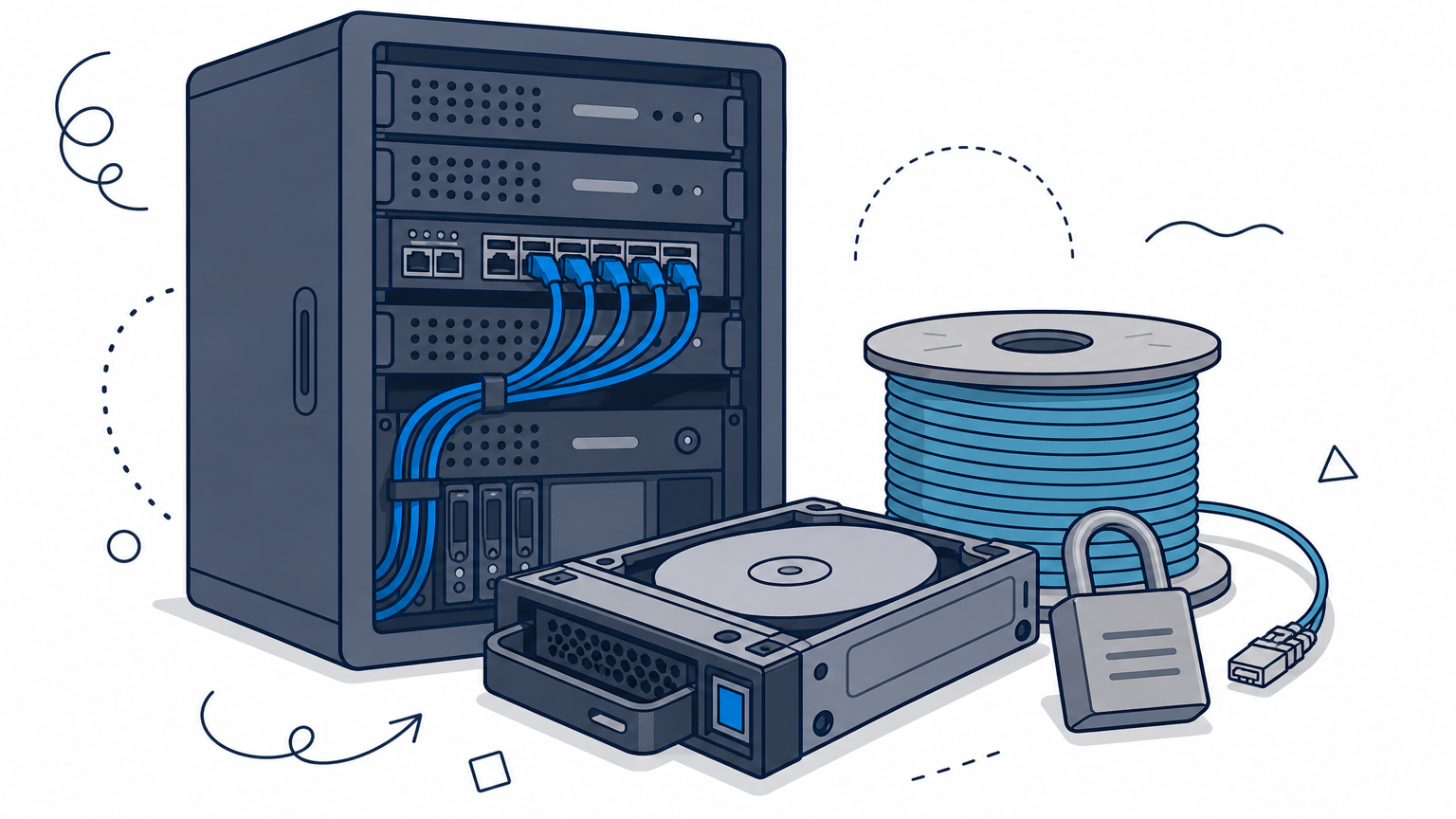
A successful on premises to cloud migration comes down to four moves. Inventory every workload and decide what to do with each one. Build a secured landing zone in the cloud. Migrate a small pilot, then move the rest in waves. Cut over with a rollback plan in place. Do them in that order and most of the risk is gone before production data moves.
The problem is that migrations rarely fail on technology. They fail on preparation. Teams find an undocumented dependency halfway through a cutover, pay to move servers nobody uses, or open the first cloud bill and see double the estimate. Advice like "make a plan" does not help when you are looking at 40 servers and a hard deadline.
This guide gives you the plan in a form you can act on, with a strategy table, a worked 40-server example and a wave schedule you can adapt. ThinkMove Solutions does cloud consulting and migration work on AWS and Azure, and the steps below follow the same logic. By the end you will know what to inventory, which strategy fits each workload, how to sequence the move and how to prove it worked.
What an on-premises migration involves
On-premises to cloud migration means moving the servers, applications and data that run in your own data center or server room onto infrastructure operated by a cloud provider such as AWS, Microsoft Azure or Google Cloud. It is a project with a start, an end and a cutover, and it ends when the old hardware is safely switched off.

What "on premises" covers and what moves
"On premises" means hardware that you own, house and maintain yourself. That can be a rack in a back office or a cage in a leased data center. A migration moves the workloads running on that hardware: applications, databases, file shares, and the identity and network services they depend on.
Some of it may stay behind on purpose. That is why many on-prem to cloud migration projects end as a hybrid setup instead of a full exit.
Why companies make the move
The reasons that hold up in practice are these:
- Hardware refresh: servers reach end of life, and replacing them means a large upfront purchase.
- Capacity: cloud resources scale up for peaks and back down afterward.
- Resilience: backup and failover across regions are easier to rent than to build.
- Access: remote teams reach systems without routing through the office network.
- Staff time: fewer hours go to patching and repairing physical machines.
Be honest about the trade-off, though. The cloud does not automatically cost less. Lifting oversized, mostly idle servers into the cloud as they are often produces a bigger bill than the data center did. The savings come from the cleanup and right-sizing steps later in this guide.
The cloud saves money only for workloads you have cleaned up and right-sized first.
What to line up before you start
Settle these items before you touch a server:
- A named owner for the project and an executive sponsor who can resolve conflicts between teams.
- The deadline driver, such as a lease end, a hardware warranty expiry or a compliance audit.
- A budget that includes parallel running. You will pay for both environments for a while.
- Compliance requirements for each data set, including where it may be stored.
- Rollback criteria written down in advance, so nobody argues about them at 2 a.m.
Step 1. Inventory workloads and choose a strategy
Start by listing every workload and its dependencies, then assign each one a strategy. This step decides the shape of the whole project, so give it the most time.
Inventory everything that runs
Pull your server list from your hypervisor, your configuration database or a discovery tool. Azure Migrate, AWS Application Discovery Service and Google Cloud Migration Center can all map servers and the connections between them. For each workload record the owner, operating system, CPU, memory and storage, 30 days of utilization, and business criticality. Also record which databases, file shares and ports it talks to, and what regulated data it holds.
Our worked example is a company with 40 workloads. The inventory shows five have had no logins in a year and two depend on a piece of lab equipment that cannot move.
Pick a strategy for each workload
Every workload gets one of six outcomes:
| Strategy | What you do | Best for | Effort |
|---|---|---|---|
| Retire | Switch it off | Unused or duplicate systems | Lowest |
| Retain | Leave it on premises | Hardware-bound or latency-bound systems | None now |
| Rehost | Move as is (lift and shift) | Stable apps, tight deadlines | Low |
| Replatform | Move with small changes, such as a managed database | Apps with self-managed databases | Medium |
| Replace | Swap for a SaaS product | Commodity tools like email or HR | Medium |
| Refactor | Rewrite for cloud-native services | Apps that truly need elastic scale | High |
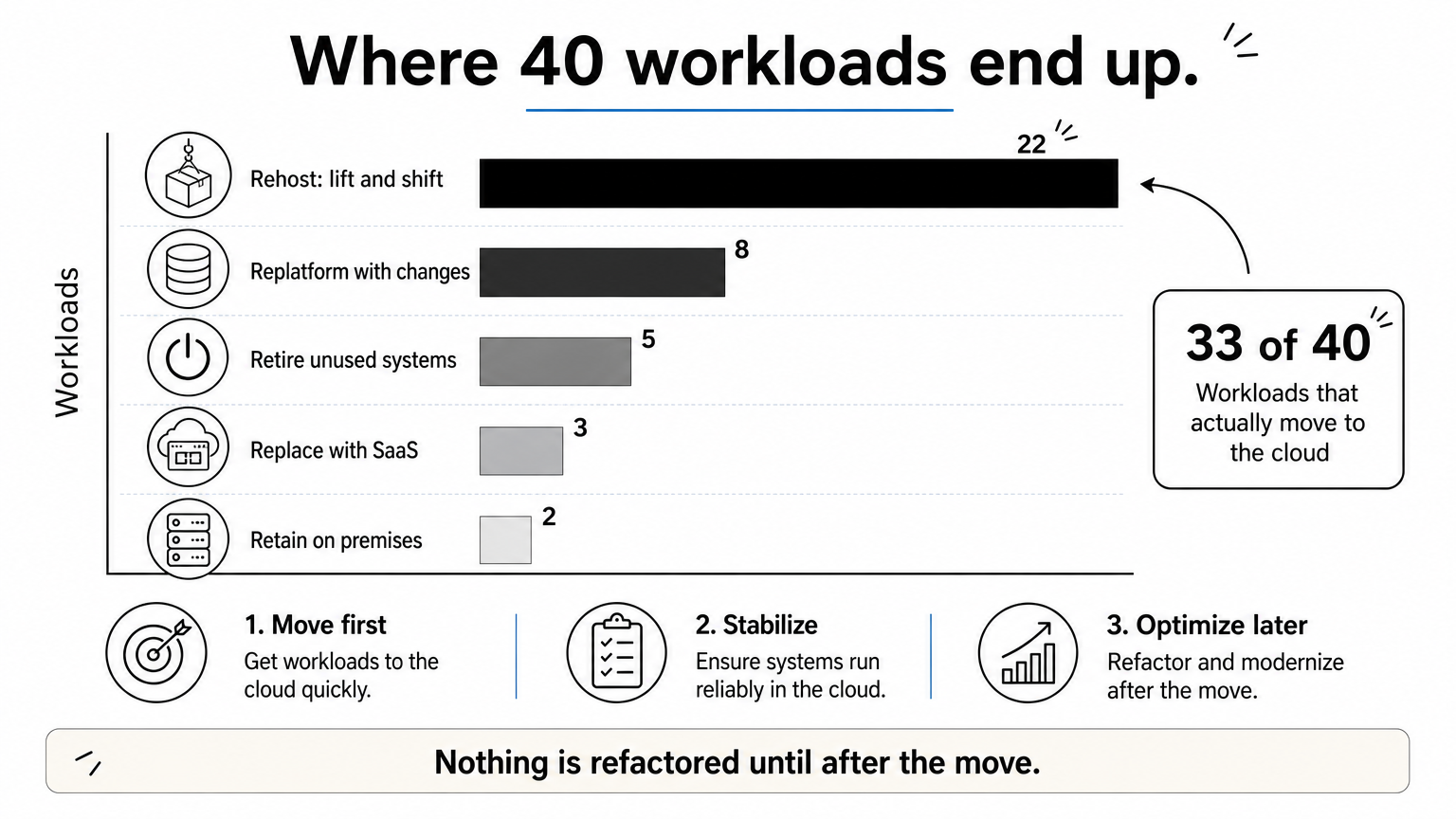
In the example, the 40 workloads split into 5 retired, 2 retained, 22 rehosted, 8 replatformed and 3 replaced. Nothing is refactored yet. Rewriting is safer after the move, when the app is already stable in its new home.
Retiring unused systems is the cheapest migration work you will ever do.
Match the provider to your estate
Pick the provider from your inventory, not from a brand preference. A Windows Server, SQL Server and Active Directory estate often has a shorter path on Azure because of licensing and identity integration. AWS offers a very wide service catalog and mature migration tooling. Google Cloud suits analytics-heavy teams.
Run your inventory numbers through each provider’s pricing calculator. ThinkMove Solutions consults on all three platforms, which helps if you want a neutral comparison.
Step 2. Build and secure the landing zone
The landing zone is the prepared cloud environment your workloads arrive in. Build it, secure it and test connectivity before any production data moves.
Build the foundation
Create separate accounts or subscriptions for production and non-production. Set up a virtual network with address ranges that do not overlap your on-premises network, because overlaps are painful to fix later. Connect your existing directory for single sign-on, turn on central logging, and apply a tagging standard (owner, application, environment) from day one.
For connectivity, a site-to-site VPN is enough for the pilot. If you will move heavy traffic for weeks, a dedicated link such as AWS Direct Connect or Azure ExpressRoute gives steadier throughput.
Secure it before data arrives
The provider secures its infrastructure. You secure your workloads and data. AWS documents this split as the shared responsibility model, and the other major providers work the same way.
In practice that means multi-factor authentication for every admin, least-privilege roles, encryption in transit and at rest, firewall rules that default to deny, and alerts on unusual sign-ins. If you handle regulated data, map each control to the standard you answer to, such as GDPR, HIPAA or ISO 27001, before the first copy.
Decide how the data will travel
Do the transfer math early. Moving 20 TB over a link with 500 Mbps of usable bandwidth takes about 3.7 days. The same 20 TB over 100 Mbps takes about 18.5 days.
If the number is too long, order an offline transfer device such as Azure Data Box or AWS Snowball. If it is acceptable, copy the bulk data once and then sync only the changes until cutover.
Calculate transfer time before you pick a cutover date, not after.
Step 3. Pilot, then migrate in waves
Migrate a small, low-risk pilot first, then move the remaining workloads in planned waves. The pilot proves your tools, network and process before anything critical depends on them.
Run the pilot
Choose three workloads that nobody will miss for an afternoon, such as an internal wiki or a test server. Use the tooling that matches your provider: AWS Application Migration Service, Azure Migrate or Google Cloud Migration Center for servers, and AWS Database Migration Service or the equivalent for databases.
Then test against a baseline. Compare response times with the on-premises numbers, confirm that users can sign in, restore a backup and check that monitoring alerts fire. Fix what the pilot exposes and update your runbook.
Sequence the remaining waves
Group workloads that talk to each other constantly and move them in the same wave. Splitting them leaves chatty traffic crossing your VPN and slows everything down. Put databases and critical apps last, once the process is proven.
This is the wave plan for the 40-workload example:
| Wave | Workloads | Count | Strategy |
|---|---|---|---|
| Pilot | Internal wiki, test servers | 3 | Rehost |
| Wave 1 | Remaining stable servers | 19 | Rehost |
| Wave 2 | Apps with self-managed databases | 8 | Replatform |
| Wave 3 | Email, HR, ticketing | 3 | Replace |
| Retire | Unused systems | 5 | Switch off |
| Retain | Lab-bound systems | 2 | Stay on premises |
| Total | 40 |
Of the 40, 33 actually move (3 + 19 + 8 + 3), 5 are retired and 2 stay.
Keep data in sync until cutover
Run continuous replication from the first copy until the cutover window. Freeze schema changes and risky deployments during each wave, so you are not moving a target. Review progress after every wave and adjust the next one before you start it.
Prove the process on three servers before you trust it with thirty.
Step 4. Cut over, validate and optimize
Cut over during a low-traffic window with a tested rollback path, validate against your baseline, and then spend a few weeks right-sizing before you decommission anything. The migration is not finished at cutover.
Cut over with a rollback plan
A day before cutover, lower the DNS TTL to about five minutes, so traffic can switch quickly in either direction. Schedule the window outside business hours. Then run the final sync, pause writes, confirm the data matches, start the cloud copy and repoint DNS.
Leave the original server intact but powered off for two to four weeks. If your written rollback criteria trigger, you can switch back without rebuilding anything.
Validate before you declare success
Check each migrated workload against this list:
- Users can sign in and complete their main tasks.
- Integrations with other systems send and receive data.
- A backup has been restored successfully in the cloud.
- Performance matches or beats the on-premises baseline.
- Monitoring alerts reach a real person.
- A security scan shows no open ports you did not intend.
Optimize and decommission
Once you have two to four weeks of real usage data, right-size instances that sit mostly idle, shut down unused resources and set budget alerts per environment. Look at commitment discounts only after usage has stabilized. One ThinkMove Solutions client reported cloud bills falling by roughly 30 to 40 percent after an architecture review and infrastructure optimization.
When the hold period ends with no rollback, wipe and decommission the old hardware. Update your disaster recovery plan and your documentation at the same time.
A migration ends at decommissioning, not at cutover.
Start with your inventory
An on-premises to cloud migration works when you treat it as four jobs in order: inventory and strategy, a secured landing zone, a pilot followed by waves, and a careful cutover with cleanup. The biggest wins come early, from retiring what nobody uses and sizing the rest honestly.

If you would rather not carry the project alone, you can talk to ThinkMove Solutions about cloud consulting and migration. The team supports AWS, Azure and Google Cloud, and can review your inventory and propose a wave plan. Whether you do it yourself or with a partner, begin by listing every workload and its owner.
Why Choose Us

End-to-End Cloud Deployment
Scalable and secure cloud solutions tailored to your business needs.

Seamless System Integration
Connect all your platforms and tools into a single, efficient ecosystem.

Global Outsourcing Teams
Access top talent worldwide to accelerate growth and cut costs.

Agile, Data-Driven Approach
Make smarter decisions with real-time analytics and flexible workflows.

24/7 Expert Support
Round-the-clock technical assistance to keep your business running smoothly.


 Microsoft Azure

 DevOps
 Software Development
 Staff Augmentation
 React JS
 HTML / CSS / JS
 Website Redesign
 Zoom
 Bulk Sms
 AIMS



 On-Premises to Cloud Migration: How to Do It in 4 Steps