
Learn Why Zoom Issues Occur and How to Solve Them Easily
 sonam seo
Introduction
Before you start troubleshooting, check if Zoom is having a global outage at status.zoom.us. If there’s an active outage, no fix will work until Zoom resolves it on its end.
Quick Fixes for Zoom Meetings: Try These First
Most Zoom Meeting issues can be solved in under a minute. Before anything else, run through this list:
- Restart the Zoom app completely
- Check your internet connection. You should open a browser and load any page
- Leave the Zoom meeting and rejoin using the original link
- Restart your device
- Update Zoom to the latest version
Why is Zoom not working?
Zoom typically stops working due to poor or unstable internet, blocked microphone/camera permissions, an outdated app version, or a temporary server outage. Most issues are resolved by restarting the app, checking your connection, or updating Zoom to the latest version.
What Causes Zoom to Stop Working?
Understanding the root cause saves time. The most common reasons Zoom fails:
- Poor or unstable internet connection
- Microphone or camera permissions are blocked by your device
- Outdated Zoom app or operating system
- Device compatibility issues
- Zoom server outages
Now let’s fix each one specifically.
Fix 1: Zoom is Not Connecting or Keeps Disconnecting
Symptoms: Call drops mid-Zoom meeting, lagging or frozen video, stuck on “Connecting…”, reconnecting loop
Fix steps:
- Test your internet first. Open a browser and load any page. If it’s slow, the problem is your connection, not Zoom.
- Switch networks: if on WiFi, try mobile data (or vice versa). This tells you immediately whether one network is the issue.
- Move closer to your router. Walls and distance reduce signal strength significantly.
- Close background apps and browser tabs. Video streaming and large downloads compete for bandwidth.
- Restart your router: unplug, wait 30 seconds, and plug it back in.
- Check Zoom’s server status at status.zoom.us before spending more time troubleshooting.
Common causes in Nepal:
- Mobile data switching mid-call (NTC to Ncell or vice versa) drops the Zoom Meeting session entirely. You should stay on one network during meetings
- Bandwidth sharing with multiple devices on the same connection throttles Zoom. Disconnect other devices if possible
- ISP suffers from instability during peak hours. Schedule important calls for early morning when networks are less congested
- Load-shedding may be affecting your home router. Use a UPS or switch to mobile data as backup
Why does Zoom keep disconnecting?
Zoom keeps disconnecting most often due to an unstable internet connection, network switching, or bandwidth congestion. In Nepal, switching between mobile data providers mid-call is a frequent cause. Staying on a single stable network and restarting your router typically resolves this.
Fix 2: Zoom Audio is Not Working
Symptoms: Can’t hear others, microphone not detected, others can’t hear you, echo or feedback
Fix steps:
- In Zoom, click the arrow next to the microphone icon. Confirm that the correct speaker and microphone are selected. Zoom doesn’t always pick the right device automatically.
- Check microphone permissions on your device:
- Windows: Settings → Privacy → Microphone → allow Zoom
- Mac: System Settings → Privacy & Security → Microphone → enable Zoom
- iPhone/Android: Settings → Apps → Zoom → Permissions → Microphone
- Run Zoom’s built-in audio test: Settings → Audio → Test Speaker / Test Microphone.
- Unplug and replug your headset or external mic, then reselect it in Zoom’s audio settings.
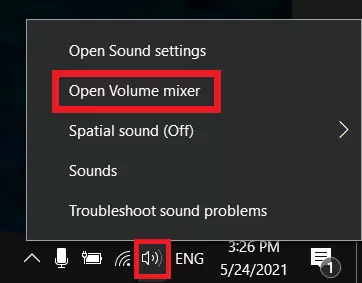
- Make sure Zoom isn’t muted at the system level. Check Windows Volume Mixer or Mac Sound settings.
- Restart Zoom Meetings completely. Audio driver connections sometimes drop, and only a full restart resets them.
Pro tip: If you use a Bluetooth headset, reconnect it before launching Zoom. Zoom locks onto whichever audio device gets connected at launch.
Why is my Zoom audio not working?
Zoom audio stops working when the wrong audio device is selected, microphone permissions are blocked by your OS, or the app needs a restart to re-detect your hardware.
Open Zoom Settings → Audio, select the correct device, and verify system permissions to fix most audio issues.
Fix 3: Zoom Camera is Not Working
Symptoms: Black screen on video, camera not detected, video window blank, video freezes
Fix steps:
- Check camera permissions:
- Windows: Settings → Privacy → Camera → allow Zoom
- Mac: System Settings → Privacy & Security → Camera → enable Zoom
- iPhone/Android: Settings → Apps → Zoom → Permissions → Camera
- Close every other app that might be using your camera, like Teams, Google Meet, and browser tabs with camera access. Only one app can use the camera at a time.
- In Zoom, click the arrow next to the video icon and manually select your camera. Sometimes, it defaults to the wrong device.
- Restart Zoom. If you’re on a laptop, check if there’s a physical camera shutter or privacy switch on the device.
- On Windows, update your webcam driver: Device Manager → Cameras → right-click → Update driver.
Why is my Zoom camera showing a black screen?
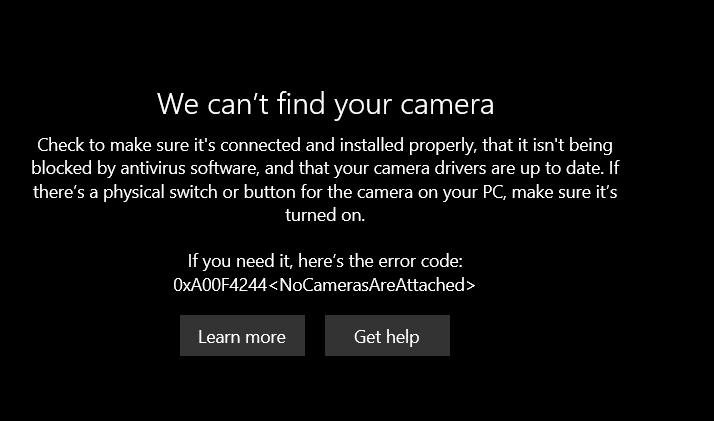
A black screen in Zoom Meetings usually means another app has already claimed your camera, permissions are blocked, or Zoom selected the wrong video device. Close other camera-using apps, check OS permissions, and reselect your camera in Zoom’s video settings.
Fix 4: Zoom App is Not Opening or Keeps Crashing
Symptoms: Zoom won’t launch, crashes on startup, gets stuck on the loading screen, freezes mid-meeting
Fix steps:
- Update Zoom first. This usually fixes the majority of crash issues. Open Zoom → click your profile picture → Check for Updates.
- Restart your device. A fresh boot clears memory issues and background conflicts.
- Clear Zoom’s cache:
- Windows: Press Win+R, type %AppData%\Zoom\data, delete the contents
- Mac: Go to ~/Library/Application Support/zoom.us → delete the cache folder
- Android: Settings → Apps → Zoom → Clear Cache
- Uninstall and reinstall Zoom. Download the latest version from zoom.us/download.
- Check OS compatibility. Older devices running Windows 8 or earlier, or macOS before Catalina, may not support current Zoom versions.
Alternative: If the app keeps failing, join via browser at zoom.us/join. It works without installation.
Fix 5: Unable to Join a Zoom Meeting
Symptoms: Invalid meeting ID error, stuck in waiting room, meeting not found, password rejected
Fix steps:
- Double-check the meeting link or ID. One wrong digit or an expired link causes this error. Ask the host to resend the invite.
- Try joining via browser: Go to zoom.us/join and enter the meeting ID directly. This bypasses any app-level problems.
- Disable your VPN. VPNs can block or reroute Zoom traffic and trigger “meeting not found” errors.
- If you’re in the waiting room, the host must admit you manually. Message them directly if you’ve been waiting more than a minute.
- Confirm the meeting hasn’t ended or been rescheduled. Check your calendar invite for the correct time and timezone.
Why can’t I join a Zoom meeting?
You may be unable to join due to an expired or incorrect link, a VPN blocking the connection, or waiting for the host to admit you. Disable your VPN, confirm the meeting ID with the host, and try joining through your browser as an alternative.
Zoom is Not Working? Fix it by Device
The fix depends heavily on which device you’re using. Same symptom, different cause. Here’s what to check per platform.
Windows
Windows is the most common source of Zoom issues because of driver conflicts, permission layers, and antivirus interference.
- Permissions: Settings → Privacy → Camera / Microphone → make sure Zoom is allowed
- Driver issues: Device Manager → Cameras or Sound → right-click your device → Update driver
- Antivirus blocking Zoom: Temporarily disable your antivirus and test. If Zoom works, add Zoom as an exception in your security software
- Cache corruption: Press Win+R → type %AppData%\Zoom\data → delete the contents, then relaunch Zoom
- Firewall: Windows Defender Firewall → Allow an app → confirm Zoom is listed and checked for both private and public networks
Mac
Mac issues are usually permission-related or tied to OS updates breaking Zoom’s access.
- Permissions: System Settings → Privacy & Security → Camera and Microphone → enable Zoom for both
- After a macOS update: Zoom permissions sometimes reset after major updates — recheck every time you update macOS
- Cache: Go to ~/Library/Application Support/zoom.us → delete the cache folder → relaunch Zoom
- Black screen on video: Often caused by another app holding the camera. Quit all other video apps, then restart Zoom
- Mic not working after update: Go to System Settings → Sound → Input → confirm your mic is selected at the system level, not just inside Zoom
iPhone (iOS)
Mobile Zoom issues on iPhone are almost always permission or storage-related.
- Permissions: Settings → Zoom → enable Camera, Microphone, and (if needed) Notifications.
- App update: Open the App Store → search Zoom → update if available. iOS Zoom updates fix most bugs.
- Low storage: Zoom needs space to function. Go to Settings → General → iPhone Storage. If you’re below 1GB free, clear space first.
- Background app refresh: Settings → General → Background App Refresh → enable for Zoom, especially if notifications aren’t working
- Rejoining issues: Force-close the Zoom app (swipe up from app switcher) and reopen. iOS sometimes keeps a broken session in memory
Android
Android has the most variation because of manufacturer differences in how permissions and battery optimization work.
- Permissions: Settings → Apps → Zoom → Permissions → enable Camera and Microphone
- Battery optimization blocking Zoom: Many Android manufacturers (Samsung, Xiaomi, Oppo) aggressively limit background apps. Go to Settings → Battery → Battery Optimization → find Zoom → set to “Don’t optimize”
- Camera in use by another app: On Android, close all recent apps before opening Zoom. The camera lock doesn’t always release automatically
- App cache: Settings → Apps → Zoom → Storage → Clear Cache (not Clear Data, which resets your login)
- Low-spec devices: If your device has under 3GB RAM, Zoom may lag or crash during video calls. Lower video quality in Zoom Settings → Video → turn off HD video
Browser (Chrome / Edge / Firefox)
Browser-based Zoom is a separate experience from the desktop app and has its own common failure points.
- Allow camera and microphone in browser: When you join, the browser will ask for permissions — click Allow. If you previously blocked it, click the lock icon in the address bar → reset permissions → refresh
- Chrome specifically: chrome://settings/content/camera and chrome://settings/content/microphone — confirm Zoom is not blocked
- Use the Zoom web client directly: Go to zoom.us/join → enter your Zoom meeting ID → click “Join from your browser” (look for the small link below the download prompt)
- Browser extensions interfering: Ad blockers and privacy extensions sometimes block Zoom’s web client. Disable extensions temporarily and test
- Best browser for Zoom: Chrome and Edge have the most consistent Zoom web client support. Firefox works but occasionally has audio issues
Advanced Fixes (If Nothing Works)
If you’ve gone through all the sections above and Zoom is still broken:
- Disable your VPN or firewall temporarily: Security software sometimes blocks Zoom’s ports
- Check firewall settings: Zoom requires ports 443 and 8801-8802 to be open
- Update your operating system: An outdated OS can cause deep compatibility issues with Zoom
- Try a different device: This tells you immediately whether the issue is device-specific
- Reinstall completely: Use Zoom’s official clean uninstall tool before reinstalling
When Zoom Issues Aren’t Just Bugs
If you’re troubleshooting the same Zoom problems repeatedly, the root cause might not be technical at all.
Common structural causes:
- Free plan limitations: The 40-minute cap on group calls and the lack of admin controls create friction for business use
- No admin oversight: Teams without a managed Zoom plan can’t enforce settings, control permissions, or access meeting reports
- Unoptimized setup: Running Zoom meeting without proper configuration (bandwidth allocation, correct plan, suitable hardware) leads to recurring issues
Frequent disruptions during client-facing or professional meetings affect credibility and productivity. A properly licensed and configured Zoom setup eliminates most recurring issues before they happen.
How to avoid Zoom issues long-term:
- Use a stable broadband or fiber connection (minimum 5 Mbps upload for HD video)
- Keep Zoom and your device OS updated at all times
- Use a licensed Zoom plan appropriate to your team size
- For businesses in Nepal, work with a local Zoom reseller for setup, licensing, and faster support
Still Facing Zoom Issues?
Troubleshooting gets you far, but if the same problems keep coming back, a proper Zoom Meeting setup built for your team is the real fix.
Whether you need a Zoom Meeting license, professional configuration, or ongoing support in Nepal, working with a local partner means faster resolutions and a setup that actually fits how your team works.






How We Do it ?
Powering Growth
with Cloud & Automation


Get started in
minutes
Get the latest tech trends, tips & tools
delivered monthly.

 Microsoft Azure
 DevOps
  Software Development
  Staff Augmentation
  React JS
  HTML / CSS / JS
  Website Redesign
  Zoom
Zoom  Bulk Sms
  Cybersecurity