
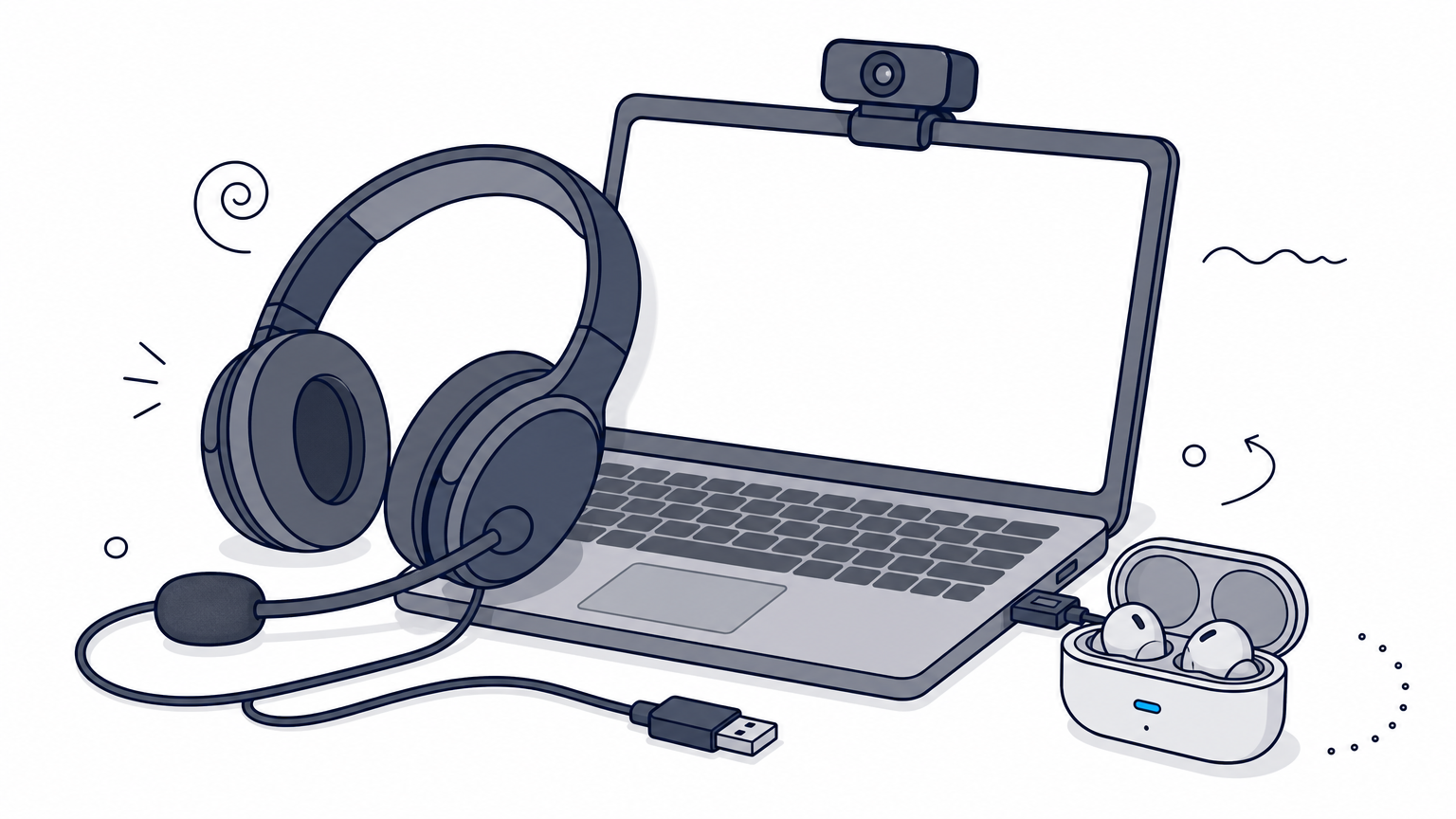
To fix Zoom audio not working, check the simplest causes first and move outward. Confirm you are unmuted and joined with computer audio, select the right speaker and microphone in Zoom’s audio settings, allow Zoom to use your microphone in your operating system, then update or reinstall drivers and the app. Most problems end at the first or second check.
You join a meeting, say hello, and get silence. Or everyone else is talking and you hear nothing. The cause could be a host who muted you, a headset Zoom did not pick, a privacy toggle that flipped after a system update, or a stale driver. Guessing between those wastes the first five minutes of a meeting.
This guide gives you four steps in order of likelihood, with exact menu paths for Windows, Mac, iPhone, iPad and Android. Zoom support and setup, including ongoing support and troubleshooting, is part of what ThinkMove Solutions does for teams.
Why Zoom audio fails and how to narrow it down
Zoom audio fails in one of two directions: you cannot hear others, or others cannot hear you. Each direction has different likely causes, so identify yours before you change anything.
Match your symptom to a step
Start with the symptom, then jump to the step most likely to fix it.
| Symptom | Most likely cause | Go to |
|---|---|---|
| No sound from anyone | Speaker off, volume low, audio not joined | Step 1 or 2 |
| Others cannot hear you | Muted, wrong microphone, no permission | Step 1, 2 or 3 |
| Mic input bar does not move | Zoom has no mic access or another app holds it | Step 3 |
| Audio broke after an update | Driver or app version problem | Step 4 |
| Nothing works in any app | Hardware or system sound problem | Step 4 |
Decide whether the problem is hearing or speaking first, because that single answer removes half the possible causes.
Run a test meeting before changing settings
Open zoom.us/test in your browser and join the test meeting. Zoom plays a ringtone and records a short message from your microphone, so you can check both directions without anyone watching. If the test works, your device is fine and the problem is a setting in the specific meeting, usually a host mute or an unjoined audio connection.
Step 1. Check mute, volume and audio connection
Before touching settings, confirm you are unmuted, your device volume is up, and your audio is actually joined to the meeting. These three checks fix a large share of cases.
On a computer
Look at the bottom-left of the meeting window. If you see a Join Audio button, you have not connected yet. Click it and choose computer audio. If the microphone icon has a red line through it, click it to unmute. A host can also mute you on entry, so if you stay muted, send the host a chat message.
Then check the system volume. Use the speaker icon in the taskbar or menu bar and raise it. On Windows, right-click that icon and open the volume mixer to confirm Zoom itself is not turned down.
On a phone or tablet
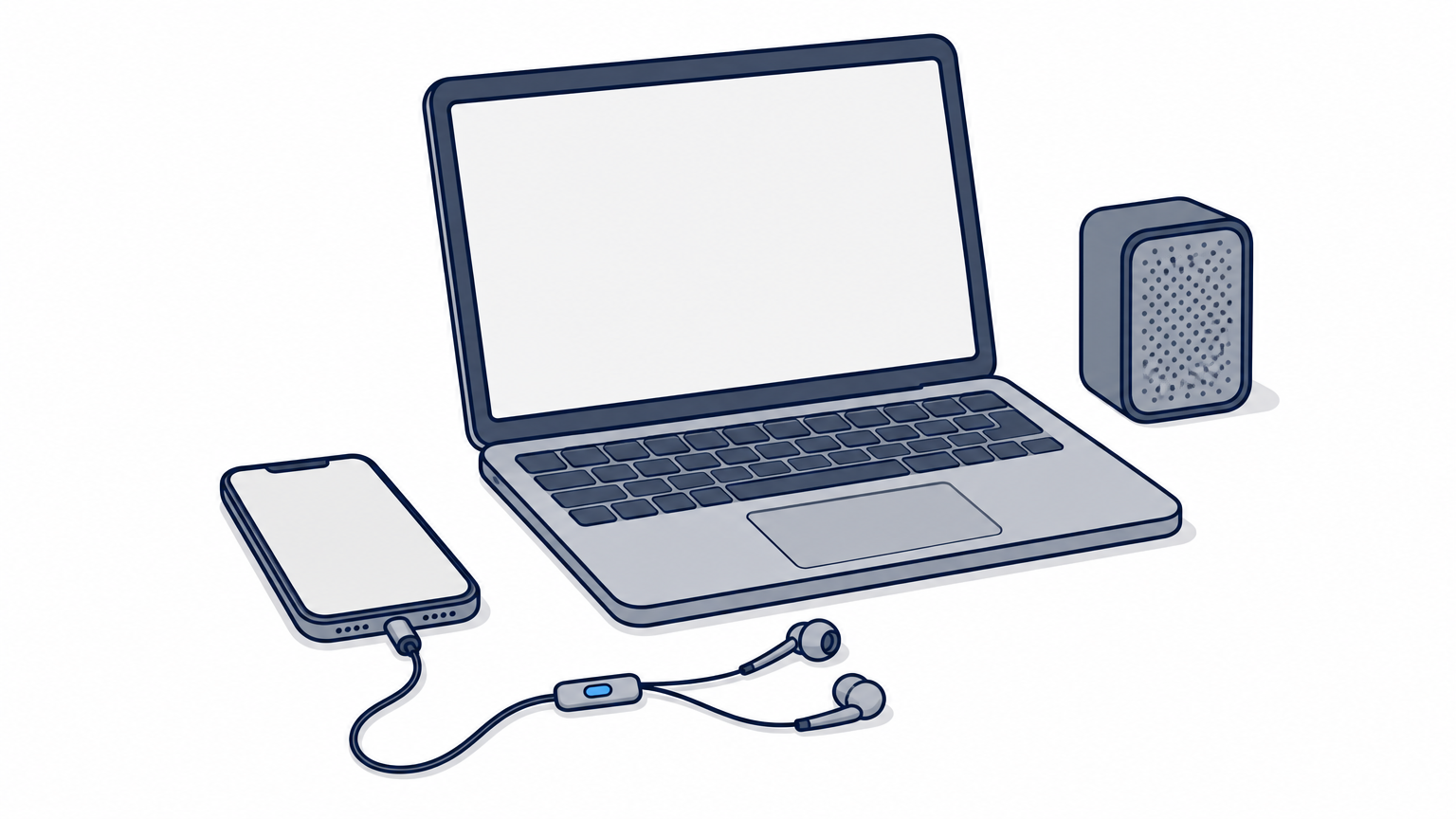
Tap the speaker icon in the top-left corner of the meeting screen. If it shows as off, tap it. Next, press the volume buttons, because the device can be muted or set to vibrate even when Zoom’s speaker is on.
If you cannot be heard, tap Join Audio and choose Call Over Internet (some versions label it Wifi or Cellular Data). Allow microphone access if prompted. Try wired earphones with a built-in microphone to rule out the device’s own mic.
If the Join Audio button is visible, nothing else matters yet: you are not connected to the meeting’s sound at all.
Step 2. Select the right speaker and microphone
If your audio is joined and unmuted but still silent, Zoom is probably using the wrong device. Open Zoom’s audio settings and test each device.
Test both devices in Zoom settings
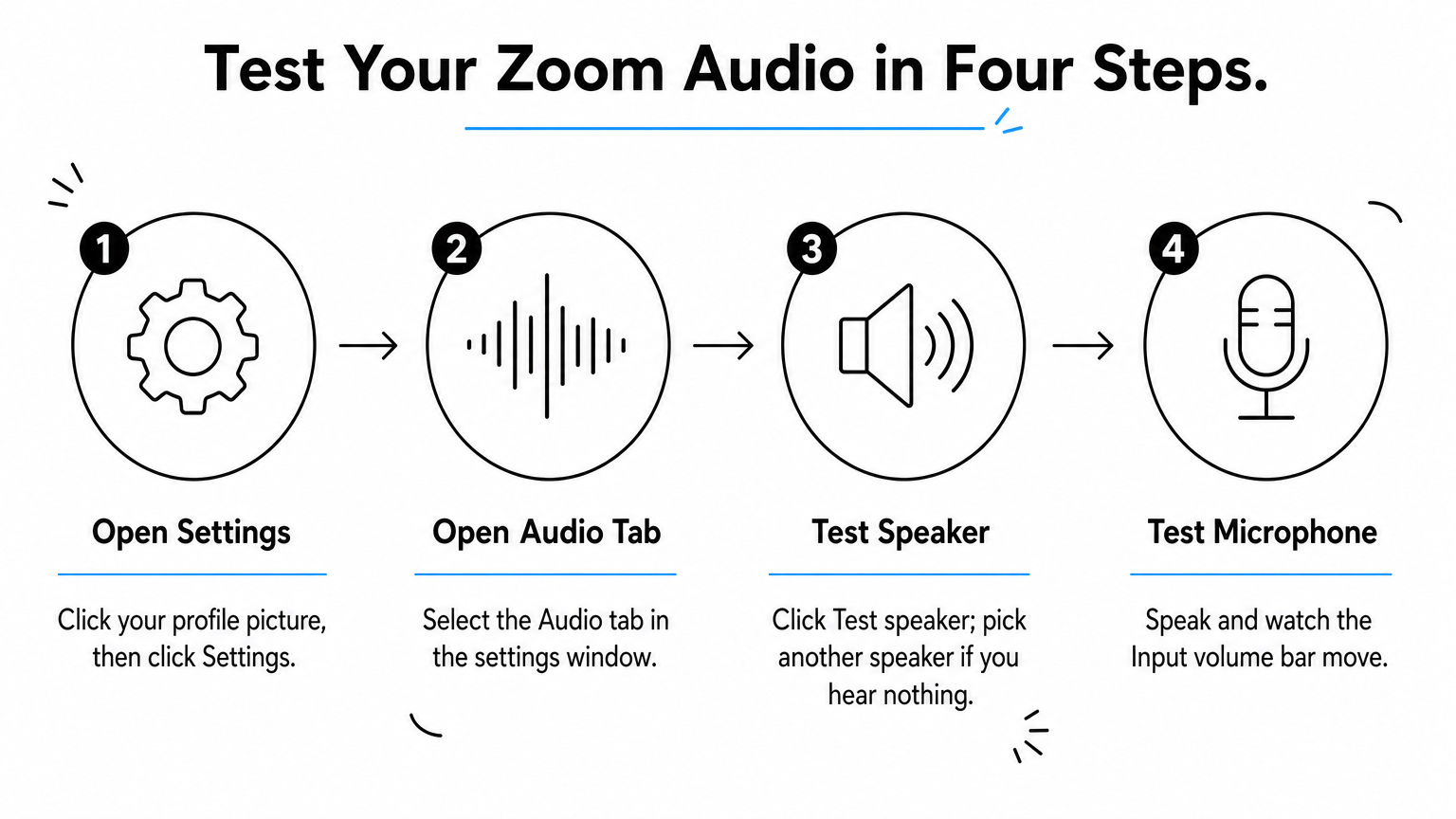
- Click your profile picture in the top-right corner of the Zoom desktop app, then click Settings.
- Open the Audio tab.
- Under Speaker, click Test speaker. If you hear nothing, pick another speaker from the drop-down or raise the volume slider.
- Under Microphone, click Test microphone. Speak, and watch the Input volume bar. If it moves and you hear the playback, your mic works.
During a meeting, click the arrow next to Mute/Unmute to switch devices without leaving the call.
Fix common device mix-ups
The usual culprit is a headset that you plugged in or turned on after Zoom opened. Unplug it and plug it back in, or turn Bluetooth devices off and on, then reselect them in the drop-downs. Make sure the cable is fully seated in the correct port.
Switch from a default or system option to the named device you want. If you use a USB headset, a dock or a monitor with speakers, Zoom can send sound to a screen with no speakers attached. Choosing the device by name stops Zoom from guessing.
Zoom can only use the device it is pointed at, so a named selection beats a default every time.
Step 3. Allow microphone access and close competing apps
If the input bar stays flat, Zoom likely lacks permission to use your microphone, or another program holds it. Operating systems block microphone access by default until you approve it.
Turn on Zoom’s permission in your system
| Device | Where to switch it on |
|---|---|
| Windows 10 or 11 | Settings, Privacy (or Privacy & security), Microphone, then allow apps to access your microphone and enable Zoom |
| Mac | System Settings (System Preferences on older versions), Privacy & Security, Microphone, then turn on Zoom |
| iPhone or iPad | Settings, Privacy, Microphone, then turn on Zoom |
| Android | Settings, Apps, App permissions or Permission Manager, Microphone, then allow Zoom |
Android menu names vary by manufacturer, so search "permissions" in Settings if yours differs. After granting access on a computer, quit Zoom completely and reopen it.
Free the microphone from other apps and security tools
Only some programs share a microphone smoothly. Close other conferencing apps, recorders, voice chat tools and browser tabs that use your mic. On a phone, swipe Zoom’s competitors out of the app switcher.
Some antivirus suites also block microphone access for apps. Open your security software’s privacy or webcam and microphone protection section and allow Zoom.
A flat input bar almost always means a permission block or a second app holding the mic, not broken hardware.
Step 4. Update, reinstall and reset drivers
If the earlier steps changed nothing, the software layer is the next suspect. Update Zoom and your system, then refresh audio drivers, then reinstall as a last resort.
Update Zoom and your operating system
In the desktop app, click your profile picture and choose Check for Updates. Install any pending operating system updates, then restart the computer. A restart clears audio services that hang after sleep or after a system update, which explains many cases of audio that stopped working all of a sudden.
Refresh drivers and reinstall the app
On Windows, open Device Manager, expand Sound, video and game controllers, right-click your audio device and choose Update driver. If that fails, choose Uninstall device, then restart so Windows reinstalls it. If sound is also missing in other apps, the problem is your system, not Zoom.
Next, uninstall Zoom and install a fresh copy from Zoom’s website or your app store. If you join through a browser, clear its cache and cookies, then restart the browser.
Fix sound that vanishes while sharing or recording
If participants cannot hear your shared video, click Share Screen and tick Share sound at the bottom-left of the selection window before you share. For a recording with no sound, play the file in another media player to rule out a player volume issue. A recording only holds audio that was connected to the meeting, so check that speakers joined with computer or phone audio.
Reinstalling the app works only after you have updated and restarted, because stale drivers survive a reinstall.
Keep your next meeting audible
Zoom audio problems nearly always come down to four layers: the meeting connection, the selected device, the system permission and the software. Work through them in that order, and use the test meeting to check your fix before the next real call.
If audio trouble keeps hitting your whole team, the cause is often how accounts, policies and settings were configured, not each person’s laptop. That is where Zoom support and setup from ThinkMove Solutions can help, covering configuration, ongoing troubleshooting and role-based training so the next meeting starts on time.
Why Choose Us

End-to-End Cloud Deployment
Scalable and secure cloud solutions tailored to your business needs.

Seamless System Integration
Connect all your platforms and tools into a single, efficient ecosystem.

Global Outsourcing Teams
Access top talent worldwide to accelerate growth and cut costs.

Agile, Data-Driven Approach
Make smarter decisions with real-time analytics and flexible workflows.

24/7 Expert Support
Round-the-clock technical assistance to keep your business running smoothly.


 Microsoft Azure

 DevOps
 Software Development
 Staff Augmentation
 React JS
 HTML / CSS / JS
 Website Redesign
 Zoom
 Bulk Sms
 AIMS


 Zoom Audio Not Working? How to Fix Mic and Speakers Fast