
Is your Zoom Camera Working: Detect & Fix Them Easily
 sds sdsd
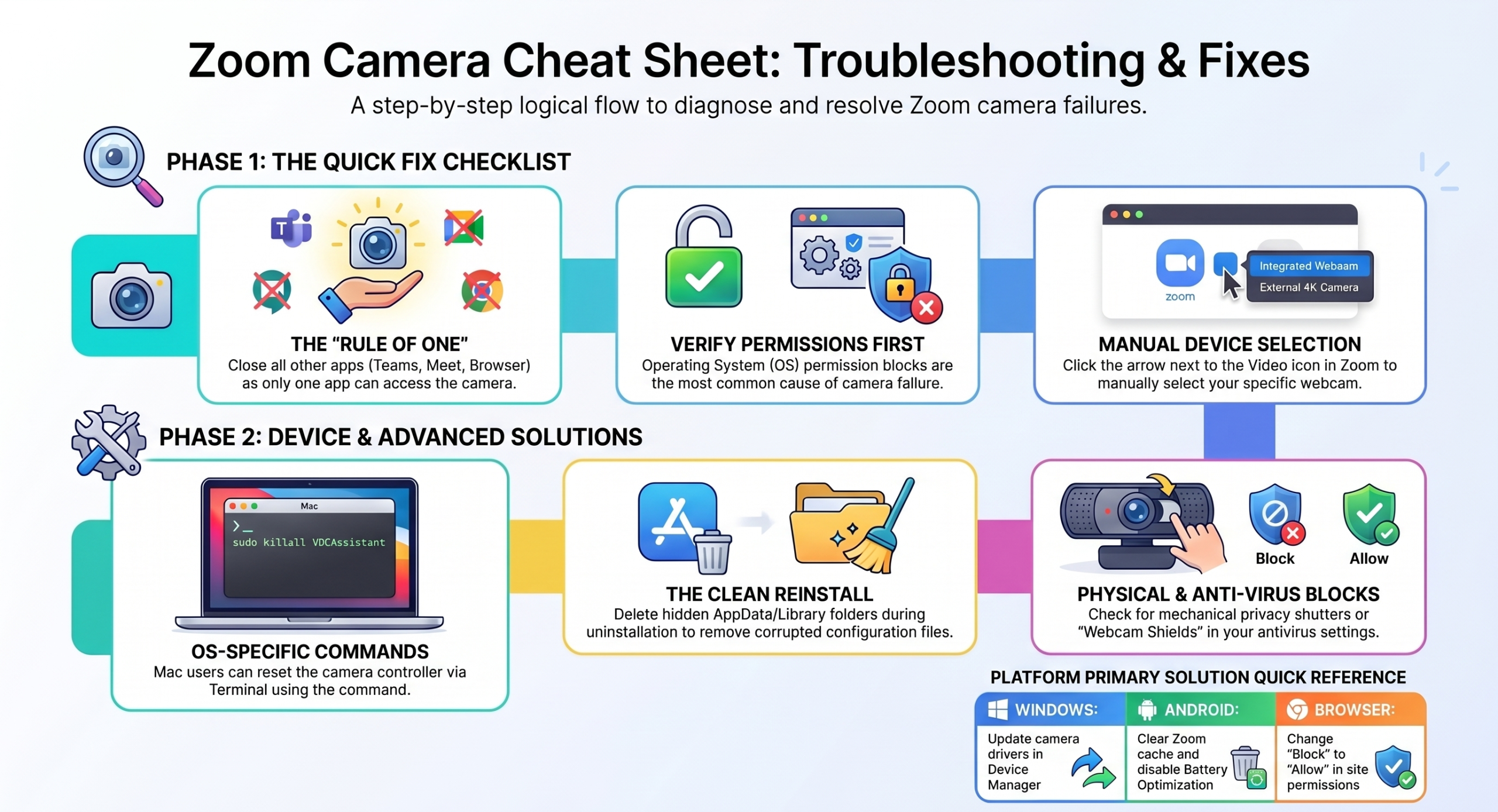
Quick Fixes: Always Try These First
Run through this before anything else, as most camera issues are solved here:
- Restart Zoom completely. Exit the app, then reopen.
- Close every other app using your camera. This includes Teams, Meet, and browser tabs, as only one app can use the camera at a time.
- Check camera permissions. Your OS may be blocking Zoom’s access entirely.
- Select the correct camera in Zoom. Click the arrow next to the video icon and confirm the right device is selected.
- Always check for Zoom updates or outages.
- Test your camera in another app. If it fails there too, the issue is hardware or OS-level, not Zoom.
Why Your Zoom Camera Is Not Working
Before jumping to fixes, identify which cause matches your situation:
- Camera permissions could be disabled. Your OS controls which apps can access your camera. A recent update may have reset Zoom’s access without warning. This is the most common cause across all platforms.
- Another app is using your camera. Cameras can only serve one app at a time. If Teams, Meet, OBS, or a browser tab has claimed it, Zoom gets locked out entirely.
- The wrong camera is selected in Zoom. If you’ve recently connected or disconnected an external webcam, Zoom may be pointing at a device that no longer exists, causing a black screen or no video.
- Outdated or corrupted camera drivers cause Zoom to fail to detect your camera even when it works in other apps.
- Zoom app glitch or recent updates occasionally break camera compatibility. A clean reinstall resolves this in most cases.
Worried if something might be wrong or seeking a Zoom Expert for the fixture? Contact ThinkMove Solutions today and get the best Zoom support now!
Fix by Device
How to Fix Zoom Camera Not Working on Windows
- Check privacy settings:
Settings → Privacy → Camera → confirm “Allow apps to access your camera” is on and Zoom is listed and enabled.
On Windows 11: Settings → Privacy & Security → Camera.
- Check which app has the camera:
Open Task Manager (Ctrl + Shift + Esc) → end any Teams, Meet, or browser process → relaunch Zoom.
- Update your camera driver:
Device Manager → Cameras → right-click your camera → Update driver. If no update is found, download the driver manually from your laptop manufacturer’s website (Dell, HP, Lenovo, Asus).
- Disable startup video apps:
Task Manager → Startup tab → disable Teams or Meet. These apps can claim the camera before Zoom even opens.
- Windows 11 only:
Settings → Bluetooth & devices → Camera → confirm your camera is not disabled here.
If your camera works in Teams but not Zoom: Uninstall your camera driver from Device Manager → restart your PC → Windows reinstalls a clean driver → test Zoom.
How to Fix Zoom Camera Not Working on Mac
- Grant camera permission:
System Settings → Privacy & Security → Camera → enable Zoom.
- Restart the camera service:
Open Terminal → type sudo killall VDCAssistant → press Enter → relaunch Zoom. This resets macOS’s camera controller without a full reboot.
- Close conflicting apps:
FaceTime, Photo Booth, or any browser tab with camera access will lock the Mac camera. Quit all before launching Zoom.
After a macOS update, permissions are reset silently after major updates. Uncheck Zoom, wait 5 seconds, recheck even if it appeared already enabled.
How to Fix Zoom Camera Not Working on Android
Android camera issues in Zoom are almost always permissions, battery optimization, or cache-related, and the fix varies by manufacturer.
- Enable camera permission:
Settings → Apps → Zoom → Permissions → Camera → Allow.
On some Android skins (MIUI, OneUI), this is under App permissions, not the standard path.
- Clear Zoom’s cache:
Settings → Apps → Zoom → Storage → Clear Cache.
Do not tap Clear Data, as that resets your login and all settings.
- Disable battery optimization:
Samsung, Xiaomi, Oppo, and Realme aggressively kill background apps, which can interrupt camera access mid-call.
Go to Settings → Battery → Battery Optimization → find Zoom → set to Don’t optimize.
- Force close all recent apps:
On Android, camera locks don’t always release automatically. Swipe away all recent apps before opening Zoom.
- Low-spec device tip:
If your phone has under 3GB RAM, go to Zoom Settings → Video and disable HD video. This reduces processing load and prevents the camera from dropping mid-meeting.
How to Fix Zoom Camera Not Working in Browser (Chrome / Edge / Safari)
Browser-based Zoom has its own permission system separate from the desktop app. The most commonly overlooked cause of camera failure is when users join via a link.
- Allow camera in your browser:
If you previously clicked Block when the permission prompt appeared, the browser won’t ask again. Fix it manually:
- Chrome: chrome://settings/content/camera → find zoom.us → change from Block to Allow
- Edge: Settings → Cookies and site permissions → Camera → allow zoom.us
- Safari: Safari → Settings for This Website → Camera → Allow
- Firefox: click the lock icon in the address bar → More information → Permissions → Use the camera → Allow
- Disable browser extensions:
Ad blockers and privacy extensions (uBlock, Privacy Badger) frequently block camera access for web apps. Disable all extensions temporarily and rejoin the meeting to test.
- Clear browser cache:
Chrome/Edge: Ctrl + Shift + Delete → clear cached images and files → restart browser → rejoin.
- Switch browsers:
Zoom’s browser client works most reliably on Chrome and Edge.
If you’re on Firefox or Safari and the camera isn’t working, switching browsers alone often resolves it.
- Use the desktop app instead:
If browser camera issues persist, the most reliable fix is downloading the Zoom desktop app from zoom.us/download.
The app has full camera support that the browser client can’t always replicate.
→ Get the best of Zoom, including license, setup, services, and support with ThinkMove Solutions.
Fix by Scenario
Sometimes it’s not always the device. Find your exact situation:
The camera works in other apps, but not in Zoom
Your hardware is fine. The issue is Zoom-specific. This almost always means Zoom is pointed at the wrong camera device or has a corrupted configuration.
In Zoom, click the arrow next to the video icon and manually select your camera from the list; do not leave it on “Same as system.” If that doesn’t resolve it, do a clean reinstall of Zoom (see Advanced Fixes below) to clear any corrupted settings.
Zoom camera shows a black screen.
Zoom has detected your camera, but can’t display its output. The two most common causes are another app holding the camera lock or a driver that needs resetting. Close all other video apps completely.
On Windows, go to Device Manager → Cameras → right-click your camera → Disable device → wait 10 seconds → Enable again. This forces a driver reset without a full reinstall.
Also, check for a physical privacy shutter on your laptop body. Lenovo ThinkPads and several HP models have a mechanical lens cover that’s easy to miss.
Zoom cannot detect your camera at all.
The camera dropdown in Zoom is empty or greyed out. This means Zoom (and likely Windows itself) cannot see the camera hardware.
Open Device Manager → Cameras. If your camera doesn’t appear there either, the driver is missing or corrupt. Download and reinstall the webcam driver directly from your laptop manufacturer’s support page (Dell, HP, Lenovo, Asus all have dedicated driver download sections).
Restart after installation, then test in Zoom.
Camera not working after a Zoom update.
If your camera worked before a Zoom update and broke immediately after, the update changed how Zoom interfaces with your camera driver. Don’t just update again, but a clean reinstall.
Uninstall Zoom, then manually delete leftover folders from AppData (Windows) or Application Support (Mac) before reinstalling. This clears configuration files that the standard uninstaller leaves behind, which is usually what’s causing the post-update conflict.
The camera is on, but not showing video in the meeting
Your camera light is on, Zoom shows it as active, but participants see nothing or a frozen frame.
First, click the arrow next to the video icon in the meeting and reselect your camera. This forces Zoom to refresh the video feed without leaving the meeting.
If that doesn’t work, leave and rejoin. On slow or congested connections, Zoom drops video while keeping audio to preserve bandwidth. You can go to Zoom Settings → Video and disable HD video to stabilize the feed.
Advanced Fixes
If nothing above has worked, these are the deeper fixes:
- Clean reinstall: A standard uninstall leaves configuration files behind.
For a true clean reinstall on Windows: uninstall Zoom → press Win+R → type %AppData%\Zoom → delete the entire folder → repeat for %LocalAppData%\Zoom → reinstall from zoom.us/download.
For Mac: uninstall Zoom → go to ~/Library/Application Support/ → delete the zoom.us folder → go to ~/Library/Preferences/ → delete com.zoom.us.plist → reinstall.
- Check antivirus camera protection: Security tools like Kaspersky, Bitdefender, Avast, and Norton include webcam protection that blocks unrecognized apps from accessing the camera.
Open your antivirus settings, find “Webcam protection” or “Camera shield,” and add Zoom as a trusted application.
- Corporate or managed devices: On work laptops, IT administrators can restrict camera access through group policy settings.
If you’ve tried everything and nothing works, this may be outside your control entirely. Contact your IT department and ask specifically whether Zoom camera access is restricted by policy.
- Reset the camera at the OS level:
Windows: Settings → System → Troubleshoot → Other troubleshooters → Camera → Run.
Mac: reset NVRAM by holding Option + Command + P + R immediately after pressing power, hold for 20 seconds, then release.
- Try a different device: If the camera works fine on another device with the same Zoom account, the issue is definitely hardware or driver on your original machine.
Why Zoom Camera Issues Keep Coming Back

If you are fixing the same camera problem repeatedly, it is usually a setup issue rather than a one-off glitch. This can include improper permissions configuration, no admin oversight, or the wrong Zoom plan for your team’s needs. A properly licensed and configured Zoom environment eliminates most recurring issues before they happen.





How We Do it ?
Powering Growth
with Cloud & Automation

Get started in
minutes
Get the latest tech trends, tips & tools
delivered monthly.

 Microsoft Azure
 DevOps
  Software Development
  Staff Augmentation
  React JS
  HTML / CSS / JS
  Website Redesign
  Zoom
Zoom  Bulk Sms
  AIMS
AIMS  Is your Zoom Camera Working: Detect & Fix Them Easily
Send a message
We're here to help and answer any questions regarding Zoom you might have. Reach out to us — we'd love to hear from you!